Blog
Practical AI for small and mid-sized businesses: setup guides, team playbooks, and industry use cases from the EagleWorks team. New posts every week.
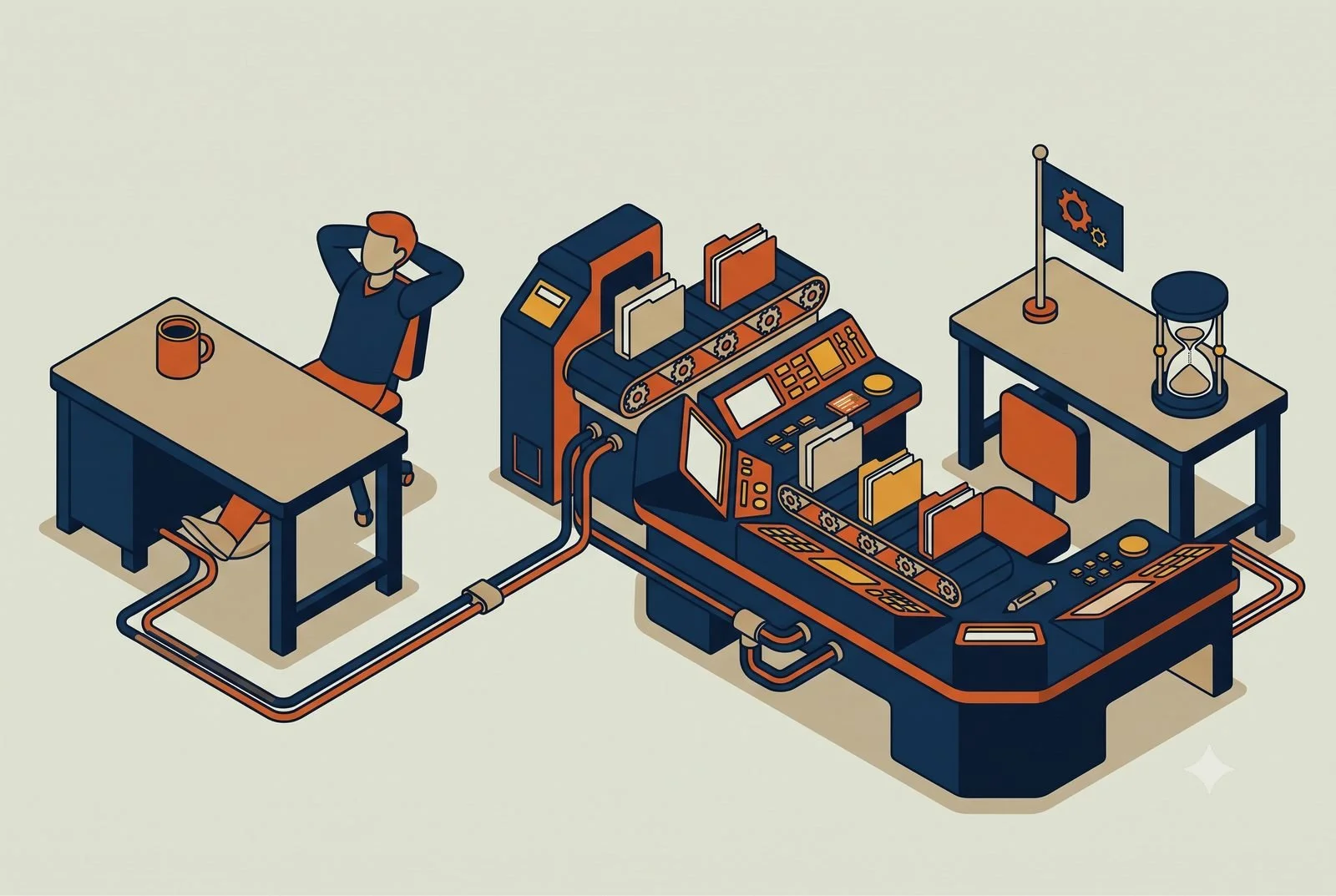
One AI Can't Be Good at Everything. Build Three Instead.
One AI can’t be good at everything. Personal, functional, and project workstations, what goes in each, and which one to build first.
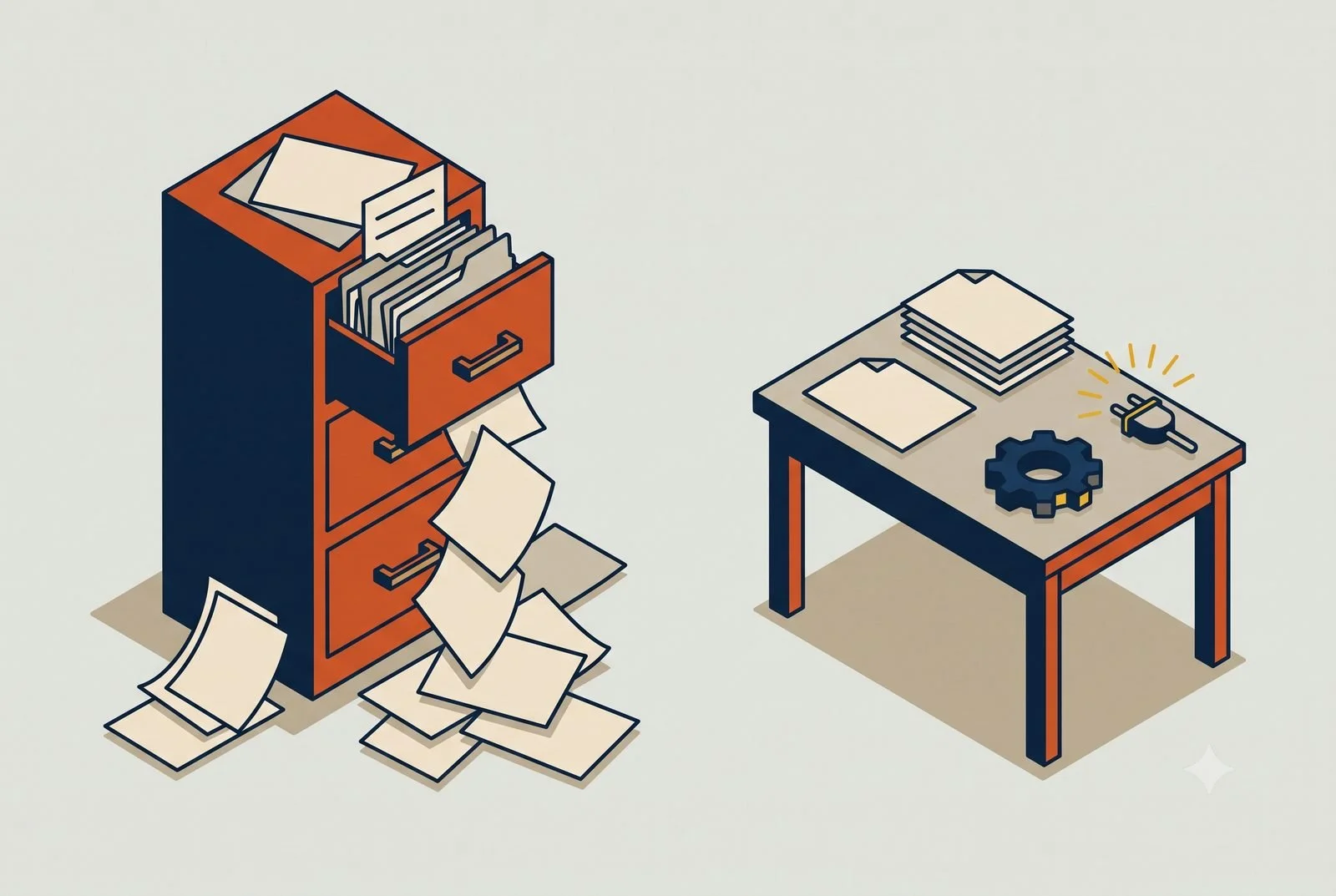
Most people set up a single AI assistant, pour everything into it, and expect it to be sharp at all of it. Their email, their hiring, their monthly close, the big client project, all in one place.
It ends up mediocre at everything, for the same reason one employee can't be your bookkeeper, your recruiter, and your project manager all at once. The work is too different.
The fix is to stop thinking about "my AI" and start thinking about workstations: separate setups, each built around one kind of work. There are three types, they're easy to tell apart, and a mature setup uses all three. Before the types, though, it's worth being clear about what a workstation actually is, because that's where most of the value hides.
TL;DR: AI workstations come in three types: Personal, built around one person and their role; Functional, built around a recurring process like hiring or invoicing; and Project, built around a time-bound initiative and archived when it ends. Mature setups stack all three. Start with the role or process that eats the most time.
Personal: tied to a person and their role. Persistent, compounds daily.
Functional: tied to a process the business repeats, whoever runs it.
Project: tied to an initiative with an end date. Archives into a template.
What a workstation actually is
A workstation is a project with three things deliberately dialed in for one kind of work: tight instructions, the right connectors, and the right skills.
A blank chat box is an empty room. A workstation is that room set up for a specific job. Walk through the three pieces and you'll see the difference:
Tight instructions, matched to the job. Not a generic "be helpful." A workstation's instructions say exactly what kind of work this is and how it should be done, so the AI behaves like a specialist instead of a generalist. The instructions for a sales workstation read nothing like the ones for a monthly-close workstation, and that's the point.
The right connectors, and only those. Each workstation is wired into the specific tools that its work touches. The finance workstation reaches your accounting software and your time tracking. The sales one reaches your CRM and your calendar. You don't connect everything to everything. You connect what the job needs, which keeps the AI focused and the answers clean. (Connecting tools is its own topic, covered in Harnessing to 10x the Apps You Already Pay For.)
The right skills and workflows, defined. The recurring tasks that work involves, saved as reusable recipes so they run the same way every time instead of being rebuilt from memory.
Those are the setup layers from Five Layers of Setup, aimed at one job instead of spread thin across everything. The three workstation types are just three different jobs you tune that setup for.
Personal: built around a person and their role
A personal workstation is tied to you and what you do. It's persistent, it's yours, and it gets smarter the longer you use it.
The instructions hold your role, your priorities, and how you communicate. The connectors reach the tools you personally live in, your email, your calendar, the systems your job depends on. The skills are the tasks you run over and over: the weekly update you write, the way you triage your inbox, the report you pull every Monday.
This is the CEO workstation, the sales director workstation, the bookkeeper workstation. Because it sticks around, it compounds. Set it up once, and it gets a little more useful every day as it learns how you operate. A personal workstation is always personal by definition, one person, one role.
If you only ever build one, build this one, for yourself. It's the setup that pays off fastest for most owners, because it touches everything you personally do.
Functional: built around a department or business function
A functional workstation is tied to a function, not a person. Marketing. Accounting. Customer service. Operations. It's the AI setup for a whole area of the business, shared by everyone who works in it. The line between this and a personal workstation is simple: a personal one belongs to a person, a functional one belongs to a department.
Its instructions hold how that function runs, its goals, its standards, the way it does things. Its connectors reach the systems that department lives in. The marketing workstation reaches your email platform, your social tools, and your analytics; the accounting one reaches your accounting software and your time tracking. Its skills are the recurring processes that function owns. The accounting workstation runs invoicing, the monthly close, and collections follow-up as saved skills. The processes don't each get their own workstation. They live as skills inside the department's.
This is where the personal-versus-team line really lands. A functional workstation is built to be shared. The whole accounting team, or the whole marketing team, works out of the same one, so the function runs the same way no matter who's at the keyboard. That's how you take key-person risk off the table. When the work lives in the department's workstation instead of one person's head, it keeps running when someone's out, and a new hire walks into a setup that already knows how the department operates.
Project: built around a time-bound initiative
A project workstation exists for a specific effort with an end date. A product launch. A big proposal. A move to a new location. A one-time audit.
Its instructions hold the brief for that initiative: the goal, the background, the rules for this effort. Its connectors reach the handful of tools the project touches. Its skills are the repeatable tasks the work generates. You load it up, work inside it while the project is live, and when it's done, you archive it. That's the key difference from the other two: a project workstation isn't meant to last. It holds everything in one place while the work is hot, then gets out of the way.
The personal-versus-team split matters here too, and again team is where it earns its keep. A solo project workstation is useful. A team project workstation is where a launch stops being chaos, because everyone working the initiative shares one context instead of trading documents and re-explaining decisions in email. One room, one source of truth, for the life of the project.
Two habits make these pay off. Keep it lean while it runs, the same project discipline from Project Memory Done Right. And when you archive it, save the setup as a template, so the next launch or proposal starts from the last one instead of from scratch.
How they stack
Mature setups use all three, and they work together.
Your personal and functional workstations are the permanent core. They compound over months, getting sharper the more you use them. Project workstations spin up around them as needed, do their job, and archive out. Think of the first two as the rooms in your building and projects as the job sites that come and go.
Stack enough of these across the business and you've built something bigger than any one assistant. A mature organization doesn't have "an AI." It has an AI operating system: a set of personal, functional, and project workstations that together cover how the whole place runs, from the CEO's daily work to the monthly close to whatever launch is live this quarter. That's the destination, and the reason the workstation approach matters. You don't get there by standing up one giant assistant. You get there one workstation at a time, until the pieces add up to a system that runs the business.
Notice the pattern in what we just covered: the team versions of the functional and project types are where the biggest gains live, because that's where a setup replaces a pile of one-person knowledge and scattered email threads. Which raises the obvious next question, what exactly should be shared at the team level versus kept individual. That's its own decision, and we walk through it in Teams Environments: What's Shared.
You don't build all of this at once. You build the personal one, get value, add a functional one for a whole department like marketing or accounting, and spin up project workstations when a real initiative calls for one. The stack grows with you.
What trips people up
Three things, mostly about using the wrong type.
The everything-assistant. One workstation crammed with every kind of work, loose instructions, every tool connected, no defined skills. It can't be tuned for any one job, so the output stays generic. Split the work by type and each setup gets sharper.
Projects that never archive. A project workstation that outlives its project becomes clutter, full of stale context that muddies new work. When the initiative ends, archive it. Save the template, close the room.
Running a whole department out of your personal workstation. If a function's work, marketing, accounting, customer service, is happening inside one person's personal setup, it disappears the day that person is out. Give the department its own shared workstation so the team works from one place.
Where to start this week
Build the personal one, for yourself. Set up a workstation around your own role, write tight instructions, connect the two or three tools you use most, and save one task you do every week as a skill. Use it for a week.
It's the fastest way to feel what a real workstation does that a blank chat box never will. Once that one's earning its keep, the next moves are obvious: a shared functional workstation for the department that needs it most, your marketing, accounting, or customer service team, and a project workstation the next time a real initiative kicks off.
Questions we hear about workstation types
Which workstation type should a small business build first?
Usually Personal, for the owner or whoever is drowning in the most repeatable work. It pays back fastest and teaches the setup habits the other two depend on. The layers you build first are covered in The Six Layers of an AI Setup That Actually Works.
What happens to a Project workstation when the project ends?
Archive it. The instructions and skills it accumulated become a template, so the next launch or big client starts warm instead of from scratch.
Can the three types share what they learn?
Yes, deliberately. Person-specific knowledge stays personal, team-wide standards go to the shared layer, and the sharing decision tree covers where each new piece belongs.This is part of the Practical AI Toolkit series. For the full framework on workstations by role and industry, see Cornerstone 2: The AI Workstation Playbook. Read next: Teams Environments: What's Shared.
Why Your AI Gets Worse When You Feed It More Files
Loading 50 documents into your AI project makes it dumber, not smarter. The Minimum Viable Project: small, clean, high-signal, and connected.

The most common way owners break their AI setup is by being generous with it. They create a project, then load in everything: 50 documents, every policy, every old proposal, the whole shared drive. The thinking is reasonable. More context, smarter AI.
It backfires. The output gets vaguer, not sharper, and nobody can figure out why.
Here's the fix, and it's the opposite of what most people do. A project that actually works runs on a small, clean set of high-signal material, not a filing cabinet. We call it the Minimum Viable Project, and once you see it, you can build one in an afternoon.
TL;DR: Feeding an AI project more files usually makes it worse. A project that works runs on four small parts: concise instructions, a handful of core documents, a few well-scoped skills, and connectors for anything that changes. Prune it monthly like you’d clean a workbench.
Instructions: one tight page on what the project is for.
Core knowledge: the few documents that actually shape answers.
Skills: the tasks this project repeats.
Connectors: live data instead of stale uploads.
First, the myth: there's no magic file limit
You may have heard there's a hard cap on how much you can add to an AI project. There isn't. On the major platforms you can add as many files as you want, up to about 30MB each. The number isn't the problem.
What actually happens is subtler, and it's worth understanding because it explains the whole post. When your project knowledge is small, the AI reads all of it, in full, every time. Once you pile on enough, it flips into a different mode: instead of reading everything, it grabs only the snippets it guesses are relevant to your question. (The technical name is retrieval, but you don't need the term.)
That flip is fine when your files are tight and high-signal, because the right snippets are easy to find. It goes wrong when you've dumped in 50 documents, because now the AI is fishing for the relevant bits in a sea of noise, and it pulls the wrong ones. As far as we can tell the switch kicks in somewhere around a dozen files, though the exact trigger has moved around. The point isn't the number. The point is that more low-value files make the AI's job harder, not easier.
The Minimum Viable Project
A good project has four parts, and each one is deliberately small.
Concise instructions. Tell the AI who it's working for and how you want it to behave, then stop. The instructions are not the place for the details of today's task. That goes in the actual chat. Bloated instructions read like a contract nobody follows. A tight paragraph or two beats two pages every time.
A few high-signal knowledge files. Not your whole drive. The handful of documents that genuinely shape good answers: your pricing, your service descriptions, your brand voice, the one process doc that matters for this work. If a file wouldn't change the AI's answer, it's noise, and noise makes everything else harder to find. Ask of every document: does this make the output better, or do I just feel safer having added it?
A few well-scoped skills. Reusable recipes for the tasks this project does over and over. Keep them focused on what you want and what a good result looks like, not every step to get there. Two or three sharp ones beat a dozen half-built ones.
Connectors for anything that changes. This is the part people miss. Static files go stale the day after you upload them. Your client list, your numbers, your calendar, those live in your real tools, so connect the AI to them instead of pasting in a snapshot that's wrong by next week. A connected project answers from today's data. A file-stuffed one answers from whatever was true the day you built it. (We walk through connecting your tools in Harnessing to 10x the Apps You Already Pay For.)
The monthly cleanup
Projects rot. Set a calendar reminder, once a month, to open each project you rely on and prune it.
Pull the files you stopped using. Delete the skill you built for that one initiative that's now over. Tighten the instructions that grew a paragraph nobody needed. It takes ten minutes and it's the difference between a project that gets sharper over time and one that slowly fills with junk until the output goes soft again.
This is the same discipline you'd apply to a physical workspace. A clean bench is faster to work at. Same idea.
What trips people up
Three patterns, all variations on "more is better."
Treating the project like storage. A project isn't a backup of your files. It's the briefing the AI works from. Backup goes in your drive. Only the high-signal stuff goes in the project.
Putting task details in the instructions. Instructions are for the standing context, who you are, how you work. The specifics of this week's task belong in the chat. When you cram task detail into instructions, every future conversation drags it around.
Pasting in data that should be connected. If something changes (prices, leads, the calendar), a pasted-in file is wrong almost immediately. Connect the live source instead. Static files are for things that hold still, like your brand voice or your standard process.
Where to start this week
Open the project you use most and cut it in half. Pull every file that wouldn't change a good answer, move the task-specific noise out of the instructions, and notice whether the output gets sharper. It usually does, fast.
Then, for the one thing in there that's always changing, swap the stale file for a live connection. That single move is what turns a project from a static folder into something that actually keeps up with your business.
Questions we hear about project memory
How many files should an AI project have?
Fewer than you think. A handful of high-signal documents beats fifty mixed ones, because every file competes for the AI’s attention. If a document doesn’t shape the answers you want, it’s dead weight.
Why does AI output get worse when I add more files?
Because the AI weighs everything you give it. Stale drafts, duplicates, and off-topic files dilute the good material and pull answers toward the middle. Pruning is a feature, not a chore.
What should I move to a connector instead of uploading?
Anything that changes: your numbers, your pipeline, your calendar. Files are snapshots that go stale by next week; connectors pull the current version every time. That’s the connectors layer from The Six Layers of an AI Setup That Actually Works, and where each new piece of knowledge belongs is covered in the sharing decision tree.This is part of the Practical AI Toolkit series. For the full company-wide setup framework, see Cornerstone 3: The AI Setup Playbook. Read next: The Three Workstation Types.
The Six Layers of an AI Setup That Actually Works
Most people who tried AI never actually set it up. Instructions, memory, connectors, skills, training, and a plan: what each layer does and where to start.
Most people who say they "tried AI" never actually set it up. They opened ChatGPT, typed a few prompts, got answers that were fine but generic, and quietly decided the hype was overblown.
That's not AI failing. That's AI with no setup behind it, which is like judging a new hire by their first hour before you've told them anything about the business.
A real setup has six layers. Instructions, memory, connectors, skills, training, and a plan. Most people stop after layer zero, the blank chat box, and that's exactly why their AI feels mediocre. Here's what each layer does, in plain terms, and how to start on the one that matters most. None of this takes a developer.
TL;DR: A real AI setup has six layers: instructions (what you tell it), memory (what it learns), connectors (what it can see), skills (what it can repeat), training (whether your team uses it), and a plan (what order to build in). Most people stop at the blank chat box. Start with instructions this week; the rest stack on top.
Instructions: context you write on purpose. Start with one page on who you are and how you talk.
Memory: what it learns from working with you. Just use it, and correct it when it is wrong.
Connectors: live access to email, CRM, and files. Connect one app, read-only.
Skills: saved instructions you reuse. Save the thing you retype most.
Training: your team actually using it. Run one 30-minute working session.
Plan: what to automate, in what order. Name the workflow that costs the most time.
Layer 1: Instructions, so it knows who it’s working for
Instructions are what you tell the AI on purpose. Who you are, what your business does, how you want it to work. This is the layer you write. Memory, the next one, is the layer it learns on its own. Most real setups need instructions at three levels, and they stack on top of each other.
Org-level instructions: who the company is. This is the context that's true for everyone. The kind of company you are, your culture, who your clients are, what you sell, how you talk about it. Write it once and every conversation starts from it, so the AI never treats your roofing company like a software startup. This is exactly what we hand clients a fill-in template for in Cornerstone 3: The AI Setup Playbook.
Org-level instructions matter most when you set up a Teams AI system. That's a shared company account (Claude has a Team plan, and so do ChatGPT and Microsoft Copilot) where everyone works inside the same environment instead of each person on their own personal login. The company writes the org context once and the whole team inherits it. The side benefit is that your shared knowledge and approved tools live in one place, not scattered across a dozen private accounts.
Individual instructions: who you are. On top of the company layer, each person adds their own. Your role, what you're responsible for, how you like to communicate, the format you want things back in. Your CEO and your bookkeeper shouldn't get identical output, and this is the layer that makes sure they don't.
Project instructions: what this particular work is. The narrowest level. When you've got a specific, recurring body of work, a product launch, a major client, a hiring round, you can spin up a project with its own instructions: here's the goal, here's the background, here are the rules for this effort. Everything you do inside that project inherits that context, and when the work wraps, you archive it. It keeps one big initiative from bleeding into the context of everything else you do.
Layer 2: Memory, so you stop re-explaining your business
Memory is what the AI picks up about you and your business as you work, and holds onto, without being told again every time. If instructions are what you tell it on purpose, memory is what it learns on its own.
Out of the box, most AI chats forget everything the moment you close the tab. You re-explain who you are, what you sell, who your customers are, and how you like things done, over and over. It's exhausting, and it's the single biggest reason the output stays generic.
Turn memory on and that changes. Day one, it knows nothing. By day ninety, it knows your pricing, your top clients, the decisions you've made, your edge cases, and the shortcuts you prefer. The answers stop sounding like they're for "a small business" and start sounding like they're for yours. This is the layer that compounds: every week you use it, it gets a little more useful, like an employee who's been there long enough to know how things actually work.
You don't have to wait ninety days for that, though. Memory builds far faster when you feed it directly. Connect your live tools (that's the next layer) and load in a few knowledge files, your client list, your pricing, your process docs, last year's plan, and you've handed the AI your institutional knowledge on day one instead of making it pick the place up slowly. That's the difference between an assistant who absorbs your business over a quarter and one who walks in already briefed.
How to start: create one project or workspace for your business and drop in the basics. What you do, who you serve, how you talk, what you sell. Twenty minutes here changes every conversation after it.
Layer 3: Connectors, so it works from your real data
Connectors give the AI live access to the tools where your real information lives. Your email, your CRM, your accounting software, your calendar, your files.
Memory tells the AI about your business. Connectors let it see your business as it is right now. Without them, the AI is guessing from whatever you paste into the chat. With them, it can pull the actual invoice, the actual lead, the actual calendar, and answer from real data instead of a description of it.
This is the layer that turns AI from a clever writer into something that can actually do your work. It's also a whole topic on its own, which is why we wrote it up separately. If you want the walkthrough, start with Harnessing to 10x the Apps You Already Pay For.
How to start: connect one tool, read-only, the one you find yourself exporting reports from most. Ask it a question you usually answer by hand.
Layer 4: Skills, so you stop retyping the same instructions
Skills are reusable recipes. When you find a set of instructions that gets the result you want, you save it once and run it on command instead of rebuilding it from scratch every time.
Think about the things you explain to the AI repeatedly. How you want your weekly numbers summarized. The format your proposals follow. The way you screen an inbound lead. Right now you're probably re-typing those instructions every single time, and getting slightly different output because the wording drifts.
A skill fixes that. You teach the AI the task once, name it, and call it up whenever you need it. Same instructions, consistent result, no reinventing. The trick is to tell it what you want and what a good result looks like, not every keystroke to get there. Loose and clear holds up. Over-scripted breaks the moment something shifts.
How to start: pick the one thing you ask the AI to do most often and save it as a reusable skill. You've now got a process that runs the same way every time.
Layer 5: Training, because a setup nobody uses is worth nothing
Training is the human layer. The AI can be set up perfectly and still deliver zero return if your team doesn't actually use it.
This is the layer everyone skips, and it's the one that quietly kills most AI rollouts. One person gets excited, sets things up, and assumes everyone else will pick it up by osmosis. They won't. People default to the way they've always worked unless someone shows them a better one that's worth the switch.
You don't need a formal program. You need a few working sessions where people bring real tasks they hate and watch AI knock them out. Adoption follows usefulness. Show someone their own Tuesday-morning headache disappear and you won't have to sell them on it again.
How to start: pick the one task your team complains about most and run a 30-minute session solving it together, live.
Layer 6: A plan, so you get ROI instead of overwhelm
A plan is the order you do things in. What to set up first, second, and third, based on where the time and money are actually leaking.
Without one, people try to automate everything at once, get overwhelmed, and abandon the whole thing. The businesses that get real value are almost always the ones that started narrow. One role, one painful workflow, one clear win, then expand from there.
The sequence matters more than the speed. Get a visible result in the first couple of weeks and the rest of the rollout sells itself, because now everyone's seen what "good" looks like. Try to boil the ocean and you'll be back to the abandoned-tab stage by month two.
Figuring out that order is its own small piece of work, and it's worth doing on purpose. That's what an AI readiness assessment is for: a quick, honest look at how accessible your data is, which of your workflows are actually documented, and where your team's skills sit, so you can name the two or three places AI pays off first instead of guessing. You can run a rough version yourself, or have someone walk you through it.
How to start: name the one workflow that costs you the most time every week. That's where the plan begins. Everything else waits its turn.
What trips people up
Three patterns, and they're all about skipping layers.
Jumping straight to a plan with no memory or connectors underneath it. You can't automate work the AI can't see or remember. Build the foundation first, then sequence what to automate.
Treating it like a search engine. People type a question, get a so-so answer, and quit, never realizing the answer was so-so because the AI had no memory and no access. The setup is what makes the answers good.
Stuffing everything into memory on day one. More isn't better. A tight, high-signal set of business basics beats fifty documents the AI has to wade through. Keep it clean and add as you go.
Where to start this week
Do layer one, but don't stare at a blank doc trying to write your instructions from scratch. Flip it around and let the AI interview you. Paste this into Claude, ChatGPT, or Copilot to get going:
"I'm setting up an AI workspace for my business and I want you to help me build the instructions and knowledge it should run on. Interview me one question at a time. Start by asking for my website and anything else that explains what we do, then ask about my customers, my services, my goals for the year, how I want you to communicate, and whatever else you'd need to represent my business well. When we're done, write it up as a clean set of instructions I can save."
Feed it your website first, plus any marketing material that already describes what you do, a brochure, a capabilities deck, your about page. That alone gets you most of the way.
For extra credit, hand over whatever else captures how the company actually runs. Your strategic goals. The operating framework you use, if you run on Rockefeller Habits, EOS, or something similar. A breakdown of what each department does and who the key people are. Even job descriptions. The more of your real institutional knowledge the AI can see, the faster it stops sounding generic and starts sounding like it works there.
That's the foundation everything else stacks on. Once your instructions are in place, let memory build, add a connector, save a skill, and you're already past where most people who "tried AI" ever got.
Questions we hear about AI setup
Do I need a developer to set any of this up?
No. Every layer here happens inside the AI platform’s own settings: instructions are a settings page, connectors are a menu of toggles, and skills are saved text. If you can fill out a form, you can build all six layers.
How long does a real AI setup take?
The first layer takes an afternoon. A working six-layer setup for a small team usually lands in weeks, not quarters, and you feel the difference after the first week because the AI stops giving generic answers.
Which AI should I set up: Claude, ChatGPT, or Copilot?
The layers are the same on Claude, ChatGPT, Gemini, and Copilot. Pick the one that connects best to the tools you already pay for, then build the layers there. Switching later is easier than you’d think, because your instructions and skills are just text.This is part of the Practical AI Toolkit series. For the full company-wide setup framework, see Cornerstone 3: The AI Setup Playbook. Read next: Project Memory Done Right.