Blog

Practical AI for small and mid-sized businesses: setup guides, team playbooks, and industry use cases from the EagleWorks team. New posts every week.

Industry Mark McCary Industry Mark McCary

AI for Bars and Restaurants: Get Your Managers Back on the Floor

AI can run the scheduling, marketing, reviews, and phone questions that keep your managers off the floor. Here’s where it pays off first for bars and restaurants.
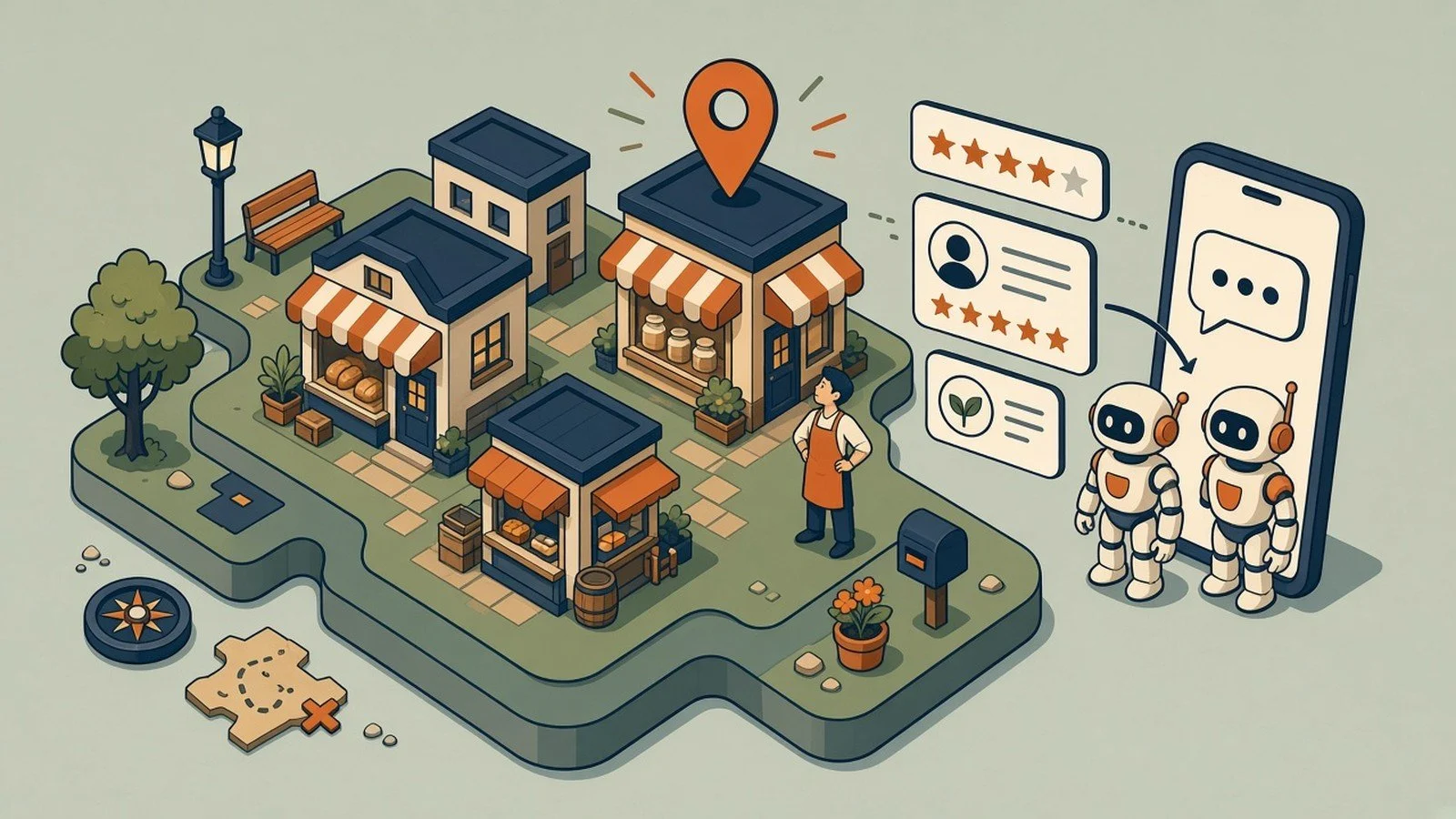
Your manager is building next week's schedule at 11pm after a double. Somebody needs to answer the three new Google reviews. Nobody remembered to post about Friday's live music and the new summer menu. And the host stand spent the dinner rush answering "are you open" calls instead of seating tables.

That's the labor problem most owners actually have. Not just that hiring is hard, but that the few people who can run your floor are buried in low-value but necessary work that pulls them off it. Every hour your managers spend on scheduling and marketing is an hour they're not coaching staff, watching the room, or keeping a regular happy.

AI helps by taking that load off them. Not by replacing your people, but by giving your best ones their time back. There's a second payoff that's easy to miss, too: the work that keeps slipping, the promo that never goes out, the reviews that pile up unanswered, the reservation call that rolls to voicemail, starts actually getting done, on time and done well. That slipping work costs you quietly, in lost revenue, irritated regulars, and new customers who never walked in. Here's where it pays off first.

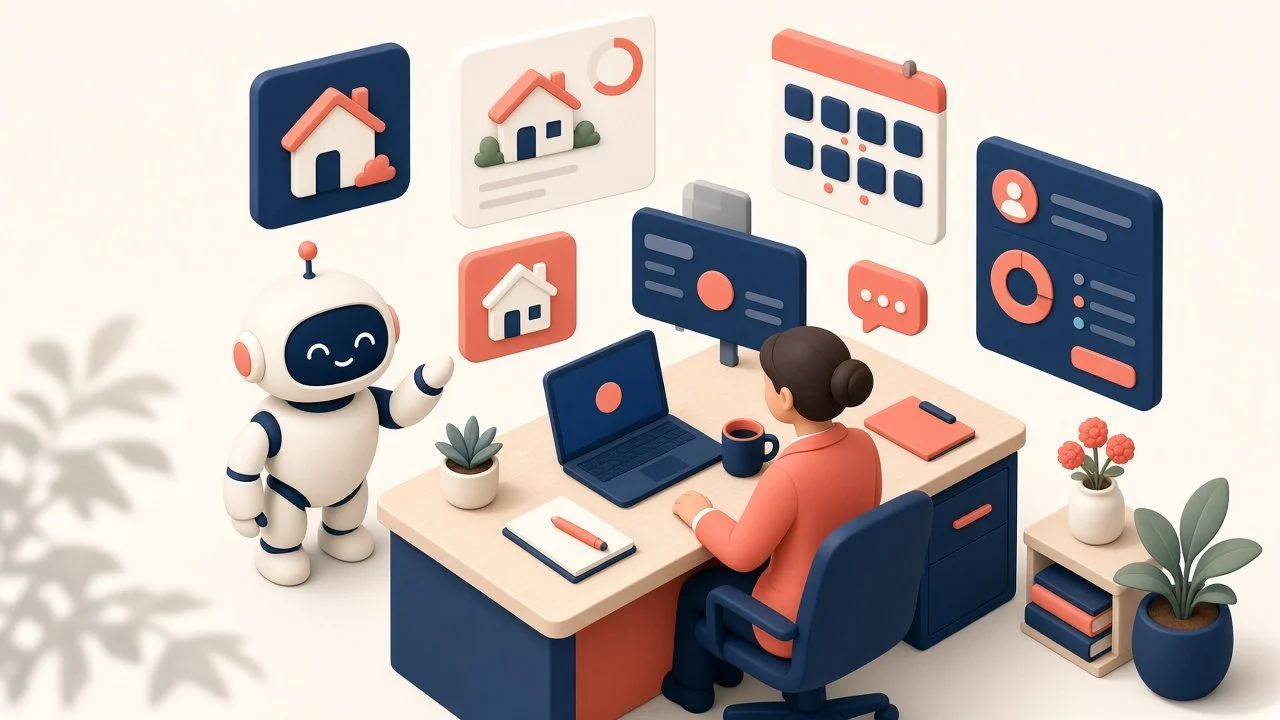
TL;DR: A restaurant AI Operating System is your customized command center that is composed of modular AI workstations that connect to your scheduling, accounting , POS, review, and social tools. It drafts schedules that match actual demand, keeps the marketing moving, answers reviews for your approval, analyzes your finances, and fields the questions that interrupt service, so managers run the floor instead of the office. All of this operates with you and your team’s approval with some processes becoming fully automated over time.

  • Scheduling: drafted from your real demand patterns.

  • Marketing: posts drafted without stealing floor time.

  • Finances: Displays the KPIs that matter and analyzes where the profitability gaps are.

  • Reviews: responses drafted in your voice, held for approval.

  • Questions: hours, parking, and reservations handled by a bot.

First, what we mean by a "workstation"

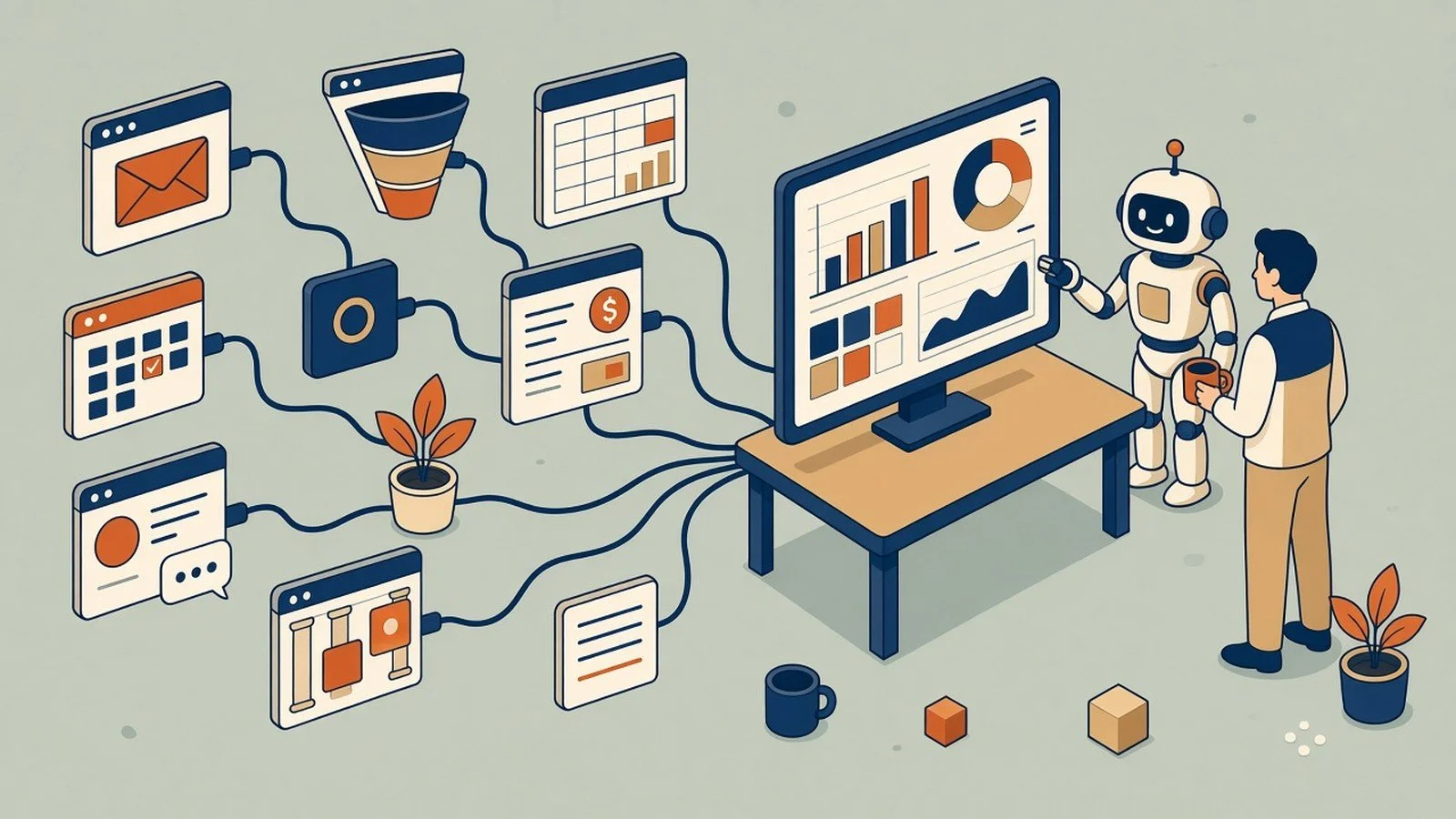
A workstation is a central AI, something like Claude, connected to the apps you already run on, with a few smart workflows built in that you kick off, review, and approve. As you come to trust them, those workflows can start running on their own.

Picture Claude wired into your POS (Toast, Square, or Clover), your scheduling app, and your review and social tools, able to pull from all of them and act across them. You stay in control: at first you approve everything, then you automate the parts that have earned it. That's the setup behind everything below. It's not one more app to log into. It's the layer that ties the apps you already have together. And because it remembers, it gets sharper over time, learning your sales patterns, your regulars, and which promos actually land, instead of starting from scratch each week.

1. Scheduling that matches your actual demand

Scheduling eats manager hours and quietly drains your labor budget when it's off. Too many people on a slow Tuesday, too few on a patio-weather Friday.

A scheduling workstation connected to your POS and a scheduling tool like 7shifts, When I Work, or HotSchedules can build a draft schedule against real demand patterns, your actual sales by day and hour, while respecting availability and keeping an eye on overtime. The manager reviews and adjusts instead of starting from a blank grid every week. You get schedules that fit the floor and a manager who got their evening back.

This is the one to start with. It hits both sides of the labor problem at once: the cost of bad staffing and the hours your managers lose building it.

2. Marketing that happens without stealing floor time

Marketing is the thing that falls off every busy week, because the person who'd do it is doing other things. So the Friday special goes unposted and the email and text list goes cold.

A marketing workstation is loaded with your website content, your brand guidelines, and your brand voice, so what it produces sounds like you, not generic AI filler. From a few notes, it drafts and schedules the week's posts and promos, the event announcement, the slow-night special, the follow-up text to your list, on brand and ready in minutes instead of an hour of fiddling. Someone still hits approve, but producing it stops competing with the dinner rush. Your marketing finally runs on a rhythm instead of whenever someone remembers.

3. Reviews, handled without the late-night phone grind

Reviews drive where new customers go, and keeping up with them usually means a manager thumb-typing replies at midnight. It slips, and a wall of unanswered reviews is its own bad look.

There are two halves to this, and AI helps with both. Getting more reviews in the first place is what a tool like NiceJob does well: it nudges happy guests to leave one while the meal's still fresh, cheaply and on autopilot. Managing the responses is where your workstation comes in, drafting a reply to each new review in your voice and to the specifics of what the guest said, ready for a quick human check before it posts. If you want reviews and social comments handled in one place, platforms like Birdeye or Podium pull them into a single inbox the workstation can work from. Either way, keeping up with your reputation stops depending on someone having the energy after close.

4. A bot for the questions that interrupt service

"Are you open Sunday?" "Do you take reservations?" "Is the patio dog-friendly?" Those calls and messages hit during the exact hours your team can least afford the interruption.

A simple chatbot on your site and social pages answers the routine questions instantly, so the host stand handles the guests in front of them instead of the phone. For the phone itself, an AI voice agent built for restaurants, like Slang.ai, can answer every call, handle the common questions, and even take reservations through your booking system, 24/7.

Both kinds of bot are trained on your restaurant, your hours, your menu, your policies, so the answers are actually right, and you can update them in minutes when something changes, a new summer menu, holiday hours, a private-event policy. The calls that actually need a person still get through. The rest stop pulling someone off the floor mid-rush.

Where it really clicks: one workstation across all of them

Each of those is useful on its own. The payoff compounds when the same workstation sees across all of them and starts connecting the dots no single app can.

Because it's pulling from your POS, your schedule, your reviews, and your marketing at once, it can do things none of those tools do alone. A few examples:

  • Spot a slow night coming (sales trends, weather, a quiet reservation book) and draft a same-day promo, ready for you to approve and push to social and text.

  • Notice reviews mentioning slow service on Friday nights, cross-check it against Friday staffing levels, and flag the mismatch before it becomes a pattern.

  • Pull a Monday-morning read across all of it: covers and sales by daypart, labor as a percent of sales, new reviews and their drift, which promo actually drove traffic. The picture you usually piece together by hand, if you get to it at all.

That's the difference between a pile of smart apps and a setup that actually runs together. The workstation is what turns four separate tools into one view of how the restaurant is doing, and one place to act on it. Stack a few of these workstations across the business and you've got what we call an AI operating system: one layer that runs across the whole restaurant, built one workstation at a time.

The real win: your best people, back where they matter

All of this points at the same thing. In a restaurant, your managers and shift leads are the difference between a good night and a bad one, and right now too much of their time goes to work a system could handle.

Hand the scheduling, the marketing, the reviews, and the routine questions to AI, and you're not cutting staff. You're putting your most experienced people back on the floor, where they keep service tight and keep good employees from walking. That's how AI actually helps the labor problem: not by replacing the hard-to-hire, but by getting more out of the people you already fought to keep.

Where to start

Start with scheduling. Connect your POS and your scheduling tool, and let AI draft next week against your real sales patterns. It's the fastest hour you'll give back to a manager, and it tightens your labor cost the same week.

The how is simple to describe and a little more work to do well. You pick an AI engine to build on, Claude or ChatGPT, connect it to the tools you already use, and write the rules and workflows that turn it into a workstation. Some owners and GMs will happily build that themselves. Plenty won't, and that's a fair question to ask: are you in the restaurant business, or the AI and IT business? Standing this up so it works, and keeps working as things change, is the part we do, so you can get back to the floor.

From there, the marketing, reviews, and call-handling pieces each take another recurring chore off the floor, one at a time, until the workstation is quietly running the back-office work your managers used to do after close.

Whether that's a single workstation, a handful of them, or a full AI operating system across your restaurant, we're here to help with as much or as little as you need.

Questions we hear from restaurant owners

Will AI answer my Google reviews automatically?

Not unless you tell it to, and we don’t recommend it. Set it to draft responses in your voice and hold them for approval. You get the late-night review answered without the late-night phone session.

Do I need new software for any of this?

No. The workstation connects to the scheduling, review, and social tools you already pay for. Stop Buying New Software covers that approach in detail.

Where should a restaurant start?

Let us do an audit of the most pressing areas that are your biggest headaches and we will produce a detailed estimate of time savings or revenue gains that would result from implementing the automations. The setup behind it is in The Six Layers of an AI Setup That Actually Works.This is part of the Practical AI Toolkit series. Hub: Cornerstone 2: The AI Workstation Playbook. Read next: AI for Accounting Firms and Bookkeepers.

Read More
Strategic Use Mark McCary Strategic Use Mark McCary

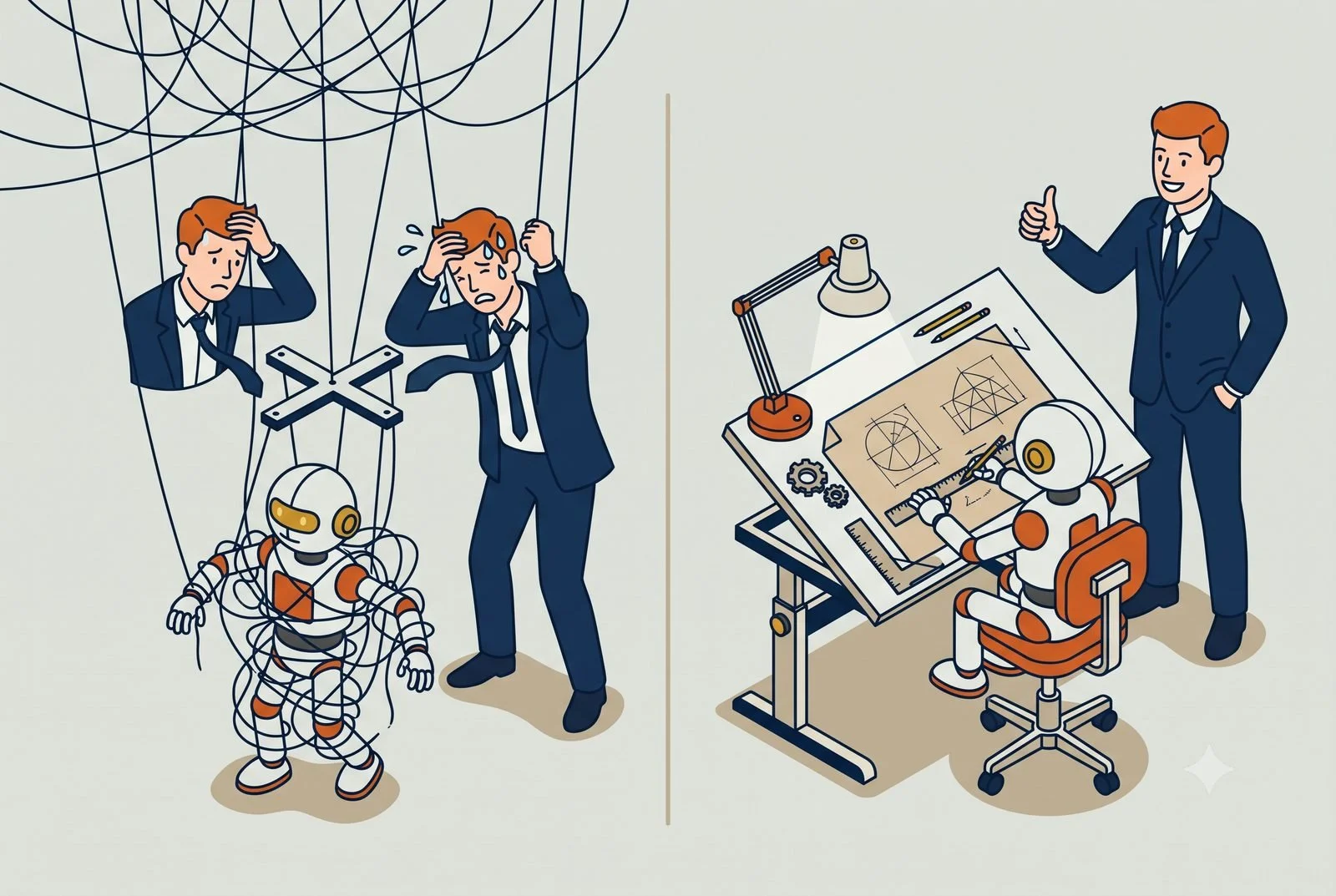
Don't Micromanage Your AI

Over-scripted AI workflows break the moment reality shifts. Tell your AI what good looks like, give it guardrails, and let it work out the steps.
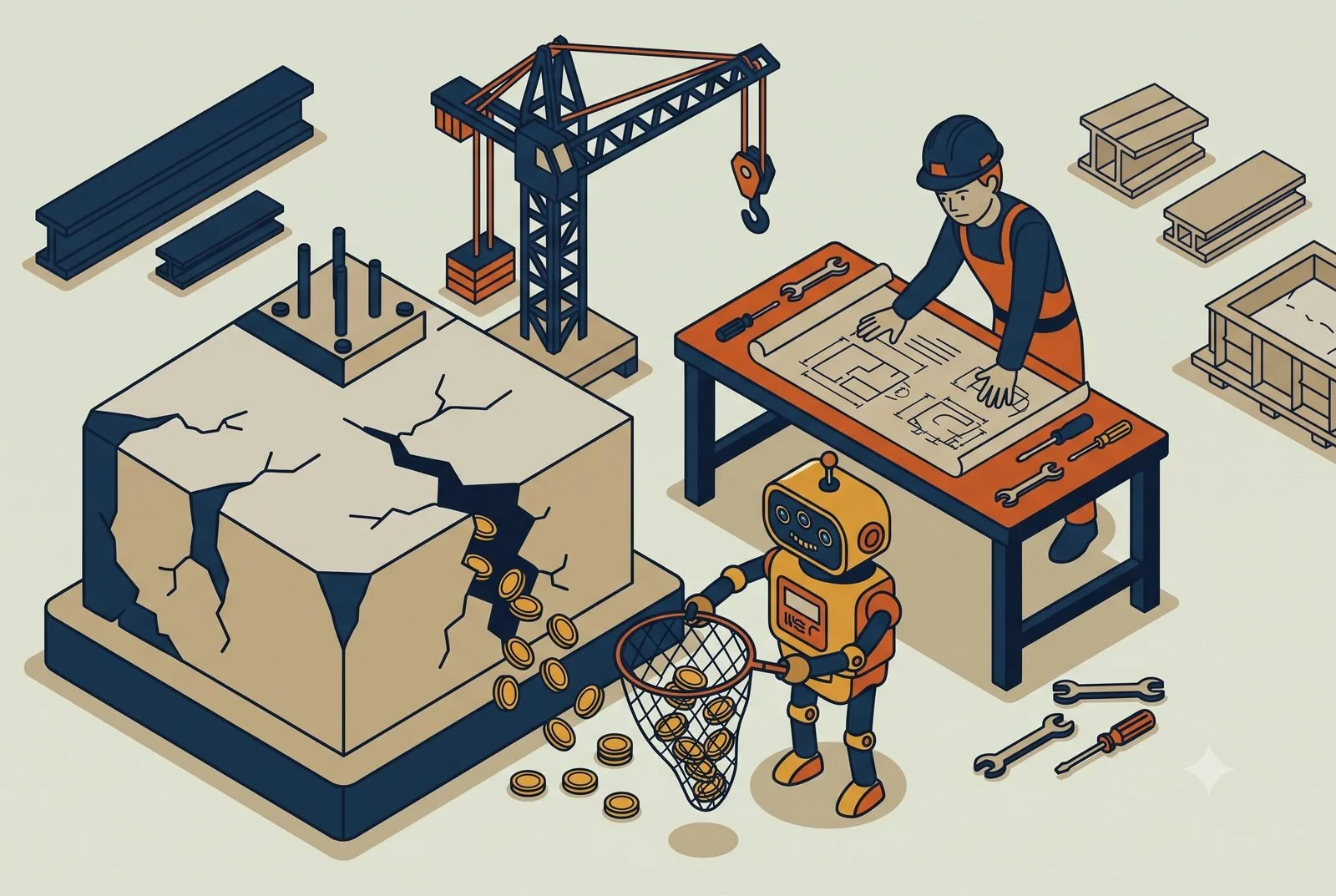
The most common mistake we see when a business starts building its own AI workflows is over-engineering them. Someone writes a skill that spells out all twelve steps in exact order, every if-this-then-that, every edge case they can think of. It works once, on the example they built it for.

Then a client sends a slightly different file, or the situation shifts an inch, and the whole thing falls over.

The fix is counterintuitive: tell your AI less about how to do the work, and more about what a good result looks like. The teams that get the most out of AI script it the least.

TL;DR: Over-scripted AI workflows break the moment reality shifts. Give the AI three things instead: what it needs to know, what a good result looks like, and a few hard guardrails. Script only the work that must be identical every time, and match the model to the job.

  • What it needs to know: the context that shapes a good answer.

  • What good looks like: one strong example of the finished thing.

  • The guardrails: the few hard rules that actually matter.

Think about how you'd brief a sharp employee

You wouldn't hand your best employee a forty-step checklist for writing a client email. You'd tell them who it's going to, what it needs to accomplish, the tone to hit, and what to avoid. Then you'd trust them to write it. The checklist would actually make them worse, because the moment the situation didn't match step three, they'd be stuck following a script instead of using their head.

AI works the same way. When you over-script a skill, you turn a capable generalist into a brittle macro that only works when reality matches your example exactly. When you give it the goal and the guardrails instead, it can handle the hundred small variations real work throws at it.

This isn't just our opinion. It's how the people who build these models tell you to design skills: describe what the AI needs to know and what success looks like, then let it work out the steps. The instinct to control every move is the thing that breaks it.

What to put in a skill instead

Three things, and steps aren't one of them.

What it needs to know. The context for the task. Who it's for, what the inputs usually look like, the background that shapes a good answer.

What a good result looks like. This is the one people skip, and it's the most important. Show it the standard. A good example of the finished thing teaches the AI more than a page of instructions ever will.

The guardrails. The few hard rules that actually matter. What to never do, what to always include, where to stop and ask. Keep this short. Guardrails are a fence, not a maze.

Give it those three and let it figure out the path. You'll get something that bends with the work instead of snapping the first time it's surprised.

When you actually do want it scripted

There's a real exception, and it matters. Some work has to happen one exact way every time.

Compliance steps. Anything legal or regulated. A calculation that has to be done identically or it's wrong. For those, the exact "how" is the whole point, so spell it out, or better yet, hand it to a tool built for exact repetition rather than judgment. Straight app-to-app automation, the Zapier and Make kind of work, is supposed to be rigid. That's its job.

The line is simple. If the task needs judgment, describe the goal and let the AI think. If the task must be identical every single time, script it or automate it. Most owners get this backwards: they script the judgment work and wing the stuff that actually needed to be exact.

Match the model to the work

There's a second choice that matters as much as the instructions: which model runs the skill. Most people leave it on whatever's default. The job and the model should match.

Work that needs real thinking, analysis, judgment, drafting something nuanced, deserves the smartest, latest model. That's where the quality gap is widest, and where a cheaper model hands you a confident, wrong-shaped answer that looks fine until you read it closely.

Work that's rote, reformat this, pull these fields, sort this list, doesn't need the heavyweight. A lighter, faster model does it just as well, and it costs less to run. Every task you give an AI burns usage, the metered "tokens" you're paying for, and running simple jobs on the premium model quietly runs up the bill for no extra quality. Use the smart model where thinking happens. Use the cheaper one where it doesn't.

Test it before the team trusts it

Here's the step that ties it together: run your workflow on a few different real examples before you rely on it.

You're tuning two things now, the instructions and the model, and the only way to know you've got the right combination is to try it on varied inputs, not just the one example you built it on. Feed it the messy case, the edge case, the one that's a little different. If it holds up across all of them, you're set. If it breaks on the odd one, you learn whether the fix is a clearer standard or a smarter model.

This matters double for a skill other people depend on. A personal shortcut that misfires is your problem for thirty seconds. A shared skill that misfires is wrong for everyone who runs it, quietly, until someone catches it. Test the shared ones hard before you turn them loose.

What trips people up

Two opposite failures, and you want to land between them.

Over-scripting the judgment work. The one we've been talking about. Forty steps, brittle, breaks on contact with real variety. If your skill reads like a software program, you've gone too far.

Under-specifying the standard. The opposite ditch. "Write me a good proposal" with no example, no context, no guardrails, and then disappointment when it's generic. Loose doesn't mean vague. You still have to show it what good looks like. You're giving it judgment, not abandoning it.

Where to start this week

Find your most over-built prompt or skill, the one with the long list of steps, and cut it down to three things: what it needs to know, an example of a good result, and a couple of hard rules. Then run it on a few real, varied tasks, not just the example you built it on, and watch whether it holds up. While you're there, check it's on a model that fits the work: the smart one if it's thinking, a lighter one if it's just getting a rote job done.

It usually does. And it's a lot less to maintain, because you're describing what you want once instead of patching a script every time the work changes.

Questions we hear about AI skills

When should I write exact step-by-step instructions for an AI?

When the work must happen one exact way every time: compliance steps, anything regulated, calculations that are wrong unless identical. For those, rigid is the point, and straight app-to-app automation handles them better than judgment-based AI.

Why do detailed AI workflows keep breaking?

Because over-scripting turns a capable generalist into a brittle macro. The workflow works on the example it was built for, then a client sends a slightly different file and step three no longer matches reality. Loose instructions with a clear standard bend where scripts snap.

Does the model I pick matter as much as the instructions?

Yes. Judgment work deserves the smartest model you have; rote work runs just as well on a lighter, cheaper one. Skills and models are one layer of a full setup, covered in The Six Layers of an AI Setup That Actually Works, and when a skill is worth sharing with the team, the sharing decision tree covers where it should live.This is part of the Practical AI Toolkit series. For the full framework on the AI toolkit and when to use what, download The Practical AI Toolkit.

Read More
Industry Mark McCary Industry Mark McCary

AI for Construction Firms: Stop Losing Margin Between the Bid and the Closeout

Margin rarely disappears in one chunk. It leaks between the bid, the field, and the books. Here’s how AI catches those leaks while you can still act.
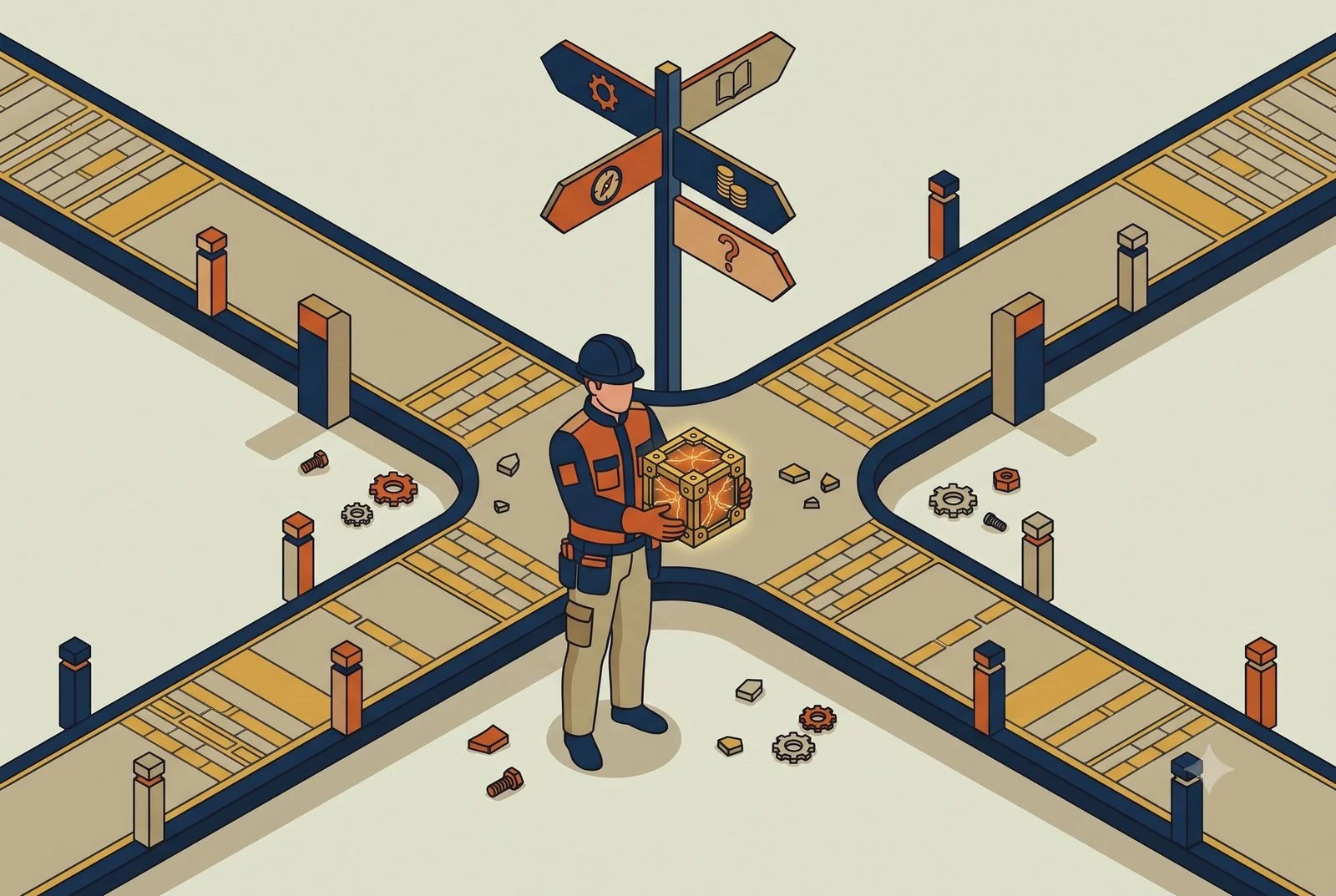
You bid the job at 18 percent. It closed out at 9. And you didn't really know it had slipped until the numbers came in, weeks after there was anything you could do about it.

That's the story on a lot of construction jobs, and the margin almost never disappears in one big chunk. It leaks. A missed addendum in the bid. An overrun nobody flagged until it was baked in. A change order you did the work on but never billed. Each one lives in a different place, the estimate, the field, the office, and by the time anyone spots them, the profit's already gone.

AI helps you see and stop those leaks while you can still do something about them. Here's where to start.

TL;DR: A construction workstation is one AI across your estimating, job costing, and document tools. It checks bids against your own actuals, flags cost overruns while the job is still open, catches unbilled change orders, and makes the document pile searchable.

  • Bid accuracy: estimates checked against past actuals.

  • Job costing: overruns visible in real time, not at closeout.

  • Change orders: caught and billed instead of eaten.

  • Documents: searchable in plain English.

What we mean by a "workstation"

A workstation is a single AI, something like Claude or ChatGPT, connected to the systems you already run on and taught about how your company builds. It pulls from them and does real work across them, with your team approving as you go and automating only what's earned trust.

For a contractor, that's the AI connected to your estimating tools, your project management system (Procore or Buildertrend, depending on whether you're commercial or residential), and your accounting, QuickBooks, Sage, whatever runs your job costing. And because it remembers, it gets sharper over time, learning your cost codes, your crews, and how your jobs actually run, instead of starting generic on every project.

1. Bid accuracy, because the margin is won or lost here

Most margin problems start at the bid. Price it wrong, miss a revision, forget a scope, and you've locked in the loss before you break ground.

AI takeoff and estimating tools have gotten genuinely good at this. Platforms like Togal.ai, Kreo, and Beam AI read the drawings and do quantity takeoffs in minutes instead of hours, and the better ones flag exactly what changed between drawing revisions, which is how the missed addendum, one of the classic margin killers, gets caught before it costs you. A workstation works alongside these, pulling the estimate into the rest of your process so the number you bid is the number you track against.

The estimator still owns the bid. The AI just makes sure they're working from complete, current information instead of racing a deadline with a highlighter.

2. Job costing you can see in real time

The second leak is not knowing a job's underwater until it's too late to steer.

A workstation connected to your accounting and project systems can give you live job cost, labor, materials, and subs against budget as the job runs, not sixty days after. When a job starts drifting, your PM sees it in week three while there's still room to adjust, instead of discovering it at closeout. That single shift, from rear-view to real-time, is where most contractors find their margin hiding.

3. Change orders that actually get billed

This is the leak nobody likes to admit. Your crew does the extra work because the client asked and the schedule's tight, and the change order never gets written up, so you eat it.

A workstation can catch that. Tied into your field updates and project docs, it can flag when work is happening outside the original scope, draft the change order from what actually changed, and route it for approval before the work's done and forgotten. Capturing even a fraction of the change orders you're currently eating goes straight to the bottom line.

4. Document chaos, made searchable

Plans, RFIs, submittals, contracts, spec sections, inspection reports. The answer to "what did we agree to on the slab detail" is in there somewhere, and finding it falls to whoever has time, usually a PM who doesn't.

A workstation connected to your project documents can answer those questions in plain language, pull the right spec or the relevant RFI, and draft routine responses. Some systems are building this in directly, Procore's own AI can search and summarize project data, and a workstation can tie that together with the rest of your stack rather than leaving it stranded in one tool.

Your software's built-in AI helps isn’t good enough.

Both Procore and Buildertrend have added real AI, and it's worth using. Buildertrend can generate a client update in a couple of minutes instead of half an hour and capture bills automatically. Procore's AI can search and summarize your project documents and draft RFIs. If you're on one of these, switch those features on.

But notice where they stop: at the edge of their own tool. Procore's AI only knows what is in Procore. Buildertrend's works on Buildertrend's data. Neither one reaches into your Sage or QuickBooks accounting system and neither ties your estimate to your actuals to the change orders happening in the field. It isn’t seeing the texts and emails from your clients. That gap, between the estimate, the books, your emails and texts, and the job site, is exactly where the margin leaks. It's also the main reason most construction AI efforts stall out: the data's scattered across tools that don't share one picture.

A workstation is what spans them. It doesn't replace your software's built-in AI, it sits across your estimating, your project tool, and your accounting at the same time, so the cross-system questions finally have somewhere to be answered.

Where it really clicks: one workstation across the job

Each piece helps alone. It compounds when the same workstation sees your estimate, your field, and your books together.

Because it does, it can connect the leaks no single tool catches. It can hold the bid next to live job cost and flag the job drifting from its estimate. It can tie a change in the field to the change order and the invoice, so the work you did is the work you bill. Monday morning, it hands you a read across every active job: bid margin versus actual, what's trending over, which change orders are outstanding, instead of a closeout surprise per project.

That's the difference between a pile of construction software and a setup that runs as one thing, with your people reviewing and approving rather than chasing it all by hand. Stack a few of these workstations across the business and you've got what we call an AI operating system: one layer that runs across the whole company, built one workstation at a time.

A quick word on the data and security

You're handling contracts, bids, and financials you don't want loose. That belongs on a business AI account your company owns and controls, not someone's personal chat gpt login. It's a quick foundation to set, and worth setting before you connect your systems. (We cover the why in our piece on team AI environments.)

Where to start

Start where your margin is leaking worst. For most firms that's either the bid or job costing. Connect a workstation to your estimating or your accounting, point it at one active job, and see how fast it surfaces the drift you'd normally catch at closeout.

The how is simple to describe and a little more work to do well. You pick an AI engine to build on, Claude or ChatGPT, connect it to your estimating, project, and accounting tools, and write the rules and workflows that fit how you build. Some firms have someone who can do that. Plenty don't, and it's a fair question to ask: are you in the construction business, or the AI and IT business? Standing this up so it works, and keeps working job after job, is the part we do, so your people can stay on the build.

Whether that's a single workstation, a handful of them, or a full AI operating system across your company, we're here to help with as much or as little as you need.

Questions we hear from contractors

Does this replace my estimator?

No. It hands your estimator the firm’s own history, what similar jobs actually cost, where past bids missed, so the judgment call starts from data instead of memory. The judgment stays human.

We already have AI inside Procore and Buildertrend. Isn’t that enough?

Built-in AI stops at the edge of its own tool. The margin leaks live between tools: the estimate in one system, actuals in another, the change order in an email thread. Why built-in AI still feels underwhelming covers the difference.

Where should a construction firm start?

Unbilled change orders. It’s the fastest money: work you already did, sitting in email threads, not on invoices. The setup behind a full workstation is in The Six Layers of an AI Setup That Actually Works.This is part of the Practical AI Toolkit series. Hub: Cornerstone 2: The AI Workstation Playbook. Read next: AI for Vets, Dentists, and Small Healthcare Practices.

Read More
Team Ops Mark McCary Team Ops Mark McCary

You Just Got Something Great Out of AI. Where Does It Go?

You got something great out of AI, then closed the tab and lost it. Five quick questions that tell you where every useful output should live.
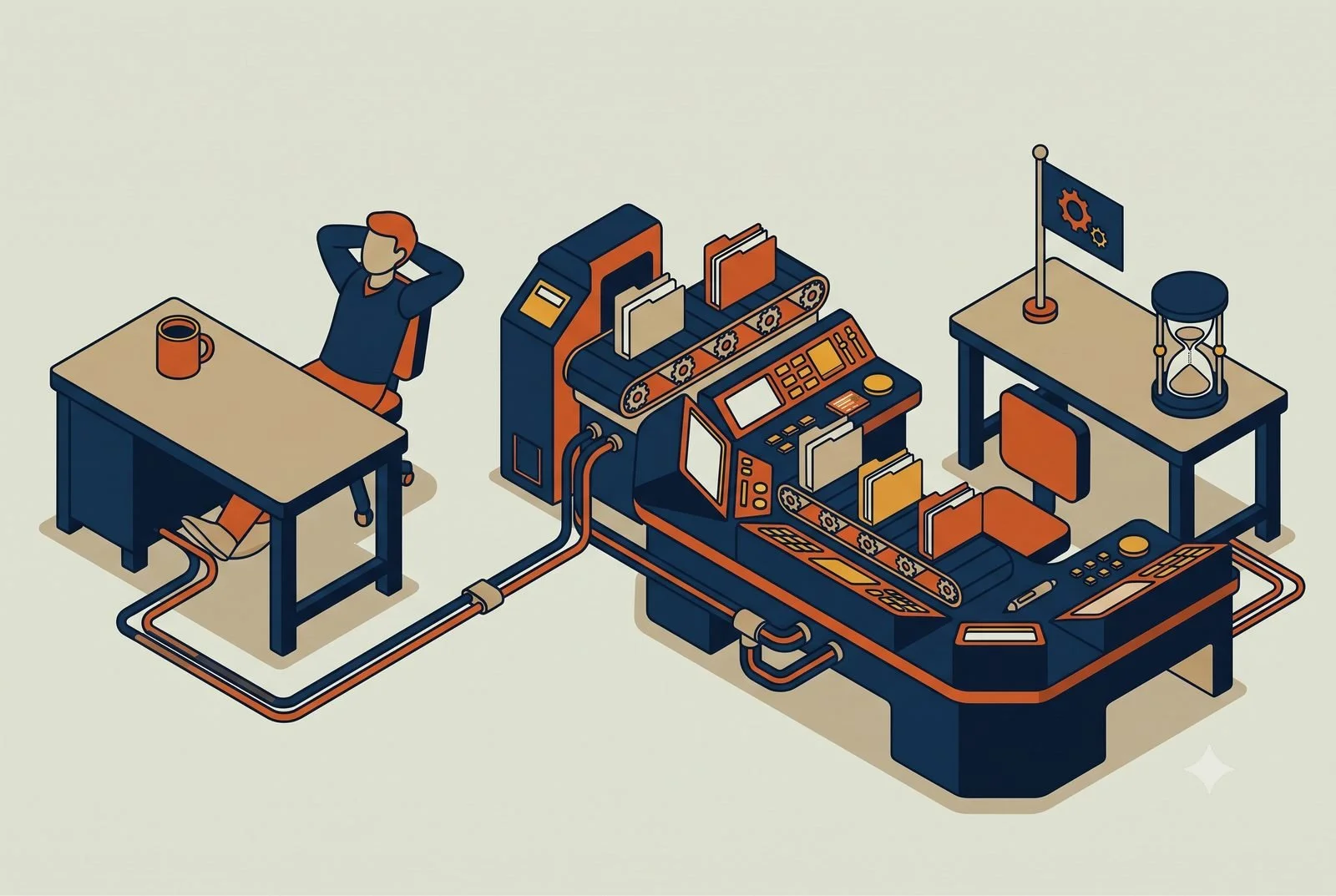
You had one of those sessions. The AI nailed a tricky email, or you finally worked out the exact prompt that summarizes your numbers the way you want, or it produced a process doc that's actually good. It worked.

Then you close the tab, and a week later it's gone. You're rebuilding the same thing from scratch, and so is everyone else on your team.

That's the quiet leak in most AI setups. The value shows up in a single chat and then evaporates, because nobody decided where it should live. The fix is a habit: every time something useful comes out of AI, run it through one quick decision about where it belongs. Here's the tree.

TL;DR: When AI gives you something useful, decide where it lives before you close the tab: your personal layer if it’s just yours, the shared layer if everyone should work this way, the project workspace if it has an end date, a skill if you’ll repeat it, and a connector if the underlying data keeps changing. The first yes wins.

The five questionsWhen you've got a new something, an insight, a prompt that works, a file, a process, ask these in order. The first yes tells you where it goes.

1. Is this only about how I personally work? If it's your shortcut, your preference, the way you like your own reports formatted, it belongs in your personal layer. It makes your setup smarter without cluttering anyone else's. (That's the personal workstation from The Three Workstation Types.)

2. Should everyone do it this way? If it's your brand voice, your standard process, a company fact everyone should work from, it goes in the shared team layer so the whole team inherits it. This is the shared-versus-individual call from Teams Environments: What's Shared, applied one piece at a time.

3. Does it only matter for one initiative? If it's specific to a launch, a big client, or a project with an end date, it lives in that project workspace, not your permanent setup. When the project wraps, it archives with everything else.

4. Is it a task you'll repeat? If it's a sequence you'll run again, the monthly summary, the lead reply, the intake steps, save it as a skill so it runs the same way every time instead of being rebuilt from memory. A one-off becomes reusable the moment you name it and save it.

5. Does the underlying info keep changing? If what you need is live data, your numbers, your leads, your calendar, don't save a file that's stale by next week. Connect the source instead, so the AI always pulls the current version. (Connectors over static files, the discipline from Project Memory Done Right.)

Most things resolve in the first two questions. The rest just sort the trickier cases.

Sometimes you just share the chat

Not everything needs to be filed. Sometimes a colleague just needs to see the session you had, the back-and-forth, how you got there, the result.

On a business AI plan (the team accounts from Teams Environments: What's Shared), you can share a conversation with coworkers directly, by link or inside a shared workspace, so they see the whole thread instead of you re-explaining it. It's the fastest way to pass along a useful session.

Just don't let it replace the tree. A shared chat is great for showing someone something once, but it still gets buried over time like any other chat. If the knowledge is reusable, capture it as a skill or a shared doc too. Share the chat to move fast. Place it properly so it lasts.

The one that trips people up: the one-time insight

The hardest case is the great insight that doesn't obviously fit a bucket. The AI explained something about your business you want to keep, or untangled a problem in a way you'll want again.

Don't leave it in the chat. Chats are where knowledge goes to disappear. Capture it as a short doc or a skill first, then run it back through the five questions to decide where that doc or skill lives. Turning a loose insight into a saved thing is what moves it from "that was useful" to "the team has this now."

What trips people up

Three patterns, all about the value leaking away.

Leaving everything in the chat. The single most common one. The work happens, the tab closes, the value's gone. The whole point of the tree is to build the reflex of placing things, not abandoning them.

Dumping it all into the shared layer. Not everything is everyone's. Personal preferences in the shared space just clutter it for the team. When in doubt, personal first, promote to shared only if others actually need it.

Saving a file when you needed a connection. If the information changes, a saved file is wrong almost immediately. Live data wants a connector, not a snapshot.

Where to start this week

Next time AI gives you something genuinely useful, stop before you close the tab and ask the first question: is this just for me, or should the team have it? That single pause is the whole habit in miniature.

Do it a few times and it gets automatic. Your setup stops being a series of one-off chats and starts becoming something that compounds, where good work gets captured and reused instead of rediscovered every week.

Questions we hear about capturing AI work

What’s the fastest way to share a good AI session with a coworker?

Share the chat itself. On a business plan you can send a link or drop it in a shared workspace so they see the whole thread. Then, if the result is reusable, still file it properly, because shared chats get buried like any other chat.

When should a prompt become a skill?

The second time you type it. A one-off becomes reusable the moment you name it and save it, and from then on it runs the same way every time. How much to script inside a skill is covered in Don’t Micromanage Your AI.

Why not put everything in the shared layer?

Because not everything is everyone’s. Personal preferences in the shared space clutter it for the whole team. Personal first, promote to shared when others actually need it.This is part of the Practical AI Toolkit series. Hub: Cornerstone 2: The AI Workstation Playbook. Read next: Over-Engineering vs Unopinionated Harnessing.

Read More
Setup Mark McCary Setup Mark McCary

One AI Can't Be Good at Everything. Build Three Instead.

One AI can’t be good at everything. Personal, functional, and project workstations, what goes in each, and which one to build first.
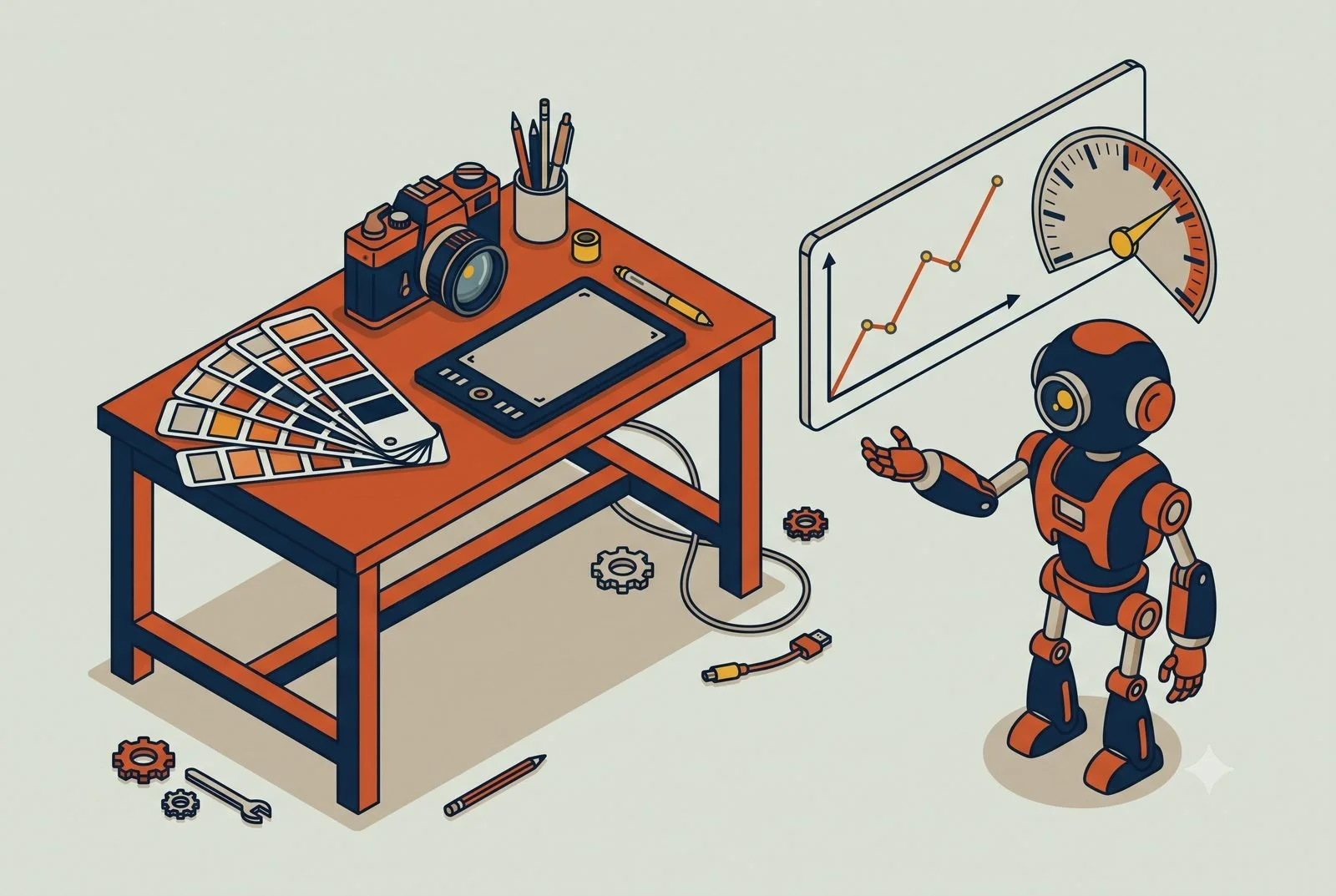
Most people set up a single AI assistant, pour everything into it, and expect it to be sharp at all of it. Their email, their hiring, their monthly close, the big client project, all in one place.

It ends up mediocre at everything, for the same reason one employee can't be your bookkeeper, your recruiter, and your project manager all at once. The work is too different.

The fix is to stop thinking about "my AI" and start thinking about workstations: separate setups, each built around one kind of work. There are three types, they're easy to tell apart, and a mature setup uses all three. Before the types, though, it's worth being clear about what a workstation actually is, because that's where most of the value hides.

TL;DR: AI workstations come in three types: Personal, built around one person and their role; Functional, built around a recurring process like hiring or invoicing; and Project, built around a time-bound initiative and archived when it ends. Mature setups stack all three. Start with the role or process that eats the most time.

  • Personal: tied to a person and their role. Persistent, compounds daily.

  • Functional: tied to a process the business repeats, whoever runs it.

  • Project: tied to an initiative with an end date. Archives into a template.

What a workstation actually is

A workstation is a project with three things deliberately dialed in for one kind of work: tight instructions, the right connectors, and the right skills.

A blank chat box is an empty room. A workstation is that room set up for a specific job. Walk through the three pieces and you'll see the difference:

Tight instructions, matched to the job. Not a generic "be helpful." A workstation's instructions say exactly what kind of work this is and how it should be done, so the AI behaves like a specialist instead of a generalist. The instructions for a sales workstation read nothing like the ones for a monthly-close workstation, and that's the point.

The right connectors, and only those. Each workstation is wired into the specific tools that its work touches. The finance workstation reaches your accounting software and your time tracking. The sales one reaches your CRM and your calendar. You don't connect everything to everything. You connect what the job needs, which keeps the AI focused and the answers clean. (Connecting tools is its own topic, covered in Harnessing to 10x the Apps You Already Pay For.)

The right skills and workflows, defined. The recurring tasks that work involves, saved as reusable recipes so they run the same way every time instead of being rebuilt from memory.

Those are the setup layers from Five Layers of Setup, aimed at one job instead of spread thin across everything. The three workstation types are just three different jobs you tune that setup for.

Personal: built around a person and their role

A personal workstation is tied to you and what you do. It's persistent, it's yours, and it gets smarter the longer you use it.

The instructions hold your role, your priorities, and how you communicate. The connectors reach the tools you personally live in, your email, your calendar, the systems your job depends on. The skills are the tasks you run over and over: the weekly update you write, the way you triage your inbox, the report you pull every Monday.

This is the CEO workstation, the sales director workstation, the bookkeeper workstation. Because it sticks around, it compounds. Set it up once, and it gets a little more useful every day as it learns how you operate. A personal workstation is always personal by definition, one person, one role.

If you only ever build one, build this one, for yourself. It's the setup that pays off fastest for most owners, because it touches everything you personally do.

Functional: built around a department or business function

A functional workstation is tied to a function, not a person. Marketing. Accounting. Customer service. Operations. It's the AI setup for a whole area of the business, shared by everyone who works in it. The line between this and a personal workstation is simple: a personal one belongs to a person, a functional one belongs to a department.

Its instructions hold how that function runs, its goals, its standards, the way it does things. Its connectors reach the systems that department lives in. The marketing workstation reaches your email platform, your social tools, and your analytics; the accounting one reaches your accounting software and your time tracking. Its skills are the recurring processes that function owns. The accounting workstation runs invoicing, the monthly close, and collections follow-up as saved skills. The processes don't each get their own workstation. They live as skills inside the department's.

This is where the personal-versus-team line really lands. A functional workstation is built to be shared. The whole accounting team, or the whole marketing team, works out of the same one, so the function runs the same way no matter who's at the keyboard. That's how you take key-person risk off the table. When the work lives in the department's workstation instead of one person's head, it keeps running when someone's out, and a new hire walks into a setup that already knows how the department operates.

Project: built around a time-bound initiative

A project workstation exists for a specific effort with an end date. A product launch. A big proposal. A move to a new location. A one-time audit.

Its instructions hold the brief for that initiative: the goal, the background, the rules for this effort. Its connectors reach the handful of tools the project touches. Its skills are the repeatable tasks the work generates. You load it up, work inside it while the project is live, and when it's done, you archive it. That's the key difference from the other two: a project workstation isn't meant to last. It holds everything in one place while the work is hot, then gets out of the way.

The personal-versus-team split matters here too, and again team is where it earns its keep. A solo project workstation is useful. A team project workstation is where a launch stops being chaos, because everyone working the initiative shares one context instead of trading documents and re-explaining decisions in email. One room, one source of truth, for the life of the project.

Two habits make these pay off. Keep it lean while it runs, the same project discipline from Project Memory Done Right. And when you archive it, save the setup as a template, so the next launch or proposal starts from the last one instead of from scratch.

How they stack

Mature setups use all three, and they work together.

Your personal and functional workstations are the permanent core. They compound over months, getting sharper the more you use them. Project workstations spin up around them as needed, do their job, and archive out. Think of the first two as the rooms in your building and projects as the job sites that come and go.

Stack enough of these across the business and you've built something bigger than any one assistant. A mature organization doesn't have "an AI." It has an AI operating system: a set of personal, functional, and project workstations that together cover how the whole place runs, from the CEO's daily work to the monthly close to whatever launch is live this quarter. That's the destination, and the reason the workstation approach matters. You don't get there by standing up one giant assistant. You get there one workstation at a time, until the pieces add up to a system that runs the business.

Notice the pattern in what we just covered: the team versions of the functional and project types are where the biggest gains live, because that's where a setup replaces a pile of one-person knowledge and scattered email threads. Which raises the obvious next question, what exactly should be shared at the team level versus kept individual. That's its own decision, and we walk through it in Teams Environments: What's Shared.

You don't build all of this at once. You build the personal one, get value, add a functional one for a whole department like marketing or accounting, and spin up project workstations when a real initiative calls for one. The stack grows with you.

What trips people up

Three things, mostly about using the wrong type.

The everything-assistant. One workstation crammed with every kind of work, loose instructions, every tool connected, no defined skills. It can't be tuned for any one job, so the output stays generic. Split the work by type and each setup gets sharper.

Projects that never archive. A project workstation that outlives its project becomes clutter, full of stale context that muddies new work. When the initiative ends, archive it. Save the template, close the room.

Running a whole department out of your personal workstation. If a function's work, marketing, accounting, customer service, is happening inside one person's personal setup, it disappears the day that person is out. Give the department its own shared workstation so the team works from one place.

Where to start this week

Build the personal one, for yourself. Set up a workstation around your own role, write tight instructions, connect the two or three tools you use most, and save one task you do every week as a skill. Use it for a week.

It's the fastest way to feel what a real workstation does that a blank chat box never will. Once that one's earning its keep, the next moves are obvious: a shared functional workstation for the department that needs it most, your marketing, accounting, or customer service team, and a project workstation the next time a real initiative kicks off.

Questions we hear about workstation types

Which workstation type should a small business build first?

Usually Personal, for the owner or whoever is drowning in the most repeatable work. It pays back fastest and teaches the setup habits the other two depend on. The layers you build first are covered in The Six Layers of an AI Setup That Actually Works.

What happens to a Project workstation when the project ends?

Archive it. The instructions and skills it accumulated become a template, so the next launch or big client starts warm instead of from scratch.

Can the three types share what they learn?

Yes, deliberately. Person-specific knowledge stays personal, team-wide standards go to the shared layer, and the sharing decision tree covers where each new piece belongs.This is part of the Practical AI Toolkit series. For the full framework on workstations by role and industry, see Cornerstone 2: The AI Workstation Playbook. Read next: Teams Environments: What's Shared.

Read More
Industry Mark McCary Industry Mark McCary

AI for Marketing and Creative Agencies: Catch the Margin Leak Early

Most agencies find out a client was unprofitable at billing, weeks too late. AI can flag margin leaks in real time and take the busywork off your account leads.
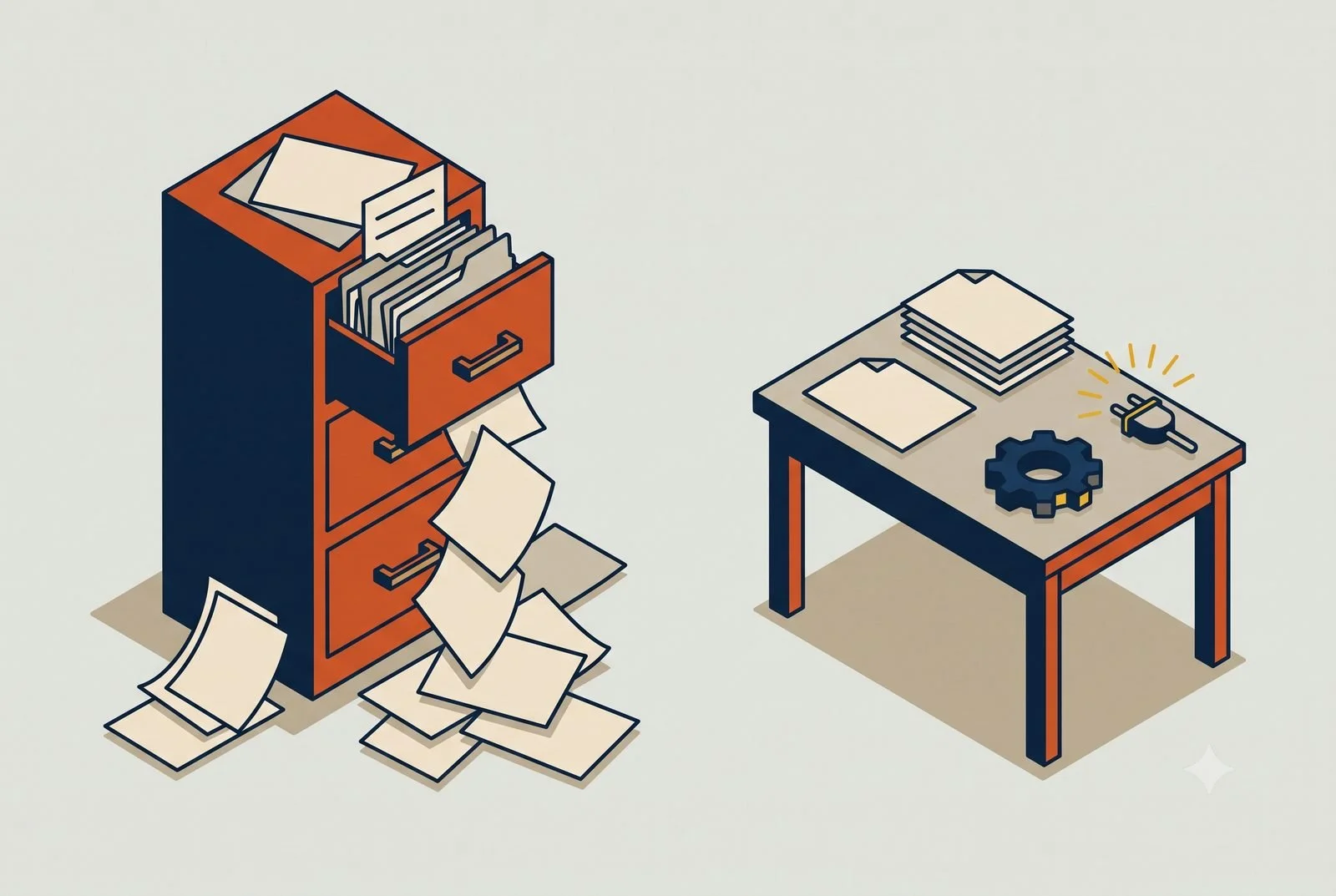
Most agencies find out a client was unprofitable the same way every time: at billing, when someone finally reconciles the hours against the fee and realizes the project went sideways weeks ago. By then the month is closed and the damage is done.

The problem isn't that your team is careless. It's that the numbers live in one system, the work lives in another, and nobody has time to stitch them together until the invoice goes out. Your account leads and project managers are flying on instinct because the real picture shows up 60 days late.

AI closes that gap. Here are the three places it pays off first for design and marketing agencies, starting with the one that protects your margin.

TL;DR: An agency workstation is one AI across your books, time tracking, and project tools. It flags margin-bleeding clients while you can still act, catches scope creep at brief intake, and drafts client status updates from live project data, so account leads spend their hours on strategy instead of reporting.

  • Finance: margin leaks flagged in real time, not 60 days late.

  • Brief intake: scope checked before the work starts.

  • Client updates: status reports drafted, humans edit and send.

What we mean by a "workstation"

A workstation is a single AI, something like Claude or ChatGPT, connected to the tools you already run on and taught about your agency. It pulls from them and works across them, with your team approving as you go and automating only what's earned trust.

For an agency, that's the AI wired into your accounting software, your project tool, and your files. And because it remembers, it sharpens over time, learning your clients, your margins, and how your team works, instead of starting generic each day.

1. A finance workstation that flags margin leaks in real time

The highest-value setup for most agencies is a finance and operations workstation that watches profitability as work happens, not at month-end.

Connect it to where the money and the time live, your accounting software and your project tool, and it can answer the question your PMs can't easily get to today: which clients and projects are trending underwater right now. Instead of discovering a 40-hour overrun when you invoice, your account leads see it in week two, while there's still time to have the scope conversation or adjust the plan.

This is the one to build first. Margin visibility is the difference between catching a bad project while you can still fix it and writing it off after the fact.

2. Brief intake, so scope creep starts smaller

Scope creep usually starts with a fuzzy brief. The kickoff notes are scattered across email, a call recording, and a Slack thread, and three weeks in, nobody can point to what was actually agreed.

An intake workstation turns that mess into a clean, structured brief: pulling the goals, deliverables, and boundaries out of the raw notes into one document the team and the client both sign off on. It doesn't kill scope creep, but it gives you a clear line to point back to when the "quick extra thing" requests start, which is most of the battle.

Your project managers stop reconstructing what the client wanted and start the project with an actual definition of done.

3. Client updates, so your team stops writing status reports

Account managers burn hours every week on status updates, recaps, and "just checking in" messages. Most of that is assembling information that already exists in your project tool.

A workstation connected to that tool can draft the weekly client update from the actual project status, ready for a human to review and send. Same for meeting recaps and next-step summaries. It's not about removing the human relationship. It's about freeing the people who own those relationships from the busywork of documenting them, so they spend their time on the client instead of the changelog.

Where it really clicks: one workstation across your stack

Step back and all three use cases solve the same underlying problem. The information your team needs to run a profitable project exists, but it's scattered, and assembling it by hand is too slow to act on.

It compounds when the same workstation sees your accounting, your project tool, and your files at once, because then it can connect dots no single app does. It can flag the project where logged hours are outrunning the fee while there's still time to act, draft the weekly client update from real project status, and tie a margin dip back to the scope that crept, all in one place. Monday morning it hands you a read across the book of business: which clients are trending profitable, which are slipping, and where the week's time actually went.

That's the difference between the fanciest creative tools and an agency that stopped finding out about problems after they'd already cost money. The ones that win here connected their tools and let AI do the assembling, so their account leads and PMs get the real picture in time to act on it. Stack a few of these workstations across the agency and you've got what we call an AI operating system: one layer that runs across the whole business, built one workstation at a time.

A quick word on the data

You're working with client material, brand assets, sometimes their customer data. That belongs on a business AI account the agency owns and controls, not someone's personal login, so your clients' information stays protected and yours does too. Get that foundation set before you connect client systems. (We cover the why in our piece on team AI environments.)

Where to start

Build the finance workstation. Connect your accounting software and your project tool, and ask it the one question you can't easily answer today: which active projects are trending over budget right now. The first time it catches a leak in week two instead of at billing, it's paid for itself.

From there, brief intake and client updates are natural next steps, each one taking another slice of guesswork and busywork off the people running your accounts.

The how is simple to describe and a little more work to do well. You pick an AI engine to build on, Claude or ChatGPT, connect it to your accounting software and project tool, and write the rules and workflows that make it yours. Some agencies have someone who can build that. Plenty don't, and it's a fair question to ask: are you in the creative business, or the AI and IT business? Standing this up so it works, and keeps working as clients and projects change, is the part we do, so your team can stay on the work clients actually pay you for.

Whether that's a single workstation, a handful of them, or a full AI operating system across your agency, we're here to help with as much or as little as you need.

Questions we hear from agencies

How does the AI know which clients are unprofitable?

It reads revenue from your books and hours from your time tracking, then does the division nobody has time to do weekly. That cross-system view is the whole trick, and harnessing the apps you already pay for is how it works.

Will clients notice AI-written status updates?

The AI drafts from live project data; your team edits and sends. What clients notice is updates that arrive on time and match reality, because nobody was dreading writing them.

Where should an agency start?

The monthly margin review. Connect the books and time tracking, ask which clients are quietly underwater, and act on the answer. The full setup is covered in The Six Layers of an AI Setup That Actually Works.This is part of the Practical AI Toolkit series. Hub: Cornerstone 2: The AI Workstation Playbook. Read next: AI for Bars and Restaurants.

Read More
Setup Mark McCary Setup Mark McCary

Why Your AI Gets Worse When You Feed It More Files

Loading 50 documents into your AI project makes it dumber, not smarter. The Minimum Viable Project: small, clean, high-signal, and connected.
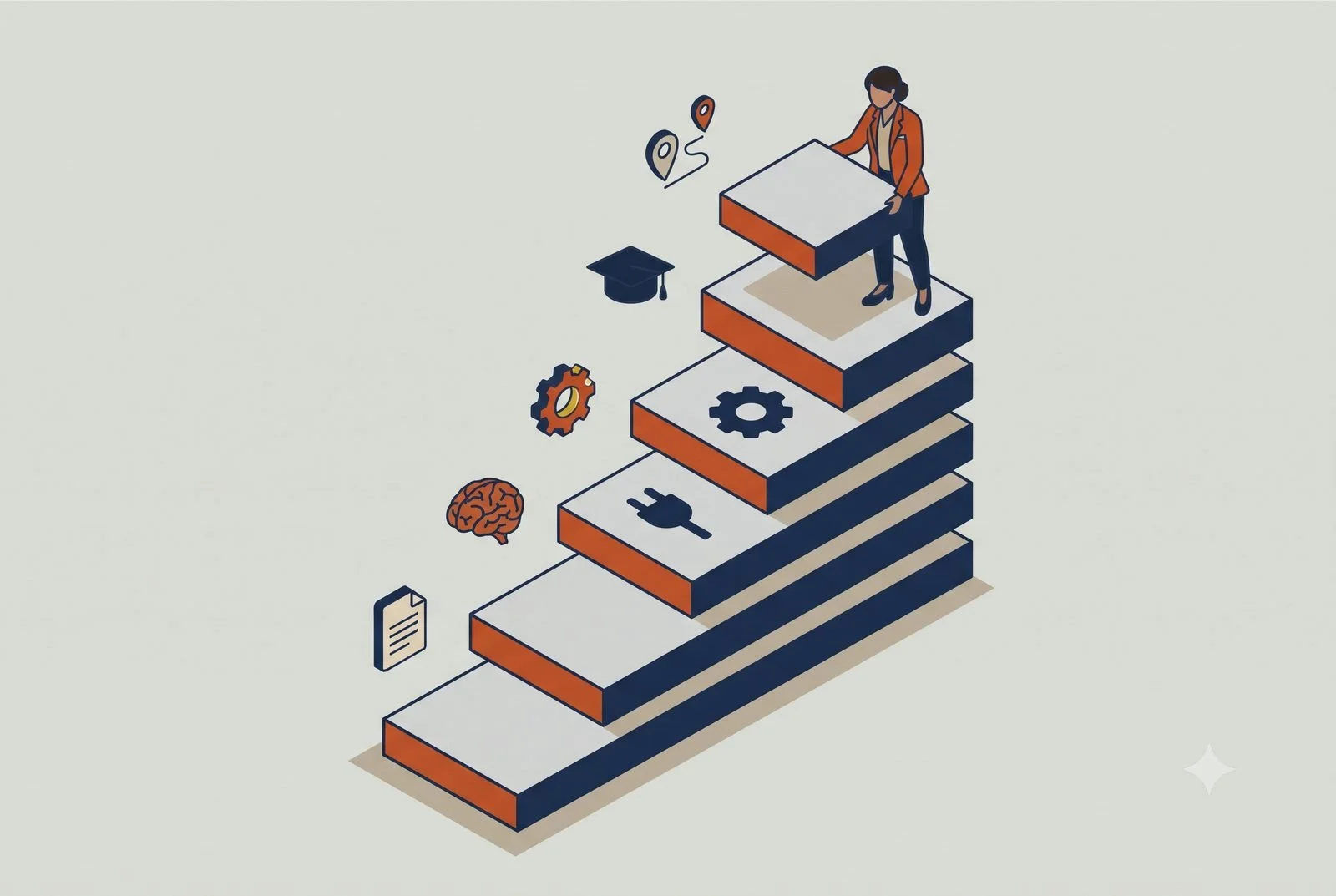
The most common way owners break their AI setup is by being generous with it. They create a project, then load in everything: 50 documents, every policy, every old proposal, the whole shared drive. The thinking is reasonable. More context, smarter AI.

It backfires. The output gets vaguer, not sharper, and nobody can figure out why.

Here's the fix, and it's the opposite of what most people do. A project that actually works runs on a small, clean set of high-signal material, not a filing cabinet. We call it the Minimum Viable Project, and once you see it, you can build one in an afternoon.

TL;DR: Feeding an AI project more files usually makes it worse. A project that works runs on four small parts: concise instructions, a handful of core documents, a few well-scoped skills, and connectors for anything that changes. Prune it monthly like you’d clean a workbench.

  • Instructions: one tight page on what the project is for.

  • Core knowledge: the few documents that actually shape answers.

  • Skills: the tasks this project repeats.

  • Connectors: live data instead of stale uploads.

First, the myth: there's no magic file limit

You may have heard there's a hard cap on how much you can add to an AI project. There isn't. On the major platforms you can add as many files as you want, up to about 30MB each. The number isn't the problem.

What actually happens is subtler, and it's worth understanding because it explains the whole post. When your project knowledge is small, the AI reads all of it, in full, every time. Once you pile on enough, it flips into a different mode: instead of reading everything, it grabs only the snippets it guesses are relevant to your question. (The technical name is retrieval, but you don't need the term.)

That flip is fine when your files are tight and high-signal, because the right snippets are easy to find. It goes wrong when you've dumped in 50 documents, because now the AI is fishing for the relevant bits in a sea of noise, and it pulls the wrong ones. As far as we can tell the switch kicks in somewhere around a dozen files, though the exact trigger has moved around. The point isn't the number. The point is that more low-value files make the AI's job harder, not easier.

The Minimum Viable Project

A good project has four parts, and each one is deliberately small.

Concise instructions. Tell the AI who it's working for and how you want it to behave, then stop. The instructions are not the place for the details of today's task. That goes in the actual chat. Bloated instructions read like a contract nobody follows. A tight paragraph or two beats two pages every time.

A few high-signal knowledge files. Not your whole drive. The handful of documents that genuinely shape good answers: your pricing, your service descriptions, your brand voice, the one process doc that matters for this work. If a file wouldn't change the AI's answer, it's noise, and noise makes everything else harder to find. Ask of every document: does this make the output better, or do I just feel safer having added it?

A few well-scoped skills. Reusable recipes for the tasks this project does over and over. Keep them focused on what you want and what a good result looks like, not every step to get there. Two or three sharp ones beat a dozen half-built ones.

Connectors for anything that changes. This is the part people miss. Static files go stale the day after you upload them. Your client list, your numbers, your calendar, those live in your real tools, so connect the AI to them instead of pasting in a snapshot that's wrong by next week. A connected project answers from today's data. A file-stuffed one answers from whatever was true the day you built it. (We walk through connecting your tools in Harnessing to 10x the Apps You Already Pay For.)

The monthly cleanup

Projects rot. Set a calendar reminder, once a month, to open each project you rely on and prune it.

Pull the files you stopped using. Delete the skill you built for that one initiative that's now over. Tighten the instructions that grew a paragraph nobody needed. It takes ten minutes and it's the difference between a project that gets sharper over time and one that slowly fills with junk until the output goes soft again.

This is the same discipline you'd apply to a physical workspace. A clean bench is faster to work at. Same idea.

What trips people up

Three patterns, all variations on "more is better."

Treating the project like storage. A project isn't a backup of your files. It's the briefing the AI works from. Backup goes in your drive. Only the high-signal stuff goes in the project.

Putting task details in the instructions. Instructions are for the standing context, who you are, how you work. The specifics of this week's task belong in the chat. When you cram task detail into instructions, every future conversation drags it around.

Pasting in data that should be connected. If something changes (prices, leads, the calendar), a pasted-in file is wrong almost immediately. Connect the live source instead. Static files are for things that hold still, like your brand voice or your standard process.

Where to start this week

Open the project you use most and cut it in half. Pull every file that wouldn't change a good answer, move the task-specific noise out of the instructions, and notice whether the output gets sharper. It usually does, fast.

Then, for the one thing in there that's always changing, swap the stale file for a live connection. That single move is what turns a project from a static folder into something that actually keeps up with your business.

Questions we hear about project memory

How many files should an AI project have?

Fewer than you think. A handful of high-signal documents beats fifty mixed ones, because every file competes for the AI’s attention. If a document doesn’t shape the answers you want, it’s dead weight.

Why does AI output get worse when I add more files?

Because the AI weighs everything you give it. Stale drafts, duplicates, and off-topic files dilute the good material and pull answers toward the middle. Pruning is a feature, not a chore.

What should I move to a connector instead of uploading?

Anything that changes: your numbers, your pipeline, your calendar. Files are snapshots that go stale by next week; connectors pull the current version every time. That’s the connectors layer from The Six Layers of an AI Setup That Actually Works, and where each new piece of knowledge belongs is covered in the sharing decision tree.This is part of the Practical AI Toolkit series. For the full company-wide setup framework, see Cornerstone 3: The AI Setup Playbook. Read next: The Three Workstation Types.

Read More
Setup Mark McCary Setup Mark McCary

The Six Layers of an AI Setup That Actually Works

Most people who tried AI never actually set it up. Instructions, memory, connectors, skills, training, and a plan: what each layer does and where to start.
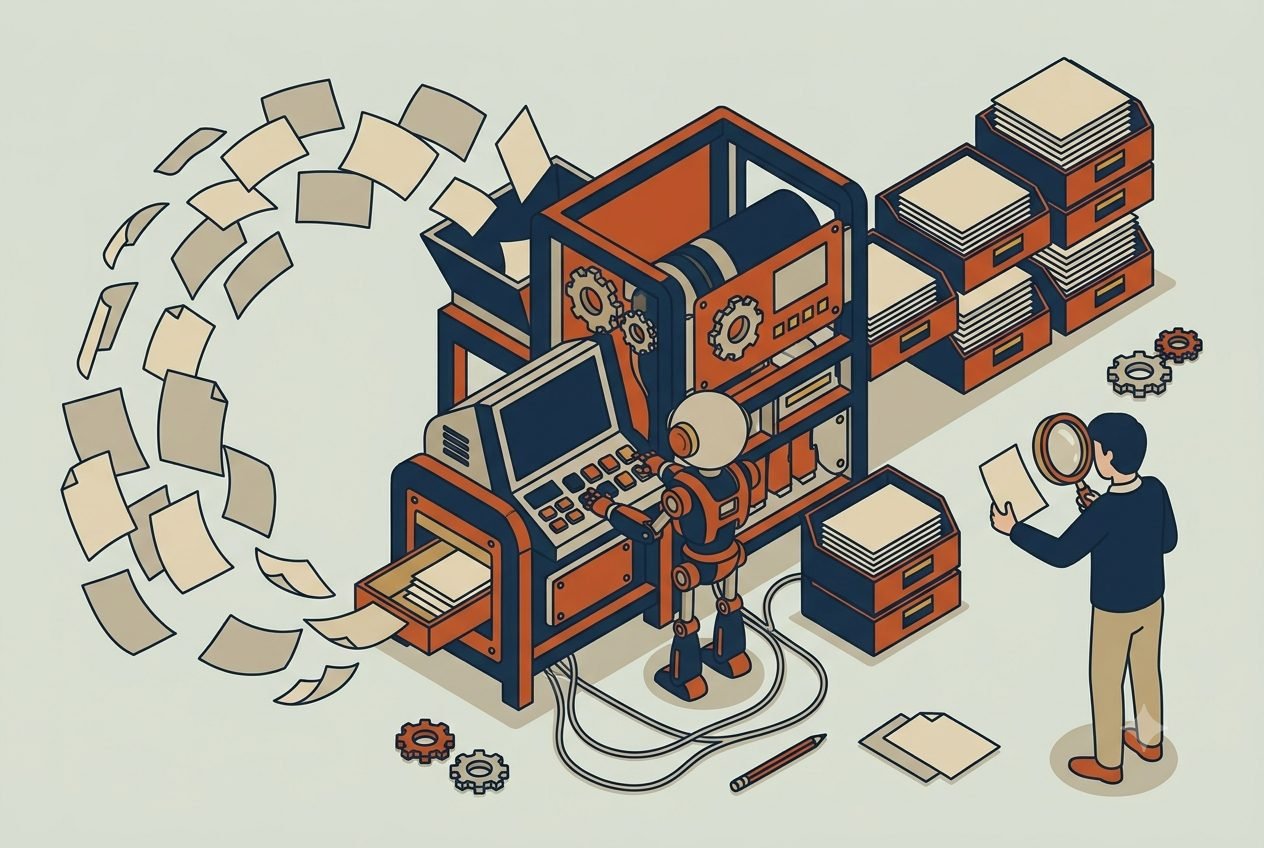
Most people who say they "tried AI" never actually set it up. They opened ChatGPT, typed a few prompts, got answers that were fine but generic, and quietly decided the hype was overblown.

That's not AI failing. That's AI with no setup behind it, which is like judging a new hire by their first hour before you've told them anything about the business.

A real setup has six layers. Instructions, memory, connectors, skills, training, and a plan. Most people stop after layer zero, the blank chat box, and that's exactly why their AI feels mediocre. Here's what each layer does, in plain terms, and how to start on the one that matters most. None of this takes a developer.

TL;DR: A real AI setup has six layers: instructions (what you tell it), memory (what it learns), connectors (what it can see), skills (what it can repeat), training (whether your team uses it), and a plan (what order to build in). Most people stop at the blank chat box. Start with instructions this week; the rest stack on top.

  • Instructions: context you write on purpose. Start with one page on who you are and how you talk.

  • Memory: what it learns from working with you. Just use it, and correct it when it is wrong.

  • Connectors: live access to email, CRM, and files. Connect one app, read-only.

  • Skills: saved instructions you reuse. Save the thing you retype most.

  • Training: your team actually using it. Run one 30-minute working session.

  • Plan: what to automate, in what order. Name the workflow that costs the most time.

Layer 1: Instructions, so it knows who it’s working for

Instructions are what you tell the AI on purpose. Who you are, what your business does, how you want it to work. This is the layer you write. Memory, the next one, is the layer it learns on its own. Most real setups need instructions at three levels, and they stack on top of each other.

Org-level instructions: who the company is. This is the context that's true for everyone. The kind of company you are, your culture, who your clients are, what you sell, how you talk about it. Write it once and every conversation starts from it, so the AI never treats your roofing company like a software startup. This is exactly what we hand clients a fill-in template for in Cornerstone 3: The AI Setup Playbook.

Org-level instructions matter most when you set up a Teams AI system. That's a shared company account (Claude has a Team plan, and so do ChatGPT and Microsoft Copilot) where everyone works inside the same environment instead of each person on their own personal login. The company writes the org context once and the whole team inherits it. The side benefit is that your shared knowledge and approved tools live in one place, not scattered across a dozen private accounts.

Individual instructions: who you are. On top of the company layer, each person adds their own. Your role, what you're responsible for, how you like to communicate, the format you want things back in. Your CEO and your bookkeeper shouldn't get identical output, and this is the layer that makes sure they don't.

Project instructions: what this particular work is. The narrowest level. When you've got a specific, recurring body of work, a product launch, a major client, a hiring round, you can spin up a project with its own instructions: here's the goal, here's the background, here are the rules for this effort. Everything you do inside that project inherits that context, and when the work wraps, you archive it. It keeps one big initiative from bleeding into the context of everything else you do.

Layer 2: Memory, so you stop re-explaining your business

Memory is what the AI picks up about you and your business as you work, and holds onto, without being told again every time. If instructions are what you tell it on purpose, memory is what it learns on its own.

Out of the box, most AI chats forget everything the moment you close the tab. You re-explain who you are, what you sell, who your customers are, and how you like things done, over and over. It's exhausting, and it's the single biggest reason the output stays generic.

Turn memory on and that changes. Day one, it knows nothing. By day ninety, it knows your pricing, your top clients, the decisions you've made, your edge cases, and the shortcuts you prefer. The answers stop sounding like they're for "a small business" and start sounding like they're for yours. This is the layer that compounds: every week you use it, it gets a little more useful, like an employee who's been there long enough to know how things actually work.

You don't have to wait ninety days for that, though. Memory builds far faster when you feed it directly. Connect your live tools (that's the next layer) and load in a few knowledge files, your client list, your pricing, your process docs, last year's plan, and you've handed the AI your institutional knowledge on day one instead of making it pick the place up slowly. That's the difference between an assistant who absorbs your business over a quarter and one who walks in already briefed.

How to start: create one project or workspace for your business and drop in the basics. What you do, who you serve, how you talk, what you sell. Twenty minutes here changes every conversation after it.

Layer 3: Connectors, so it works from your real data

Connectors give the AI live access to the tools where your real information lives. Your email, your CRM, your accounting software, your calendar, your files.

Memory tells the AI about your business. Connectors let it see your business as it is right now. Without them, the AI is guessing from whatever you paste into the chat. With them, it can pull the actual invoice, the actual lead, the actual calendar, and answer from real data instead of a description of it.

This is the layer that turns AI from a clever writer into something that can actually do your work. It's also a whole topic on its own, which is why we wrote it up separately. If you want the walkthrough, start with Harnessing to 10x the Apps You Already Pay For.

How to start: connect one tool, read-only, the one you find yourself exporting reports from most. Ask it a question you usually answer by hand.

Layer 4: Skills, so you stop retyping the same instructions

Skills are reusable recipes. When you find a set of instructions that gets the result you want, you save it once and run it on command instead of rebuilding it from scratch every time.

Think about the things you explain to the AI repeatedly. How you want your weekly numbers summarized. The format your proposals follow. The way you screen an inbound lead. Right now you're probably re-typing those instructions every single time, and getting slightly different output because the wording drifts.

A skill fixes that. You teach the AI the task once, name it, and call it up whenever you need it. Same instructions, consistent result, no reinventing. The trick is to tell it what you want and what a good result looks like, not every keystroke to get there. Loose and clear holds up. Over-scripted breaks the moment something shifts.

How to start: pick the one thing you ask the AI to do most often and save it as a reusable skill. You've now got a process that runs the same way every time.

Layer 5: Training, because a setup nobody uses is worth nothing

Training is the human layer. The AI can be set up perfectly and still deliver zero return if your team doesn't actually use it.

This is the layer everyone skips, and it's the one that quietly kills most AI rollouts. One person gets excited, sets things up, and assumes everyone else will pick it up by osmosis. They won't. People default to the way they've always worked unless someone shows them a better one that's worth the switch.

You don't need a formal program. You need a few working sessions where people bring real tasks they hate and watch AI knock them out. Adoption follows usefulness. Show someone their own Tuesday-morning headache disappear and you won't have to sell them on it again.

How to start: pick the one task your team complains about most and run a 30-minute session solving it together, live.

Layer 6: A plan, so you get ROI instead of overwhelm

A plan is the order you do things in. What to set up first, second, and third, based on where the time and money are actually leaking.

Without one, people try to automate everything at once, get overwhelmed, and abandon the whole thing. The businesses that get real value are almost always the ones that started narrow. One role, one painful workflow, one clear win, then expand from there.

The sequence matters more than the speed. Get a visible result in the first couple of weeks and the rest of the rollout sells itself, because now everyone's seen what "good" looks like. Try to boil the ocean and you'll be back to the abandoned-tab stage by month two.

Figuring out that order is its own small piece of work, and it's worth doing on purpose. That's what an AI readiness assessment is for: a quick, honest look at how accessible your data is, which of your workflows are actually documented, and where your team's skills sit, so you can name the two or three places AI pays off first instead of guessing. You can run a rough version yourself, or have someone walk you through it.

How to start: name the one workflow that costs you the most time every week. That's where the plan begins. Everything else waits its turn.

What trips people up

Three patterns, and they're all about skipping layers.

Jumping straight to a plan with no memory or connectors underneath it. You can't automate work the AI can't see or remember. Build the foundation first, then sequence what to automate.

Treating it like a search engine. People type a question, get a so-so answer, and quit, never realizing the answer was so-so because the AI had no memory and no access. The setup is what makes the answers good.

Stuffing everything into memory on day one. More isn't better. A tight, high-signal set of business basics beats fifty documents the AI has to wade through. Keep it clean and add as you go.

Where to start this week

Do layer one, but don't stare at a blank doc trying to write your instructions from scratch. Flip it around and let the AI interview you. Paste this into Claude, ChatGPT, or Copilot to get going:

"I'm setting up an AI workspace for my business and I want you to help me build the instructions and knowledge it should run on. Interview me one question at a time. Start by asking for my website and anything else that explains what we do, then ask about my customers, my services, my goals for the year, how I want you to communicate, and whatever else you'd need to represent my business well. When we're done, write it up as a clean set of instructions I can save."

Feed it your website first, plus any marketing material that already describes what you do, a brochure, a capabilities deck, your about page. That alone gets you most of the way.

For extra credit, hand over whatever else captures how the company actually runs. Your strategic goals. The operating framework you use, if you run on Rockefeller Habits, EOS, or something similar. A breakdown of what each department does and who the key people are. Even job descriptions. The more of your real institutional knowledge the AI can see, the faster it stops sounding generic and starts sounding like it works there.

That's the foundation everything else stacks on. Once your instructions are in place, let memory build, add a connector, save a skill, and you're already past where most people who "tried AI" ever got.

Questions we hear about AI setup

Do I need a developer to set any of this up?

No. Every layer here happens inside the AI platform’s own settings: instructions are a settings page, connectors are a menu of toggles, and skills are saved text. If you can fill out a form, you can build all six layers.

How long does a real AI setup take?

The first layer takes an afternoon. A working six-layer setup for a small team usually lands in weeks, not quarters, and you feel the difference after the first week because the AI stops giving generic answers.

Which AI should I set up: Claude, ChatGPT, or Copilot?

The layers are the same on Claude, ChatGPT, Gemini, and Copilot. Pick the one that connects best to the tools you already pay for, then build the layers there. Switching later is easier than you’d think, because your instructions and skills are just text.This is part of the Practical AI Toolkit series. For the full company-wide setup framework, see Cornerstone 3: The AI Setup Playbook. Read next: Project Memory Done Right.

Read More
Industry Mark McCary Industry Mark McCary

AI for Accounting Firms: The Workflow That Pays for Itself

Your capacity isn’t capped by how fast your people think. It’s capped by grunt work. Where AI pays off first for accounting and bookkeeping firms.
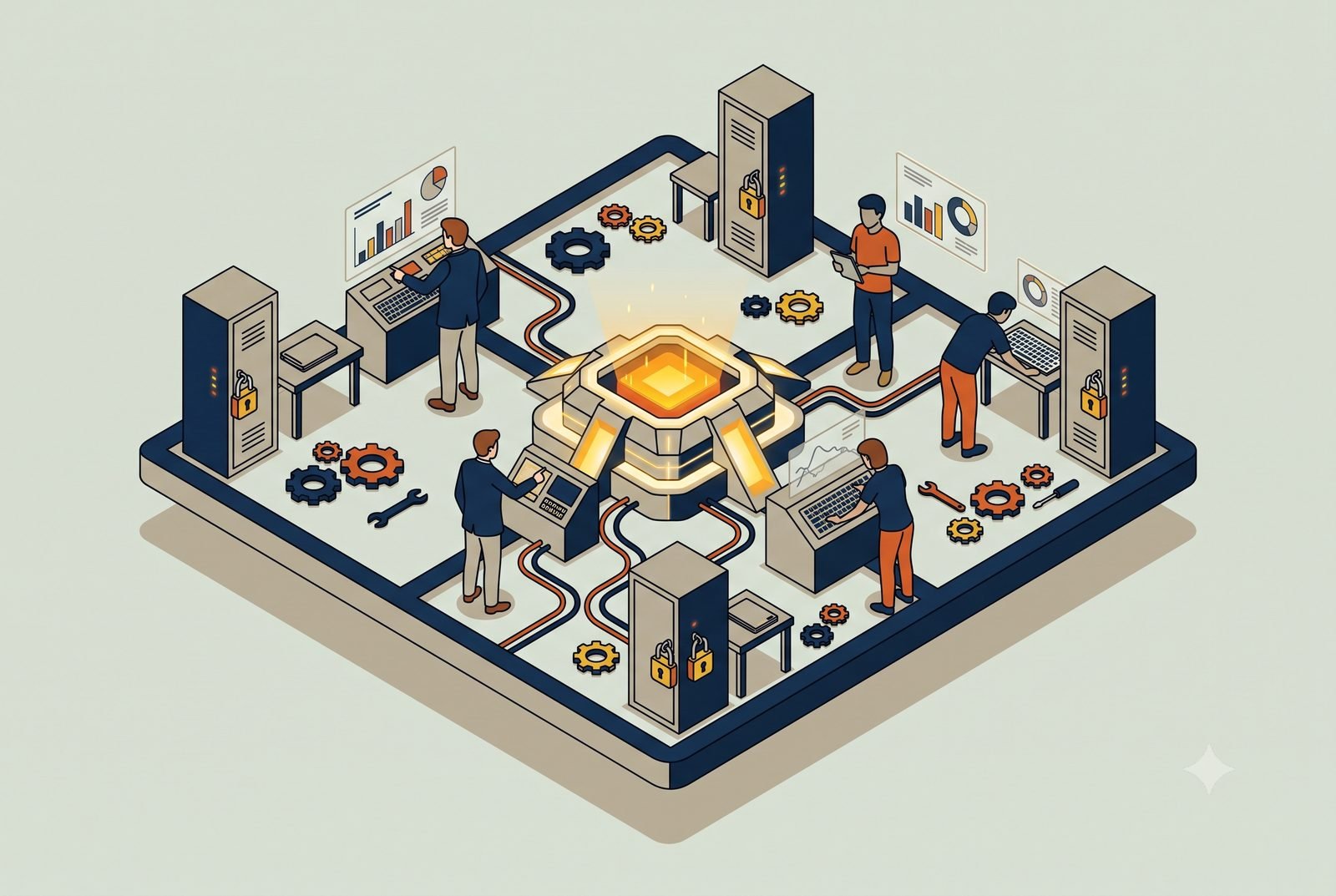
It's March, and your preparers are buried. Not in the actual accounting, the judgment work they're good at, but in keying numbers off bank statements, sorting a client's shoebox of receipts, and emailing the same client for the third time to get the one document that's holding up the return.

That's the real ceiling on most accounting and bookkeeping firms. Capacity isn't capped by how fast your people can think. It's capped by how much grunt work sits in front of the thinking. So tax season turns into overtime, and growing means hiring before you can really afford to.

AI lifts that ceiling by taking the grunt work off your team, not the judgment. Here's where it pays off first, starting with the one that pays for itself fastest.

TL;DR: An accounting workstation is one AI across your books, tax software, and document storage. It reads and categorizes client documents as they arrive, chases the missing paperwork automatically, and turns busy-season capacity into a setup problem instead of a hiring one. Your professionals keep the judgment and the sign-off.

  • Document intake: read, categorized, and staged for review.

  • The document chase: reminders and follow-ups handled automatically.

  • Capacity: more clients on the team you already have.

First, what we mean by a "workstation"

A workstation is a central AI, something like Claude, connected to the systems you already run on, with a few workflows built in that you kick off, review, and approve. As you come to trust them, those workflows start running on their own.

For a firm, that's Claude wired into your books in QuickBooks, your tax software like Drake or Lacerte, and your document storage like SmartVault, able to pull from all of them and act across them. A preparer stays in control and signs off on the work. The workstation just clears the path to it. And because it remembers, it gets sharper over time, learning your clients, your chart of accounts, and your firm's conventions, so each month its first pass needs less correction than the last.

1. Document intake and categorization, so your people stop keying data

The highest-value setup for most firms is a workstation that handles document intake: reading the bank statements, receipts, and forms clients send in, pulling the numbers, and categorizing them into the books, ready for a human to review.

This is where the hours go. A bookkeeper who spends a day a week typing transactions and matching receipts gets most of that day back, because the workstation does the first pass and they verify it instead of building it from scratch. The work that needs a trained eye still gets one. The rote entry that was eating their week mostly doesn't.

A point that matters in this field: the preparer always reviews and signs off. AI does the assembling. Your professional still owns the judgment and the accuracy, which is exactly the split you want.

2. The document chase, handled before it starts

Half the delay in any engagement isn't the work, it's waiting on the client. The missing 1099, the statement they forgot, the signature that never came. Chasing it falls on your team and quietly burns days.

A workstation tied to your client portal can track exactly what's outstanding for each client, send the reminders automatically, and field the questions clients ask back. A client-facing assistant, trained on your firm's checklist and easy to update as rules change, can answer "what do you still need from me" any time of day, so a client at 9pm gets an answer instead of waiting for someone to reply Monday. Your team stops being the nag, and the documents show up faster.

3. Capacity without hiring, which is the whole point

Add up the first two and you get the payoff that actually moves the business: you handle more clients, and a heavier tax season, with the team you already have.

This is why the workflow pays for itself. Every hour of data entry and document-chasing you take off your preparers is an hour they can spend on billable, higher-value work, or an hour that lets you take on the next client without adding a seat. For a firm that dreads the busy-season hiring scramble, that's the difference between turning work away and absorbing it.

Where it really clicks: one workstation across your stack

Each piece helps on its own. The payoff compounds when the same workstation sees across your books, your tax software, your document storage, and your portal at once.

Because it's pulling from all of them, it can do things no single tool does. A few examples:

  • Tell you, per client, exactly which documents are in and which are still missing, so nobody opens an engagement only to stall on page two.

  • Flag the transaction that doesn't fit the pattern, the duplicate, the miscategorization, the number that's off from last year, before it reaches review.

  • Give you a real-time read on where every return or close stands heading into the busy weeks, instead of a spreadsheet someone updates by hand.

That's the difference between a few smart tools and a setup that runs together, one view of the whole book of work and one place to act on it. Stack a few of these workstations across the firm and you've got what we call an AI operating system: one layer that runs across the whole business, built one workstation at a time.

A word on the data, because it's financial

You're handling tax IDs, financial records, and personal information your clients trust you with. This has to run on a business AI account your firm owns and controls, with the data protections in writing, not someone's personal login. For the sensitive end of the work, that means stepping up to a plan with the right compliance terms. Get that foundation set before you connect a single client file. (We cover the why in our piece on team AI environments.)

Where to start

Start with document intake. Point a workstation at the statements and receipts clients already send, let it do the first-pass categorization, and have a bookkeeper verify rather than build. It's the fastest hour you'll give back to your team, and it shows up the same week.

The how is simple to describe and a little more work to do well. You pick an AI engine to build on, Claude or ChatGPT, connect it to QuickBooks, your tax software, and your document storage, and write the rules and workflows that turn it into a workstation. Some firms have someone who can build that. Plenty don't, and it's a fair question to ask: are you in the accounting business, or the AI and IT business? Setting this up so it works, stays accurate, and holds up through tax season is the part we do, so your people can stay on the work only they can do.

Whether that's a single workstation, a handful of them, or a full AI operating system across your firm, we're here to help with as much or as little as you need.

Questions we hear from accounting firms

Does the AI do the accounting?

No. It does the assembling: reading documents, pulling numbers, drafting the first pass. Your professional reviews, owns the judgment, and signs off. That split is the whole design.

Is client financial data safe in an AI workstation?

It belongs on a business AI account your firm owns and controls, not anyone’s personal login, with connectors set read-only first. Our piece on team AI environments covers what that account structure looks like.

Where should a firm start?

Document intake. It’s where the hours go, and it’s the piece that pays for itself in the first busy week. The setup behind a full workstation is in The Six Layers of an AI Setup That Actually Works.This is part of the Practical AI Toolkit series. Hub: Cornerstone 2: The AI Workstation Playbook. Read next: AI for Construction Firms.

Read More
Team Ops Mark McCary Team Ops Mark McCary

Your Team Is Using AI on Personal Accounts. That's the First Problem to Fix.

Your team is already using AI on personal logins the company can’t see or control. Shadow AI is the first thing to fix, then decide what gets shared.
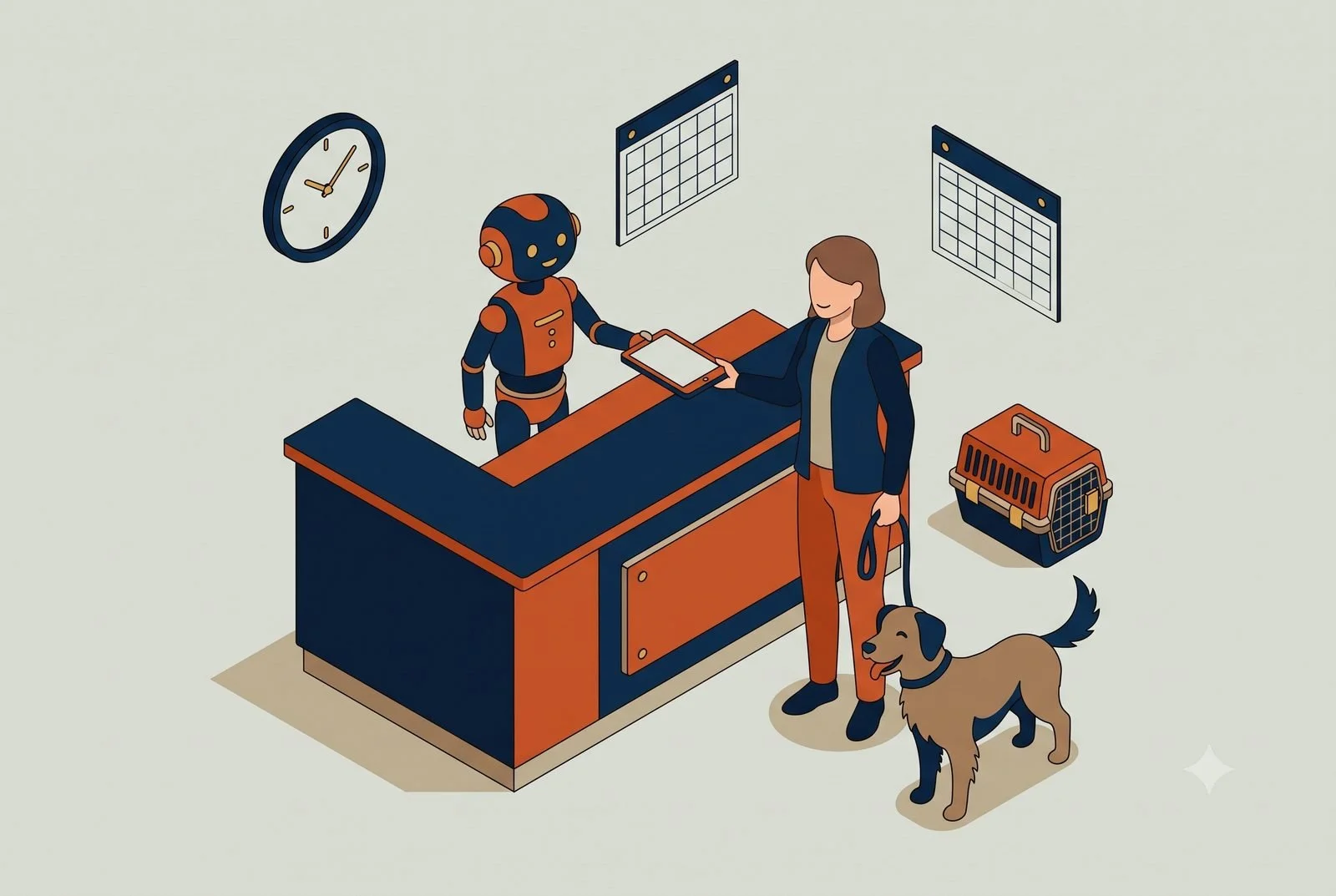
Walk through most small companies right now and you'll find the same thing: people are already using AI, on their own personal accounts. A free ChatGPT login here, somebody's personal Claude subscription there, a few of them quietly expensing it, plenty of it invisible to the owner entirely.

Your client list, your financials, your strategy, your customer emails, all of it getting typed into accounts the company doesn't own, can't see, and can't control. There's a name for this now. It's called shadow AI, and it's the first thing to fix before you think about anything else.

Once your team is on the right footing, the next question is what to share across everyone and what to keep individual. Both matter. Take them in order.

TL;DR: Move the team onto business AI accounts, then draw one line: shared at the team level, individual at the user level. Company knowledge, brand voice, process skills, and shared connectors belong to everyone. Personal memory, role instructions, and private connectors like email stay with the person.

  • Shared: company facts, voice, process skills, team connectors.

  • Individual: personal memory, role prompts, email and calendar.

  • First step: business accounts, because personal logins walk out the door with people.

First, get everyone onto business accounts

Before you decide what to share, make sure your team is using AI the company actually owns. Personal accounts create three problems that have nothing to do with how good the AI is.

You don't own it. When someone builds up a personal AI account around your business, all that context lives in their account, not yours. They leave, it leaves with them. You can't retrieve it, and you can't shut off their access to everything they loaded in.

You can't see or govern it. No admin view, no record of what's being used or shared, no way to set rules or pull access when you need to. If a client ever asks how their data is handled, "I'm not totally sure, my team uses their own accounts" is not an answer you want to give.

Your data protections depend on settings you can't enforce. On consumer accounts, what happens to your data varies by vendor and plan, and some of it can be used to help train the models. You're trusting each employee to have the right toggle flipped. That's not a control. That's a hope.

The fix is business accounts: ChatGPT Business, Claude Team, Google Gemini for Workspace, Microsoft Copilot, the company-owned tiers. On these plans the vendor contractually does not train its models on your data (Anthropic doesn't train on any paid Claude plan, OpenAI doesn't on Business or Enterprise, and Google keeps your Workspace data out of model training), the company owns the workspace, and you manage who has access from one place. The exact data rules vary by vendor and tier, which is the whole point: on a business account you get them in writing and you control them, instead of trusting a dozen personal settings.

If you're in a regulated field, healthcare, financial services, anything with client confidentiality on the line, this is where you step up to an Enterprise plan. That tier adds the audit logs, data-retention controls, and the signed HIPAA agreement (a BAA) that compliance actually requires. For a vet clinic or an accounting firm, that's not optional.

And don't let the switch scare you. The usual worry is that moving to a business account means losing everything you've built or spending a weekend re-teaching the AI from scratch. It doesn't. Your business context, the company description, the brand voice, the processes, is mostly documents and instructions, and that moves over in an afternoon. There are proven prompts for porting the rest: ask your current AI to write up everything it knows about you and your business, then paste that summary into the new account to bring it up to speed. The same trick moves context from ChatGPT to Claude or Gemini and back. You're transferring a briefing, not starting over.

This is step zero. Everything below sits on top of it.

What belongs shared, at the team level

Once you're on business accounts, the next call is what every person shares versus what stays their own. Start with the shared layer: anything that should be the same for everyone.

Your company knowledge and identity. Who you are, what you sell, your clients, your standards. This is the org-level instruction layer, written once and shared, so every person's AI starts from the same accurate picture of the business instead of whatever they typed in from memory.

Your brand voice. If marketing, sales, and the front desk are all generating customer-facing writing, they should pull from one definition of how your company sounds. Otherwise you get twelve subtly different brands. One shared voice, everyone on it.

Your process skills. The recurring workflows a department runs, your intake process, your monthly close, your proposal format, built once as shared skills so the whole team runs them the same way. This is the team version of the functional workstations from The Three Workstation Types.

Shared connectors. The systems the team works from together: the CRM, the accounting software, the shared drive. Connect them once at the team level instead of having each person wire up their own.

The thread through all of these: if it should be consistent across people, it belongs shared. Consistency is the whole reason a team environment exists.

What stays individual, at the user level

Anything specific to one person stays with that person.

Personal memory. What the AI has learned about how you work, your habits, your shortcuts, your preferences. That's yours, and it shouldn't bleed into everyone else's setup.

Role-specific instructions. Your job, what you're responsible for, how you like things delivered. The CFO and the office manager work from the same company knowledge but need different things from their AI day to day.

Your own calendar and email. Personal by definition. Your inbox connects to your workstation, not the team's.

This is the personal workstation from C5, sitting on top of the shared layer. The shared environment gives everyone the same foundation; each person's individual setup adds the part that's just theirs.

Why the line matters more than it looks

Put the wrong things in the wrong place and you pay for it two ways.

Share too little, and everyone privately rebuilds the same company context, badly. You get drift: ten versions of your brand voice, five interpretations of your process, no single source of truth, and a lot of wasted hours. Nobody's working from the same page because there is no same page.

Share too much, and you get the opposite problem. Personal inboxes and individual preferences dumped into a shared space, sensitive information visible to people who shouldn't see it, and a setup so cluttered with everyone's individual stuff that it's useful to no one.

What trips people up

Three patterns, all avoidable.

Staying on personal accounts because they're already set up. The switch to business accounts feels like a hassle, so it gets put off, even though the move is easier than most owners expect. It's the single highest-value move on this list, and it gets harder the longer you wait and the more context piles up in accounts you don't own.

Oversharing personal context. Dumping individual inboxes, personal notes, and one person's preferences into the shared environment. Keep the shared layer to what should be common. Personal stays personal.

No owner for the shared layer. A shared environment with nobody maintaining it rots the same way a project does. Someone needs to own the company knowledge, the brand voice, and the shared skills, and keep them current.

Where to start this week

Find out what your team is actually using. Ask, plainly, which AI accounts people are on and what they've been putting into them. Most owners are surprised, both by how much AI is already in use and by how much of it is happening on personal logins.

That answer tells you how urgent step zero is. Get everyone onto a business account, then write down the one thing that should be identical for everyone but currently isn't, your company description, your brand voice, your intake process, and put it in the shared space. You've now fixed the ownership problem and drawn the first shared line. For the full decision tree on where every new piece of knowledge should live, that's the next piece.

Questions we hear about team AI accounts

Why not just let everyone use their personal ChatGPT?

Three reasons: the knowledge each person builds leaves when they do, nobody works from shared standards, and company data ends up under consumer terms instead of business ones. The fix costs a plan upgrade, not a project.

What belongs in the shared layer?

Anything every employee should inherit on day one: who the company is, how it talks, and the skills that run your standard processes. When you’re not sure where a new piece belongs, the sharing decision tree settles it in five questions.

Do Claude, ChatGPT, and Copilot all support this split?

Yes. All three offer team plans with shared workspaces and individual logins inside them. The layers you’re splitting are the same ones covered in The Six Layers of an AI Setup That Actually Works.This is part of the Practical AI Toolkit series. Hub: Cornerstone 2: The AI Workstation Playbook. Read next: The Sharing Workflow Decision Tree.

Read More
Industry Mark McCary Industry Mark McCary

AI for Vets, Dentists, and Small Healthcare Practices: Where It Helps, and Where It Shouldn't

AI can take intake, confirmations, insurance checks, and recalls off your front desk. The medicine stays with your licensed people, and HIPAA comes first.
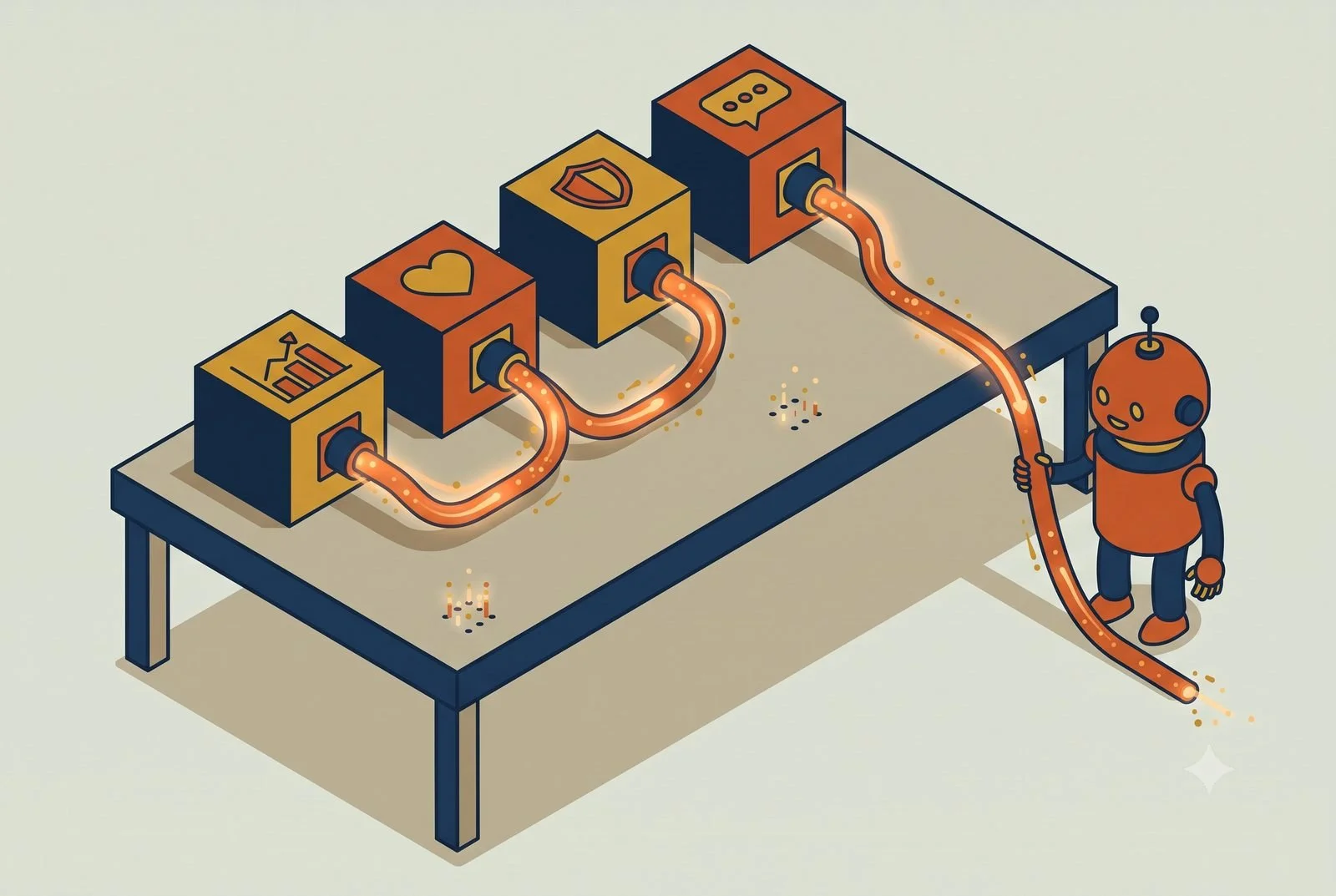
The phone's ringing, the waiting room's filling, someone needs their insurance verified before they'll be seen, and two of this morning's appointments just no-showed and blew a hole in the schedule. Meanwhile the recall list, the patients and pets due for a cleaning, a vaccine, an annual, sits untouched because nobody at the front desk has had a free minute in days.

That's the squeeze in most vet clinics, dental offices, and small medical practices. Your front desk is the answer key for everything administrative, and there's never enough of them. AI can take a real load off that desk. But healthcare is also where you have to be careful, so let's be clear up front about two lines we don't cross.

First, AI handles the front office, not the medicine. Everything below is about scheduling, paperwork, reminders, and verification. Clinical judgment, diagnosis, triage, treatment, stays with your licensed people, full stop. Second, none of this works unless you handle the data right, so we start there.

TL;DR: A practice workstation is one AI connected to your practice management, forms, and communication tools, with the data rules handled before anything else. It digitizes intake, confirms appointments so no-shows drop, verifies insurance before the visit, and works the recall list, so the front desk stops drowning.

  • Intake: forms filled before the visit, not on a clipboard.

  • Confirmations: reminders that actually cut no-shows.

  • Insurance: verified before the appointment instead of during it.

  • Recall: the follow-up list worked automatically.

First, the part you can't skip: the data

You're handling protected health information, and HIPAA isn't optional. That shapes everything about how you'd set this up.

The non-negotiables: this runs on a business or enterprise AI account with a signed Business Associate Agreement (a BAA), encryption, audit logging, and a minimum-necessary approach where the AI only touches the data it actually needs. A personal ChatGPT or Claude login does not meet that bar, and patient data should never go near one. The major platforms offer plans built for this, with the BAA and the controls regulated work requires, but you have to be on the right one and set it up correctly.

This is exactly the kind of thing to get right before you connect a single record, and it's where a careful setup earns its keep. Done properly, you get the time savings without the exposure. Done casually, you've created a compliance problem. There's no middle ground in healthcare, which is why we lead with it.

What a workstation is, in plain terms

A workstation is a single AI, something like Claude or ChatGPT on the right plan, connected to the systems you already run on and taught about your practice. It pulls from them and does real work across them, with your team approving as you go and automating only what's earned trust.

For a practice, that's the AI connected to your practice management system, Cornerstone or ezyVet for vets, Dentrix or Eaglesoft for dental, athenahealth or eClinicalWorks on the medical side, along with your scheduling and patient-messaging tools. And because it remembers, it gets sharper over time: it learns your providers' schedules, your common visit types, and your patients' patterns, so its work fits your practice instead of starting generic every day.

1. Intake, without the clipboard pile

The highest-value place to start for most practices is intake. Instead of a clipboard and a staffer re-keying it all later, AI can run intake as a simple conversation before the visit, collecting demographics, history, and insurance details, and dropping them into your practice management system for a human to confirm.

It gives your front desk most of a day back over a week, because they're verifying clean information instead of chasing and typing it. The patient fills it out from their phone on their own time, and you start the visit with the paperwork already done.

If you already run a tool like Phreesia or NexHealth for digital intake and self-scheduling, a workstation works alongside it and ties what it captures into the rest of your front office. If you don't, it can run the intake conversation itself and drop the results into your system. Either way, the goal is the same: clean information in, no clipboard pile, no re-keying.

2. Appointment confirmations, so no-shows stop bleeding you

No-shows are a direct hit to revenue, an empty chair or exam room you can't get back. Most of them aren't people blowing you off. They forgot.

A workstation can run confirmations and reminders automatically, by text, where they actually get read, with an easy way to confirm or reschedule. Practices that add consistent digital reminders often see no-shows drop by a third or more. When someone does cancel, it can work the waitlist and offer the open slot to the next patient, so a gap gets filled instead of lost.

This is where AI scheduling has moved fastest, and it's worth knowing the players. On the medical and dental side, platforms like Luma Health and NexHealth handle self-scheduling, smart waitlists, and even after-hours voice AI that books appointments by phone. For vets, Vetstoria and PetDesk cover online booking and reminders. A workstation can sit on top of whichever one you use, tying scheduling into the rest of your front office, or handle the confirmations and waitlist itself if you're still running it by hand.

3. Insurance verification, before the visit instead of at the desk

Verifying coverage by calling payers is one of the bigger time sinks at the front desk, and finding out about a coverage problem while the patient is standing there is worse.

AI can run eligibility checks electronically ahead of the visit, returning coverage, copays, and limits, so your team walks in knowing where each patient stands instead of dialing insurers one at a time. Intake platforms like Phreesia and NexHealth capture the insurance details up front; the workstation can take it from there and run the check. Fewer surprises at checkout, fewer billing headaches later, and a front desk that isn't on hold half the morning.

4. Follow-up and recall, so the list actually gets worked

The recall list is where practices quietly leave money and good care on the table. The pet due for vaccines, the patient overdue for a cleaning or an annual, the post-visit check-in that never goes out.

A workstation can keep that list working on its own: sending the right recall reminder at the right time, following up after a visit with the care instructions your provider approved, and flagging who's overdue. Vet platforms like PetDesk already automate vaccine and visit recalls, and Weave and Luma Health do the same on the dental and medical side. A workstation can drive those tools or stand in where you have none, and it ties recall into the same place as your scheduling and intake instead of living in its own silo. It's better for the practice and better for the patient, and it stops depending on someone at the desk finding a spare hour that never comes.

Where it really clicks: one workstation across the front office

Each piece helps alone. It compounds when the same workstation sees your schedule, your patient communications, and your practice management system together.

Because it does, it can connect dots no single tool does. It can spot tomorrow's open slot, find the overdue recall patient who'd fit it, and send the offer, filling the gap before it happens. It can flag the patients who haven't confirmed for tomorrow and nudge them tonight. Monday morning, it hands your office manager a clean read: confirmations outstanding, no-show risk, the recall list, and yesterday's gaps, instead of four screens nobody has time to check.

That's the difference between a stack of tools and a front office that runs as one thing, with your people reviewing and approving rather than doing it all by hand. Stack a few of these workstations across the practice and you've got what we call an AI operating system: one layer that runs across the whole practice, built one workstation at a time.

Where to start

Start with reminders and confirmations. They're the fastest win, they hit no-shows directly, and they keep your team out of the clinical lane entirely, which makes them the easiest place to get comfortable. Get the business account and BAA in place, connect your scheduling and messaging, and let it run confirmations for a couple of weeks.

The how is simple to describe and a little more involved to do right, especially with the compliance piece. You pick an AI engine on the right plan, connect it to your practice management and messaging tools, set it up to the minimum-necessary standard, and write the workflows. Some practices have someone who can manage that. Most don't, and it's a fair question to ask: are you in the business of caring for patients, or the AI and IT business? Standing this up so it works and stays compliant is the part we do, so your people can stay with the patients in front of them.

Whether that's a single workstation, a handful of them, or a full AI operating system across your practice, we're here to help with as much or as little as you need.

Questions we hear from practices

What about HIPAA and patient data?

The data rules come first, which is why this post opens with them. Business-grade AI accounts, proper agreements, and access controls get set up before any patient information touches the system. If a vendor can’t have that conversation, that’s your answer.

Will my patients end up talking to a bot?

Only for routine logistics: confirming a time, rescheduling, answering hours-and-parking questions. Anything clinical or sensitive routes to your staff. Patients notice shorter hold times, not robots.

Where should a practice start?

Appointment confirmations. No-shows are the most measurable leak in the schedule, and confirmations are the lowest-risk place to prove the setup works. The full picture is in The Six Layers of an AI Setup That Actually Works, and the account structure is covered in our piece on team AI environments.This is part of the Practical AI Toolkit series. Hub: Cornerstone 2: The AI Workstation Playbook. For the full toolkit and when to use what, read The Practical AI Toolkit.

Read More
Strategic Use Mark McCary Strategic Use Mark McCary

Stop Buying New Software. Point AI at the Apps You Already Pay For.

Your AI has been working blind. Connect it to the apps you already pay for and it goes from clever writer to something that does real work.

Imagine hiring the sharpest assistant you've ever met, then never giving them a login to a single one of your systems. No QuickBooks, no CRM, no calendar, no files. They're brilliant, and they're useless, because they can't see a thing about how your business actually runs.

That's the AI you've been using. You've tried ChatGPT, you've got the AI features switched on in a few of your apps, and it's been fine. A faster email here, a decent summary there. If you're honest, it's been a little underwhelming. Not because it's dumb. Because it's working blind.

The fix isn't a smarter AI or another subscription. It's giving the one you've already got access to the tools you already pay for. That's called harnessing, and it's the fastest, cheapest win available to most small businesses right now. By the end of this post you'll know how to point an AI like Claude, ChatGPT, Gemini, or Copilot at one app you already pay for, get an answer out of it you couldn't get before, and do it this week. No new subscriptions. No six-month project.

TL;DR: Harnessing means connecting the AI you already use to the apps you already pay for, so it works from your real data instead of guessing. Start with one app and one question you couldn’t answer before. The 10x shows up when the AI can see across systems and run the work no single app can.

  • Pick the app costing you the most manual work.

  • Connect it to your AI, read-only first.

  • Ask the question you couldn’t answer before.

What "harnessing" actually means

Harnessing means connecting your AI to the apps you already use, so it can read your real data and act on it, instead of sitting in a separate browser tab guessing.

Out of the box, the AI you've been typing into knows nothing about your business. It's smart, but it's blind. Ask it "which of my clients are slowest to pay" and it can't answer, because your invoices live in QuickBooks and the AI has never seen them. Harnessing is the step that hands it the keys: now it can look at the actual books, the actual CRM, the actual calendar, and give you a real answer instead of a generic one.

The gap between those two states is bigger than it sounds. It's the difference between that brilliant assistant on day one, sitting there with no logins, and the same assistant a week later, after you've handed over access and they've learned where everything lives. Same brain. Completely different value.

The one-week version: pick a tool, connect it, ask the question

You don't have to wire up your whole business to feel this. Start with one app and one question.

Pick the app that's costing you the most manual work. Not the fanciest one. The one where you find yourself exporting reports, copying numbers into a spreadsheet, or eyeballing the same data every week. For a lot of owners that's QuickBooks. For a lead-heavy business it's the CRM. For a field or service business it's the scheduling tool. Whichever one you're babysitting, start there.

Connect it to your AI. Most of the major AI platforms now connect to common business apps directly. The plumbing has a name (connectors, and a newer standard called MCP), but you don't need to care about the term any more than you care about how your email reaches your phone. What matters is that you turn it on, and you turn it on read-only first. Let the AI look before you ever let it touch anything. We'll come back to why that matters.

Ask it the question you couldn't answer before. This is the part that sells itself. Once QuickBooks is connected, ask: "Which of my clients or service lines are quietly becoming unprofitable?" Once the CRM is connected, ask: "Which leads from the last 90 days look most like the deals I actually closed?" These are questions that used to take an afternoon of exports and squinting. Now they take a sentence.

That's harnessing, in its smallest useful form. One app, one connection, one question. Most owners feel the click right there.

Where the 10x actually comes from

The first connection is nice but the real payoff shows up when the AI can see and do work across more than one app at once.

The work that runs your business almost never lives in a single tool. "Which clients are unprofitable" isn't really a QuickBooks question. The revenue is in QuickBooks, the hours are in your time tracking, the scope creep is buried in your email, and the project status is in your PM tool. No single app can answer it, which is exactly why you've been doing it by hand.

Connect those tools to one AI and the question finally has a home. We've watched this land the same way across very different businesses. A marketing agency we work with wired its accounting and its project tool together and started catching margin-bleeding clients in real time instead of 60 days after the damage was done. An HR firm pulled live profitability by client and service line out of four disconnected systems, then used what it saw to refocus on the work that actually paid. A beach cart rental business saves its cross-tool routines as reusable skills, runs them across operations and marketing, and saves hours per employee every week.

None of them bought new software to do it. They put AI on top of what they already owned. That's where the 10x lives. Not one tool running faster, but the AI working across all of them at once, on the questions and the work no single app could touch.

The four words you'll hear (and what they do)

You'll hear four words thrown around when people talk about this. Here's what each one actually does for you, without the jargon.

Connectors are the wiring that lets your AI read and act inside another app. This is what you turn on in step one. (The newer standard is called MCP. Same idea, just the current plumbing.)

Skills are reusable recipes. When you find a prompt that works, the month-end profitability check, the new-lead summary, you save it once and run it on command instead of retyping it every time. Think of it as teaching the AI a task it remembers.

Zapier and Make are the duct tape between apps for the steps that don't need a human or a conversation. New form comes in, a row gets added, a Slack message fires. Straight app-to-app handoffs, running in the background. And you don't wire these up one app at a time. Both now hand their entire libraries to your AI through a single connection (Zapier covers 9,000+ apps, Make over 3,000), so even the niche tool you assumed nothing talks to is often already covered.

You do not need to master these to start. You need to know they exist, and that they stack: connectors let the AI see your tools, skills let it repeat good work, and Zapier or Make handle the boring handoffs. If you want the full map of when to use which one, that's the whole point of our Cornerstone, The Practical AI Toolkit. This post is just here to show you the door.

What trips people up

Four things, and all four are avoidable.

Connecting everything at once. The temptation is to wire up all ten tools on day one. Don't. You'll get overwhelmed, the answers will get noisy, and you won't know which connection is doing the work. There's a cost angle too. Every time the AI reads from a connected tool it uses paid usage (tokens, basically metered minutes), so pointing it at your whole stack at once runs up the bill for answers you never asked for. One app, one question, then add the next.

Giving write access too early. Start every connection read-only. Let the AI show you it understands your data before you ever let it change a record or send a message on your behalf. Trust is earned in that order, not the other way around.

Expecting it to remember on its own. A connection lets the AI see your data today. It does not, by itself, make the AI remember your business tomorrow. That's a separate setup step, and it's the difference between an assistant that starts fresh every morning and one that builds on what it learned. We cover exactly how to set that up in Five Layers of Setup.

Over-engineering the recipe. When you save a skill, tell the AI what you want and what a good result looks like, not every keystroke to get there. Over-scripted recipes break the moment something shifts. Loose and clear beats rigid and brittle.

Where to start this week

Pick the one app you find yourself babysitting most. Connect it to your AI, read-only. Then ask it the one question you've been answering by hand for months.

That's the entire first move. If the answer is useful, you've just proven the case for harnessing the rest of your stack, and you did it without buying a thing.

Questions we hear about harnessing

Do I need to buy new software to use AI well?

No. That’s the point. The value comes from putting AI on top of the tools you already own, not from another subscription. Most owners already pay for more capability than they use.

Is it safe to connect AI to my books or CRM?

Connect read-only first, on a business AI account your company controls. Let it look before it can touch. Our piece on team AI environments covers the account setup that keeps data where it belongs.

What are connectors and MCP, in plain terms?

The plumbing that lets an AI read your apps. You don’t need to care how it works any more than how email reaches your phone. Switch it on, point it at one app, and build from there; the full setup order is in The Six Layers of an AI Setup That Actually Works.This is part of the Practical AI Toolkit series. Hub: Cornerstone 2: The AI Workstation Playbook. For the full map of connectors, skills, Zapier, Make, and when to use each, read The Practical AI Toolkit. Read next: Five Layers of Setup.

Read More
Strategic Use Mark McCary Strategic Use Mark McCary

You Switched On AI and It Still Feels Underwhelming. Here's Why.

You switched on the AI buttons in your apps and it’s been fine, not transformative. The real win is connecting your tools so AI works across them.

Over the last year, an AI button or assistant has shown up in just about every software tool you use. Your email, your CRM, your accounting software, your calendar, each one added an assistant and a little sparkle icon, usually with a friendly nudge to turn it on.

So you did. You've used it to draft a few emails, summarize a thread, maybe clean up a spreadsheet. It's been fine. Useful, even. But if you're honest, it hasn't changed much about how your business actually runs, and you're left wondering whether you missed a step that everyone else seems to have figured out.

You didn't. Here's the part nobody says out loud: turning on those AI features is fine, but it was never going to be the thing that changes your business. The real win is connecting the tools that should be working together, so the AI can see across them and remember what matters. Do that across enough of your software and files and you end up with something bigger than a chatbot. You get what we call an AI operating system, an AIOS: one layer that sits across your whole business and helps you run it, instead of a dozen disconnected assistants that each know one corner.

TL;DR: The AI buttons inside your apps are fine for drafting and summarizing, but each one only sees its own app. The step that changes the business is a workstation: one AI connected across your tools, set up with your context, that runs whole workflows. Built-in AI is a feature; a workstation is a coworker.

  • Built-in AI sees one app at a time; a workstation sees across all of them.

  • Built-in AI answers questions; a workstation runs workflows.

  • Built-in AI starts from zero every session; a workstation remembers your business.

The advice everyone's giving you

You've heard it from every vendor and every LinkedIn post: just turn on the AI in the tools you already pay for, and you're set. It's the single most common piece of AI advice going around right now. It's also where most businesses stop.

And that advice isn't wrong, exactly. Built-in AI is a real upgrade over doing everything by hand. If you're not using it at all, switch it on today.

But here's what nobody mentions. Built-in AI only reaches what it's connected to. The AI inside a single-purpose tool, your accounting software for example, only sees your books. The bigger assistants, the ones that can grow into that operating system, reach much further: across your email, your files, even non-Microsoft and non-Google apps once you wire them in. That wiring happens through connectors (MCP is the newer standard) and, for simple app-to-app steps, tools like Zapier and Make. Don't worry about the names yet, we break them down in another article. The point is that somebody has to connect the tools. Out of the box, most people never do that part, so they end up with a generalist (ChatGPT, Gemini, Claude, or Copilot) that has shallow access. On top of that, each of their tools still has its own built-in AI running in its own corner, none of them talking to the generalist or to each other. Once you connect your AI engine to your core tools, the game changes. That's when the productivity gains show up and you start seeing things you couldn't see before.

Why flipping the switch isn't enough

The work that actually moves your business almost never lives in one app. And there's a second catch most owners hit fast: the built-in AI in those apps doesn't remember your past chats with it.

Most built-in assistants start from zero every time you open them. They don't recall last week's conversation, the decision you made on Tuesday, or the way you like things done. It's like getting a sharp new temp every single morning who's never seen the place. And they definitely don't remember the data sitting in your other systems: your numbers in the accounting tool, your history in the CRM, the files on your drive. Every chat is its own little island, which means you retype and retrain it every single time.

Put those two gaps together and you get the ceiling. Think about a real question you'd want answered. "Which of my clients, service lines, or product lines are quietly becoming unprofitable?" The answer is scattered across your accounting tool, your time tracking, maybe your email or calendar, and your project management software. Out of the box, the AI you switched on isn't connected to all of that, and it doesn't remember what you told it the last time you asked. So it can't answer the question. You're left doing what you've always done: exporting reports, eyeballing spreadsheets, and hoping you catch it before the quarter closes.

That's the real ceiling on built-in AI. Not that it's weak. That nobody connected it to the tools the answer lives in, and nothing is holding the memory together.

A connected workstation fixes both gaps at once. Picture a Finance workstation tied into your accounting software, your time tracking, and your CRM at the same time. Now "which clients are becoming unprofitable" gets a real answer, because the AI can look across all three together. And it holds the context between sessions. It already knows your clients, your pricing, and the calls you made last month, so you're not re-explaining your business every time you sit down. Same idea for a Marketing workstation wired into your social media tools, your email platform, and your website analytics.

The shift is simple to say and easy to feel: built-in AI makes each tool a little smarter. A connected workstation makes your tools work together and remember what matters. Stand up a few of those workstations and you've got that AI operating system, one place to run the whole business from.

It's not just answers. It's workflows.

Answering questions across your tools is the first half. The bigger half is doing the work across them.

Once your tools are connected, the AI doesn't just look things up. It can run a sequence of steps that used to bounce between three or four apps and a person. A few real ones:

  • A new lead comes in. The workstation pulls their details, updates the CRM, drafts a personalized reply with three meeting times, and pings the right rep, all before you've finished your coffee.

  • A meeting wraps. The transcript turns into a recap email, a set of tasks in your project tool, and an updated record in the CRM, without anyone typing it up.

  • It's the end of the month. The workstation pulls the numbers from accounting, flags the clients trending unprofitable, drafts the summary, and drops it in your project management tool for review.

Every one of those crosses several tools that never talked to each other before. That's where the real time savings live. Not in a faster email, but in a five-step process collapsing into one.

The steps get stitched together a few different ways: saved skills (reusable recipes your AI runs on command) for the AI-driven work, and tools like Zapier and Make for the straight app-to-app handoffs. You don't need to know which is which yet, we go deeper on the toolkit in the next article. For now, the takeaway is that a connected setup can run the workflow, not just answer your questions.

What we keep seeing

We've built these setups for a beach cart rental business, a marketing agency, a restaurant, an HR firm, and a software startup. Different industries, same pattern every time.

Nobody got their gains from built-in AI or from one chat engine. They got them from grouping the right tools around the right role, then letting the AI run the work across them. The rental business runs an Operations workstation and a Marketing workstation, each connected to the handful of tools that role actually touches, saving hours per employee every week. The HR firm has a Finance workstation pulling live profitability by client and service line, something none of their built-in AIs did on their own, because the data lived in four different places that had to be connected first. That visibility let them refocus on their most profitable industries. The marketing agency wired its project management tools, its meeting transcripts, and its files into role-based workstations and started handling more clients without adding headcount.

The common thread: the value showed up when related tools got connected and started working together, not when a single tool got a smarter button. Every one of these businesses had the built-in AI buttons turned on too. That's just not where the lift came from.

Who this isn't for

Three honest exceptions, because this position isn't absolute.

If you're a solo operator running on one or two tools, built-in AI might genuinely be all you need. There's not much to connect when everything already lives in one place. Don't build a connected workstation to solve a problem you don't have.

If you're in your first month with AI, start with the built-in features. Get comfortable. Wiring five tools together on day one is a good way to get overwhelmed and quit. Built-in is the on-ramp. Just don't mistake it for the destination.

And if you're in a heavily regulated business, healthcare, financial services, defense, your ability to connect tools may be limited by compliance as much as by capability. The workstation idea still holds. You'll just need tighter security and more care about what gets connected.

What to do instead

You don't need to rip anything out. You need to group what you already have.

Pick one role where the work is clearly leaking time. Finance, marketing, operations, whichever one you find yourself babysitting most. List the tools that role touches every week. Then ask one question: are those tools talking to each other, or are you the one carrying data between them?

If you're the integration layer, that's your first workstation. Connect those tools to one AI environment built around that role, and let it both answer across them and run the work across them. Start with the one role doing the most damage. Get value there. Then add the next workstation, and the next, until the pieces add up to an operating system for the whole business.

Keep the AI buttons on. They're fine. Just stop expecting the button to do the job that connecting your tools was always going to do.

Questions we hear about built-in AI

Should I turn off the AI features in my apps?

No. Keep them for quick in-app work like drafting an email or summarizing a thread. They’re useful. They’re just not the thing that changes how the business runs.

What’s the difference between built-in AI and an AI workstation?

Scope and memory. The AI in your CRM sees only your CRM. A workstation is one AI connected to your CRM, email, books, and files, so it can answer questions and run work that crosses systems. The setup behind it is covered in The Six Layers of an AI Setup That Actually Works.

Where should I start if AI still feels underwhelming?

Point a general AI at the apps you already pay for, one connector at a time, and ask a question no single app can answer. Stop Buying New Software walks through the one-week version.This is part of the Practical AI Toolkit series. For the full framework on workstations and agents, start with Cornerstone 2: The AI Workstation Playbook. Read next: Harnessing to 10x the Apps You Already Pay For.

Read More
Industry Mark McCary Industry Mark McCary

AI for Independent Retail: Win the Shopper Who Finds You on Instagram First

Your new customers meet you on a screen before they pass the window. One AI assistant that knows your inventory, customers, and socials changes that math.

Most of your new customers meet your store on a screen before they ever pass the window. They find you on Instagram, they compare you to Amazon and every big brand in the same thirty seconds, and they decide whether you're worth the trip. Foot traffic is flat across most of retail, so the shop that wins isn't the one with the best corner. It's the one that shows up well online, knows what's actually selling, and makes a regular feel remembered.

That's three full-time jobs, and in most independent shops, clothing boutiques, gift and variety stores, the candle-and-art-and-apparel spots, it's all one person. You're the buyer, the merchandiser, the marketer, and the one at the register when it gets busy. Something always gets dropped, and lately it's usually the online side, which is exactly the part deciding whether new customers find you.

AI helps you cover all three without cloning yourself. Here's where it pays off first.

TL;DR: A retail workstation is one AI that knows your whole shop: your POS, your socials, and your customer list. It runs the content engine that gets you found on Instagram, tells you what to reorder and what to mark down, and brings regulars back without a corporate clienteling budget.

  • Content engine: the week’s posts drafted from what’s actually in stock.

  • Inventory: buy more of this, mark down that, before the season turns.

  • Clienteling: regulars nudged back with the right message.

Think of it as one assistant that knows your whole shop

Everything below runs on the same idea, so picture it before the examples.

You already use a few tools that don't talk to each other. Your POS and inventory, probably Lightspeed, Shopify, or Square. Your email and texts, something like Klaviyo or Mailchimp. Your Instagram and TikTok. Each one holds a piece of your business, none of them sees the whole picture, and the only place they come together is in your head, after close.

A workstation is what ties them together. It's a single AI, something like Claude or ChatGPT, that you give access to those tools and teach about your shop: your brand, your products, the way you talk to customers. Then it can pull from all of them and do real work across them, with you approving as you go and automating the parts you trust. Less a new app to check, more an assistant who already knows your store and never has to ask where anything is.

And it remembers. As it works, it sees which posts drove sales and which flopped, what sold through and what sat on the shelf, and it carries that forward. The longer you use it, the sharper it gets, because it's learning what works in your shop instead of starting from scratch every week.

1. The content engine, because social is how they find you

For retail, this is the one that moves the needle most, because social is now the front door. The problem isn't that you don't know what to post. It's that posting consistently, well, while running the floor, is nearly impossible by hand.

A marketing workstation loaded with your brand voice, your look, and your product list turns that around. From a quick note or a few photos of what just came in, it drafts the week's posts, stories, and product features, plus the email and text campaigns to match, all sounding like your shop instead of generic AI. When video is the post that performs, and on Instagram and TikTok it usually is, a tool like HeyGen can turn a script into a polished clip of you, an AI "twin" that delivers the message cleanly, no reshoots and no stumbling over lines, so you can show up on camera every week without filming every week. Tied into a tool like Klaviyo, it can even turn an Instagram comment into an email signup automatically, so the engagement you're already getting actually grows your list instead of scrolling by.

You still approve what goes out. You just stop choosing between running the store and showing up online.

2. Inventory that tells you what to buy and what to dump

The quiet killer in independent retail is cash tied up in stock that isn't moving, while the thing that sells out never gets reordered in time.

A workstation connected to your POS can read your actual sales and tell you what you'd otherwise piece together by hand: which styles and colors are moving, what's gone stale and should be marked down to free up cash, what to reorder before you run out. For an apparel shop running size and color variants in Lightspeed, that's the difference between buying on gut and buying on what the numbers say. For a gift or variety store with hundreds of small SKUs, it's finally being able to see which lines earn their shelf space.

Better buying decisions are pure margin. Every dollar not stuck in dead candles is a dollar you can put into what's actually selling.

3. Clienteling, so regulars come back

Your edge over the big box and the marketplace is that you can actually know your customers. Most shops just don't have time to act on it.

A workstation connected to your sales history and your email or text tool can. It can spot the customer who bought three times last year and hasn't been in lately, flag the regulars who love a brand you just restocked, and draft the text or email, "we got the scent you like back in," ready for you to send. It turns the relationship you already have into repeat business, without you keeping a mental list of who likes what.

Where it really clicks: one workstation across all of it

Each piece helps alone. It compounds when the same workstation sees your inventory, your customers, and your socials together.

Because it does, it can connect dots no single app can. A best-selling candle drops to its last few units: the workstation flags the restock, drafts a "back in stock soon" post, and lines up a text to the customers who bought it before, all in one move. A new shipment lands: it drafts the product posts and emails from the line sheet while you're still unpacking. Monday morning, it hands you a plain read of the week, top sellers, dead stock, which posts actually drove sales, instead of three dashboards you don't have time to open.

That's the difference between a pile of apps and a shop that runs as one connected thing. Stack a few of these workstations across the shop and you've got what we call an AI operating system: one layer that runs across the whole business, built one workstation at a time.

A quick word on the data

You're holding customer contact info and purchase history. That belongs on a business AI account your shop owns and controls, not a personal login, so your customers' information stays protected. It's a quick foundation to set, and worth setting before you connect your systems. (We cover the why in our piece on team AI environments.)

Where to start

Start with the content engine, since social is where you're losing the most ground by default. Load a workstation with your brand and your products, connect your email and social tools, and let it draft a week of posts and a campaign for you to approve. The first week you post consistently without it eating your floor time, you'll feel it.

The how is simple to describe and a little more work to do well. You pick an AI engine to build on, Claude or ChatGPT, connect it to your POS, your email tool, and your socials, and write the rules and workflows that make it yours. Some owners will build it themselves. Plenty won't, and it's a fair question to ask: are you in the retail business, or the AI and IT business? Standing it up so it works, and keeps working as your inventory and seasons change, is the part we do, so you can stay focused on the floor and running your business.

Whether that's a single workstation, a handful of them, or a full AI operating system across your shop, we're here to help with as much or as little as you need.

Questions we hear from shop owners

I don’t have time for social media. Does this actually help?

That’s the case it’s built for. The workstation drafts the week’s content from what’s in stock and what’s moving; you approve and post. The shopper who finds you on Instagram first sees a live shop, not a dead feed.

What data does it need to be useful?

Your POS and your socials to start, connected read-only. That’s enough for the content engine and the buy-or-markdown calls. Harnessing the apps you already pay for covers the one-week version.

Where should a shop start?

The content engine, because being findable is what feeds everything else. The setup behind the full workstation is in The Six Layers of an AI Setup That Actually Works.This is part of the Practical AI Toolkit series. Hub: Cornerstone 2: The AI Workstation Playbook. Read next: AI for Bars and Restaurants.

Read More
Strategic Use Mark McCary Strategic Use Mark McCary

You Decided to Use AI. Don't Automate Everything.

Deciding to use AI isn’t a decision to automate everything. The order that works: assist first, augment next, automate what’s earned trust.

The fastest way to waste your first six months with AI is to treat the decision to use it as a decision to automate.

It's an easy mistake to make. You finally get past the "is this real" stage, you're convinced AI can help the business, and the natural next move feels obvious: pull up your processes, find the repetitive ones, and start automating them. Map it all, wire it all up, set it loose.

That's the wrong first move. Not because automation is bad, but because you're skipping the part that makes automation work, and you're confusing two different things that happen to get filed under the same word.

TL;DR: Treat AI like a new hire, not a vending machine. Give it judgment work with review before you hand it the keys, leave the must-be-identical work to automation tools, and start with one painful workflow instead of everything at once. Trust is earned in weeks, not assumed on day one.

  • AI: judgment work, reviewed until it earns autonomy.

  • Automation: rote work that must run identically every time.

  • Start: one workflow that hurts, then expand from what proves out.

What everyone tells you to do

The standard advice is reasonable on its face. List your workflows. Find the ones that are repetitive and rules-based. Automate those first. Build from there.

The advice isn't wrong about the destination. It's wrong about where you start and how fast you move. It assumes you already know which processes are worth automating, that those processes are stable enough to hand off, and that your team will trust the output. On day one, none of those things are true. You haven't used the tools enough to know what they're good at, and you definitely haven't built the trust to let them run unattended.

Automate first, and you'll automate the wrong things, perfectly.

Think of it like a new hire

You wouldn't hand a new employee the keys to a process on their first day. You'd let them shadow you for a while. Then you'd let them do the work and check it before it goes out. Then, once they've proven they get it, you'd turn them loose and only step in on the weird stuff.

Bringing AI into your business works the same way. It moves through three stages.

Stage one: assisted. You drive, AI helps. This is the shadow-along phase. You, in a chat window, doing your actual work with AI sitting next to you. Drafting the proposal. Cleaning up the messy spreadsheet. Asking it to find the holes in your reasoning before a big call. The output isn't the point yet. The point is learning where it's genuinely good and where it falls down, and building the instinct for when to trust it. You'll be surprised both directions. It'll nail things you assumed were too nuanced, and whiff on things you assumed were simple.

This stage looks like nothing is happening. No systems, no integrations, no automation. Just you getting fluent. Don't rush it. The teams that skip it are the ones who later can't figure out why their fancy automation produces garbage they don't trust.

Stage two: augmented. AI does more of the doing, you supervise. Now it's earned a longer leash, and you start handing off bigger pieces. This is where Cowork and the lighter automation tools earn their place. AI assembles the new-hire onboarding packet and you review it instead of building it from scratch. A tool like Make or Zapier handles the boring glue between your apps, moving data from the form to the CRM to the calendar without you copying and pasting. You're still in the loop, but you're checking work instead of doing all of it. This is also where you start tweaking. The first version of any handoff is mediocre. You watch it run, you adjust, it gets better.

Stage three: autonomous. AI runs the process, you set the rules and check the exceptions. This is real automation. A process runs end to end without you touching it, and you only look when something falls outside the lines you drew. This is the stage everyone wants to start at, and it's the one you reach last, because you can only safely let something run unattended after you've watched and tweaked it enough to finally trust it.

Two shapes show up most here. Scheduled work runs on a clock: every Monday at 6am it pulls last week's numbers, writes the summary, and has it in your inbox before you've had coffee. Triggered work fires on an event: a new client signs, and onboarding kicks off on its own, the welcome email goes out, the folder gets created, the kickoff call gets scheduled, the task list populates, all before anyone on your team lifts a finger. Reporting and onboarding are two of the most common processes that end up here, because they repeat, they follow a pattern, and once you trust the output you rarely need to touch them.

Most mature setups aren't living at one stage. They're running all three at once, on different work. You're still drafting in a chat window for the high-judgment stuff, supervising a few augmented workflows, and letting one or two well-worn processes run on their own. The stages aren't a sequence you graduate out of and leave behind. You end up running all three at the same time.

AI and automation are not the same thing

Here's the distinction that the "just automate it" advice quietly skips, and it's the one that costs people the most.

Automation follows rules you wrote. When this happens, do that. It's fast, it's cheap, it's reliable, and it breaks the instant reality stops matching the rules. The vendor changes a form field and the whole chain snaps. Automation has no judgment. It does exactly what you told it, including when what you told it is now wrong.

AI applies judgment to messy input. It reads the weird email that doesn't fit the template and figures out what the customer actually wants. It handles the case you didn't anticipate. It's slower and less predictable than automation, and that unpredictability is the price of it being able to handle things you never explicitly planned for.

These are different tools for different jobs, and the magic is usually both together. Automation moves the data; AI decides what the data means. Automation files the invoice; AI flags the one invoice that looks wrong. When someone says "we automated our intake," the good version is almost always AI reading and deciding, with automation doing the mechanical hauling around it.

Lump them into one bucket called "automation" and you'll reach for rigid rules where you needed judgment, and you'll burn money asking AI to do something a five-dollar Zapier task would have nailed.

The thing nobody warns you about

Here's what actually happens around stage two, and it's the real payoff. You go to automate a process, and you realize the process shouldn't exist in that shape at all.

You built that weekly report because someone needed it in 2019, and every week since, a person has spent two hours assembling it. The instinct is to automate the assembly. The better question is why anyone is assembling a static report when AI could answer the underlying question on demand, the moment someone actually has it. You weren't supposed to speed up the report. You were supposed to delete it.

This is the difference between using AI to do the old thing faster and using it to do a better thing. Most of your existing workflows are shaped around what humans can reasonably do by hand. A lot of them stop making sense when that constraint lifts. The teams that win big aren't the ones who automated their 2019 processes fastest. They're the ones who used the moment to ask which of those processes deserved to survive at all.

You can't see this on day one. You see it after you've spent time in stages one and two, watching how the work actually flows. Which is one more reason not to automate everything up front: half of what you'd automate, you'd later wish you'd rebuilt instead.

Before any of this: point it at the right work

None of the stages help if you aim them at the wrong target. Before you decide what to assist, augment, or automate, you need a clear-eyed read on readiness, and readiness isn't about whether your tech is fancy. It's three plain questions about each process you're tempted to touch.

Is the process stable, or does it change constantly? Stable processes are safe to hand off. The ones still in flux belong in stage one, where a human is steering anyway.

Where does the data live, and can the AI actually reach it? A workflow that depends on information trapped in someone's head or a PDF nobody can search isn't ready, no matter how repetitive it is.

Does the team trust the output yet? Trust isn't a feeling, it's earned by watching the thing work. If nobody believes the AI's answer, automating it just means nobody believes it faster.

Run those three questions across your work and the starting point picks itself. The stable, reachable, already-trusted stuff is ready to move toward automation. Everything else stays human-led while you build the reps.

Who should ignore all this and automate fast

The slow ramp isn't universal. Some teams genuinely should jump.

If you've got a high-volume, dead-simple, rules-based process that hasn't changed in years (the same data moving from the same form to the same system, a thousand times a month) automate it now. You don't need a maturity journey to copy a field from one app to another. That's plumbing, and plumbing is what Zapier was built for.

Some of it you shouldn't build at all. Lead handling is the clearest case. If a web lead should get qualified, routed, and chased automatically, your CRM probably already does it. GoHighLevel, Salesforce, and HubSpot handle most of that out of the box. Turning it on isn't an AI project, it's a setting you're already paying for. Don't rebuild what you own.

If someone on your team already lives in this stuff, has the scar tissue, and knows where the bodies are buried, you can compress the timeline. The reason most teams take it slow is that they're building judgment they don't have yet. If you've already got that judgment in-house, move faster.

And if the cost of a mistake is genuinely zero (the worst case is a slightly wrong draft a human reviews anyway) you can be more aggressive. The caution scales with the stakes. Low stakes, move quick.

The point isn't that automation is dangerous. It's that automation without the reps behind it is a guess wearing a lab coat.

Where to actually start this week

Pick one task you do every week that you'd hate to train a new hire on. The fiddly one with all the context locked in your head. Employee onboarding. The monthly client report. The proposal you rewrite from scratch every time.

Don't automate it. Open whatever AI your business runs on (Claude, Microsoft Copilot, ChatGPT, Gemini) and do that task next to it, in a chat window, for a couple of weeks. Watch where it helps and where you have to take the wheel back.

That's stage one, and it's the whole foundation. Everything else (the augmented workflows, the automation, the processes you eventually rebuild) gets easier and safer once you actually know what your AI is good at. You can't shortcut your way to that knowledge. But you can start figuring it out on Monday.

If you want a second opinion on which of your processes are ready to move and which should stay human-led for now, that's the kind of thing we map with clients early. Worth a conversation if it's on your roadmap.

Questions we hear about automating with AI

What’s the difference between AI and automation?

Automation tools like Zapier and Make run identical steps on rails, and that rigidity is their job. AI handles work that needs judgment and bends with variation. They pair well: automation moves the data, AI makes the calls. Don’t Micromanage Your AI covers how to instruct each.

What should I never fully automate?

Anything where a wrong answer is expensive and judgment-heavy: pricing exceptions, sensitive client communication, hiring calls. Keep a human review step there permanently, not just during rollout.

How do I pick the first workflow?

The one your team complains about most. A visible win in the first two weeks sells the rest of the rollout better than any plan. The order to build in is covered in The Six Layers of an AI Setup That Actually Works.

Read More
Industry Mark McCary Industry Mark McCary

AI for HR Firms: How to Scale Without Adding Headcount

A few senior people are your firm’s answer key, and that caps your growth. AI takes the routine draws off their plates so you scale without hiring.

If you run an HR firm, whether that's staffing, a PEO, recruiting, or payroll, a handful of people are probably your answer key. The unusual termination question, the "can we do this in Alabama" compliance call, the client who needs an offer letter by end of day, it all routes to the same few senior people and the departments they run. That's the bottleneck, and it's the reason growing usually means hiring before you're ready.

AI changes that math. Not by replacing your team's expertise, but by taking the repetitive draws on it off their plates so the same people can serve more clients. Here are the three places it pays off first for HR firms, and a fourth point that matters more than all of them if you ever plan to sell.

TL;DR: An HR workstation is one AI connected to your policy library, ATS, and HRIS. It answers the compliance questions that currently route to your senior people, runs a sharper first pass on resumes with reasons attached, and turns onboarding into a tracked process, so you serve more clients without adding headcount.

  • Knowledge agent: answers from your own documented guidance, source attached.

  • Recruiting: a sharper first pass, reasons included, human decides.

  • Onboarding: a tracked process instead of a checklist in someone’s head.

What we mean by a "workstation"

A workstation is a single AI, something like Claude or ChatGPT, connected to the systems you already run on and taught about your firm. It pulls from them and does real work across them, with your team approving as you go and automating only what's earned trust.

For an HR firm, that's the AI connected to your policy and compliance library, your ATS, your HRIS, and payroll, able to work across all of them. And because it remembers, it gets sharper over time, learning your firm's guidance, your common cases, and the way you handle them, so its answers fit your firm instead of starting generic every day.

1. An internal knowledge agent, so you stop being the lookup

The highest-value setup for most HR firms is an internal knowledge workstation: an AI connected to your own policies, your compliance references, and your past guidance, that anyone on the team can ask instead of routing it to the few people who hold it all.

Picture the junior coordinator who hits a question about FMLA edge cases or a multi-state payroll rule. Today they interrupt a senior person or guess. With a knowledge workstation, they ask the AI, which answers from your firm's actual documented guidance, with the source attached so they can verify it. The senior people get pulled in only for the genuinely hard calls, which is what you're paying them for.

Start with the internal version, where you can fine-tune it and get the answers right at low stakes. Once it's solid, the same setup can grow into a client-facing bot your clients' employees query directly. Earn that by getting it right inside your own walls first.

This is the one to build first. It attacks the exact thing that caps your capacity: too many routine questions landing on too few experienced people.

2. Recruiting: a sharper first pass, on resumes and interviews

For firms that handle recruiting, AI can take the first pass at a stack of applications, summarizing each candidate against the role criteria and flagging the ones worth a human look. You can make that pass a lot smarter by showing it what good looks like: feed it the job description, the resumes of people who actually worked out, and anonymized notes from your strongest past hires, so it's matching against your real bar instead of a generic one.

The key words are first pass. AI is good at reading 200 resumes and surfacing the 20 that fit what you asked for. It is not the place to make the final call, and screening carries real legal sensitivity, so a person stays in the loop on every decision that affects a candidate. Used that way, it turns a day of sorting into an hour of reviewing a shortlist, without handing judgment to a machine.

The same idea helps after the interview. Feed in the interview transcript and the AI will recap it and assess the answers against your criteria, even applying the grading rubric your firm already uses. The interviewer still makes the call. A second, objective read just makes that call better informed and easier to defend later.

3. Onboarding, run as a tracked process

Onboarding is mostly a sequence of steps that has to happen on time, which is exactly the kind of thing that slips. The welcome email, the forms to collect, the training to finish, the accounts to set up. An onboarding workstation can run and track that whole sequence: drafting the welcome email, knowing which forms and training each new hire still owes, and flagging what's overdue.

Better still, it keeps everyone honest with automated check-ins, a short status note to the hiring manager and the new hire showing what's done and what's left, so nothing falls through the cracks and nobody has to chase it by hand. The steps can be a fixed sequence or a flexible checklist. Either way, having the AI track who needs to do what by when takes the coordination off a person's plate.

The simple Q&A still helps on top of that. A new hire can ask the assistant how PTO works or where the handbook lives instead of routing every small question to an HR contact. It quietly removes a steady stream of low-value interruptions, the kind that never show up on a timesheet but eat the week anyway.

Where it really clicks: one workstation across the firm

Each piece helps on its own. It compounds when the same workstation sees your knowledge base, your ATS, your HRIS, and your onboarding tracker together.

Because it does, it can connect dots no single tool can. A multi-state question gets answered against the specific employee's record and your documented guidance at once, not in two separate lookups. A new hire's missing forms get flagged before their start date instead of after. Monday morning, it hands a manager a clean read: open reqs and where each candidate sits, which onboardings are behind, and which questions keep hitting your senior people, so you can see what to fix instead of piecing it together by hand.

That's the difference between a few smart tools and a firm that runs as one connected thing, with your people reviewing and approving rather than doing it all themselves. Stack a few of these workstations across the firm and you've got what we call an AI operating system: one layer that runs across the whole business, built one workstation at a time.

The point that matters most: you're de-risking the business

Here's the part most HR firm owners don't think about until it's time to sell.

A firm where the knowledge lives in a few people's heads is worth less than one where it lives in the business. Buyers and valuation formulas both penalize key-person dependency, because the day one of those people leaves, a chunk of the value walks out with them. It's the single biggest discount on a lot of small professional-services firms.

Capturing your firm's expertise into systems the whole team uses does double duty. It frees up capacity now, and it makes the business more sellable later, because the value lives in the firm, not in a handful of people. We tend to lead with the capacity win because it's immediate, but for an owner thinking about an exit in the next few years, the valuation angle is the bigger one.

A word on the data, because it's HR

You're handling employee records, compensation, medical and protected information. This is exactly the work that has to run on a business AI account, not a personal one, with the data protections in writing and access you control. For firms with healthcare clients, that means an Enterprise plan with a signed HIPAA agreement. Get that foundation right before you connect anything sensitive. (We wrote up the why in our piece on team AI environments.)

Where to start

Build the internal knowledge agent. Take the questions that pile up on your senior people most, gather the documents that answer them, and stand up one workstation anyone can query instead of interrupting a senior person. It's the fastest way to feel your key people's calendars open back up.

From there, the recruiting and onboarding pieces are natural next steps, each one taking another stream of routine work off the people you'd otherwise have to hire around.

The how is simple to describe and a little more work to do well. You pick an AI engine to build on, Claude or ChatGPT, connect it to your policy library, your ATS, and your HRIS, and write the rules and workflows that make it yours. Some firms have someone who can build that. Plenty don't, and it's a fair question to ask: are you in the HR business, or the AI and IT business? Standing this up so it works, and stays accurate as the rules change, is the part we do, so your people can stay on the work only they can do.

Whether that's a single workstation, a handful of them, or a full AI operating system across your firm, we're here to help with as much or as little as you need.

Questions we hear from HR firms

Can we trust AI answers on compliance questions?

It answers from your firm’s own documented guidance with the source attached, so anyone can verify before acting. That’s the difference between a knowledge agent and a chatbot guessing: yours cites your policy library, not the internet.

Does AI resume screening create bias risk?

It reduces one kind and demands vigilance on another. The workstation applies the same written criteria to every resume and shows its reasons, which is more consistent than a tired human skim. The hiring call stays human, and the criteria get reviewed like any policy.

Where should an HR firm start?

The internal knowledge agent. It relieves your most senior people first, and it’s built on documents you already have. The layers behind it are covered in The Six Layers of an AI Setup That Actually Works, and the account structure in our piece on team AI environments.This is part of the Practical AI Toolkit series. Hub: Cornerstone 2: The AI Workstation Playbook. Read next: AI for Marketing and Creative Agencies.

Read More