Blog

Practical AI for small and mid-sized businesses: setup guides, team playbooks, and industry use cases from the EagleWorks team. New posts every week.
Strategic Use Mark McCary Strategic Use Mark McCary

Don't Micromanage Your AI

Over-scripted AI workflows break the moment reality shifts. Tell your AI what good looks like, give it guardrails, and let it work out the steps.
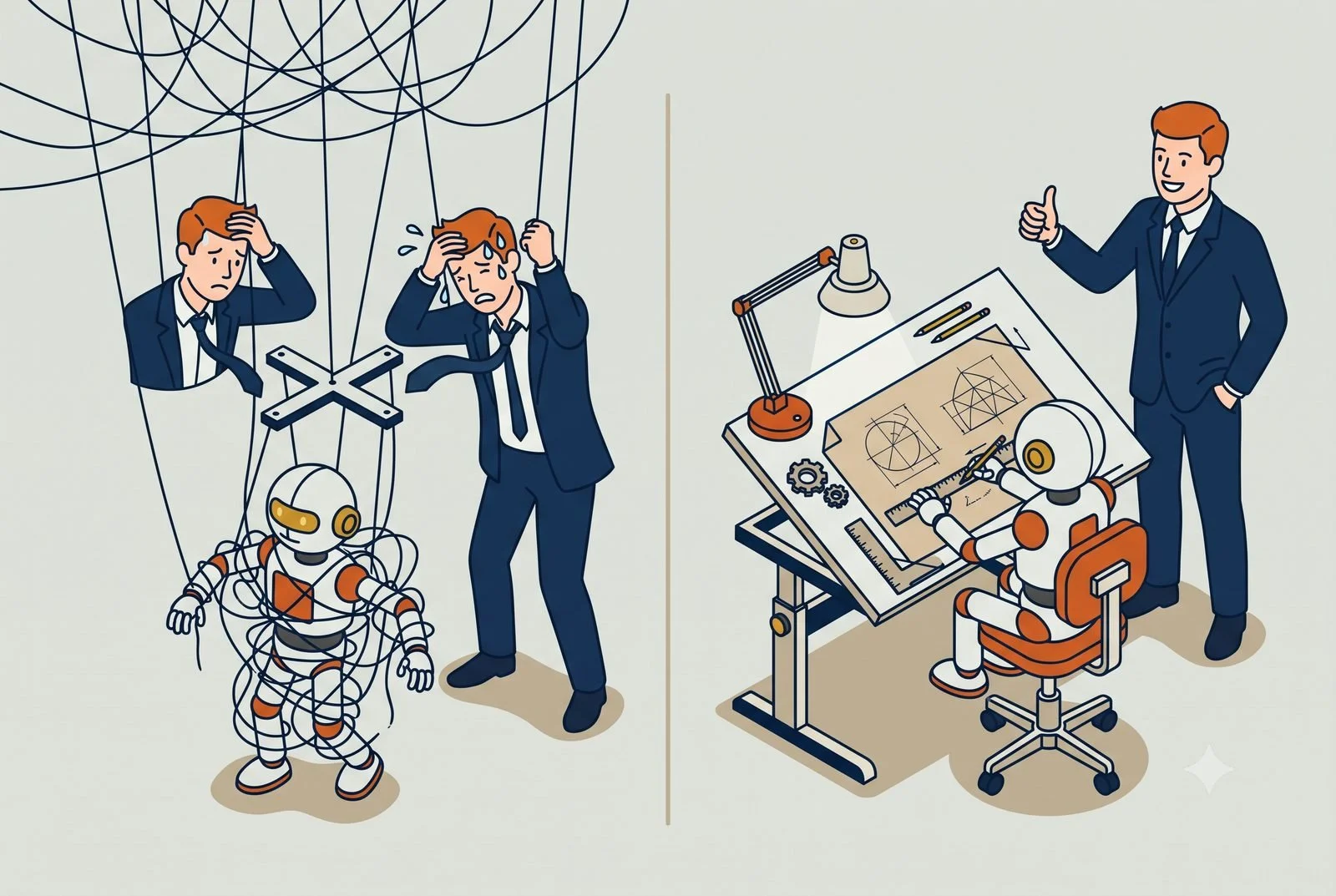
The most common mistake we see when a business starts building its own AI workflows is over-engineering them. Someone writes a skill that spells out all twelve steps in exact order, every if-this-then-that, every edge case they can think of. It works once, on the example they built it for.

Then a client sends a slightly different file, or the situation shifts an inch, and the whole thing falls over.

The fix is counterintuitive: tell your AI less about how to do the work, and more about what a good result looks like. The teams that get the most out of AI script it the least.

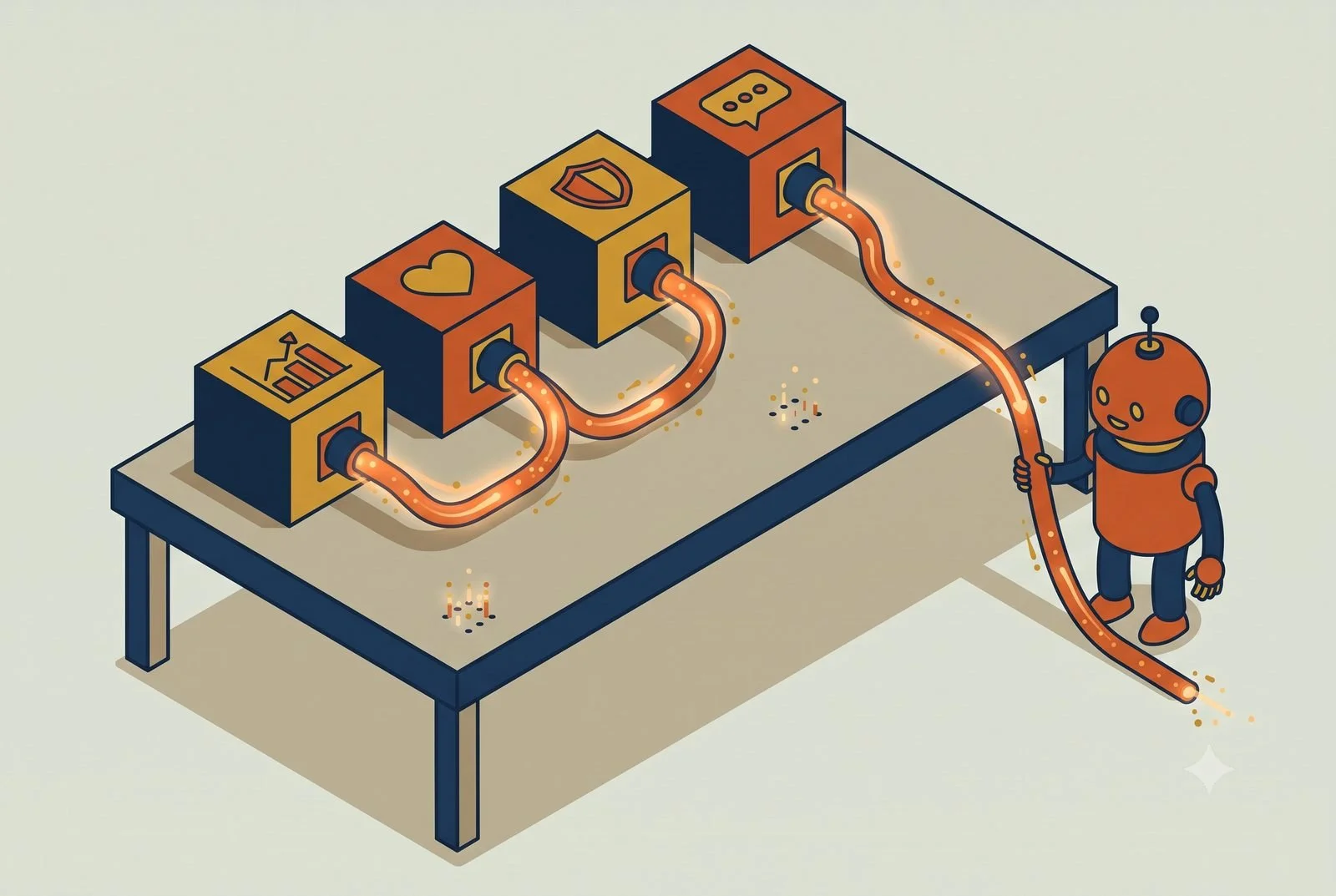
TL;DR: Over-scripted AI workflows break the moment reality shifts. Give the AI three things instead: what it needs to know, what a good result looks like, and a few hard guardrails. Script only the work that must be identical every time, and match the model to the job.

  • What it needs to know: the context that shapes a good answer.

  • What good looks like: one strong example of the finished thing.

  • The guardrails: the few hard rules that actually matter.

Think about how you'd brief a sharp employee

You wouldn't hand your best employee a forty-step checklist for writing a client email. You'd tell them who it's going to, what it needs to accomplish, the tone to hit, and what to avoid. Then you'd trust them to write it. The checklist would actually make them worse, because the moment the situation didn't match step three, they'd be stuck following a script instead of using their head.

AI works the same way. When you over-script a skill, you turn a capable generalist into a brittle macro that only works when reality matches your example exactly. When you give it the goal and the guardrails instead, it can handle the hundred small variations real work throws at it.

This isn't just our opinion. It's how the people who build these models tell you to design skills: describe what the AI needs to know and what success looks like, then let it work out the steps. The instinct to control every move is the thing that breaks it.

What to put in a skill instead

Three things, and steps aren't one of them.

What it needs to know. The context for the task. Who it's for, what the inputs usually look like, the background that shapes a good answer.

What a good result looks like. This is the one people skip, and it's the most important. Show it the standard. A good example of the finished thing teaches the AI more than a page of instructions ever will.

The guardrails. The few hard rules that actually matter. What to never do, what to always include, where to stop and ask. Keep this short. Guardrails are a fence, not a maze.

Give it those three and let it figure out the path. You'll get something that bends with the work instead of snapping the first time it's surprised.

When you actually do want it scripted

There's a real exception, and it matters. Some work has to happen one exact way every time.

Compliance steps. Anything legal or regulated. A calculation that has to be done identically or it's wrong. For those, the exact "how" is the whole point, so spell it out, or better yet, hand it to a tool built for exact repetition rather than judgment. Straight app-to-app automation, the Zapier and Make kind of work, is supposed to be rigid. That's its job.

The line is simple. If the task needs judgment, describe the goal and let the AI think. If the task must be identical every single time, script it or automate it. Most owners get this backwards: they script the judgment work and wing the stuff that actually needed to be exact.

Match the model to the work

There's a second choice that matters as much as the instructions: which model runs the skill. Most people leave it on whatever's default. The job and the model should match.

Work that needs real thinking, analysis, judgment, drafting something nuanced, deserves the smartest, latest model. That's where the quality gap is widest, and where a cheaper model hands you a confident, wrong-shaped answer that looks fine until you read it closely.

Work that's rote, reformat this, pull these fields, sort this list, doesn't need the heavyweight. A lighter, faster model does it just as well, and it costs less to run. Every task you give an AI burns usage, the metered "tokens" you're paying for, and running simple jobs on the premium model quietly runs up the bill for no extra quality. Use the smart model where thinking happens. Use the cheaper one where it doesn't.

Test it before the team trusts it

Here's the step that ties it together: run your workflow on a few different real examples before you rely on it.

You're tuning two things now, the instructions and the model, and the only way to know you've got the right combination is to try it on varied inputs, not just the one example you built it on. Feed it the messy case, the edge case, the one that's a little different. If it holds up across all of them, you're set. If it breaks on the odd one, you learn whether the fix is a clearer standard or a smarter model.

This matters double for a skill other people depend on. A personal shortcut that misfires is your problem for thirty seconds. A shared skill that misfires is wrong for everyone who runs it, quietly, until someone catches it. Test the shared ones hard before you turn them loose.

What trips people up

Two opposite failures, and you want to land between them.

Over-scripting the judgment work. The one we've been talking about. Forty steps, brittle, breaks on contact with real variety. If your skill reads like a software program, you've gone too far.

Under-specifying the standard. The opposite ditch. "Write me a good proposal" with no example, no context, no guardrails, and then disappointment when it's generic. Loose doesn't mean vague. You still have to show it what good looks like. You're giving it judgment, not abandoning it.

Where to start this week

Find your most over-built prompt or skill, the one with the long list of steps, and cut it down to three things: what it needs to know, an example of a good result, and a couple of hard rules. Then run it on a few real, varied tasks, not just the example you built it on, and watch whether it holds up. While you're there, check it's on a model that fits the work: the smart one if it's thinking, a lighter one if it's just getting a rote job done.

It usually does. And it's a lot less to maintain, because you're describing what you want once instead of patching a script every time the work changes.

Questions we hear about AI skills

When should I write exact step-by-step instructions for an AI?

When the work must happen one exact way every time: compliance steps, anything regulated, calculations that are wrong unless identical. For those, rigid is the point, and straight app-to-app automation handles them better than judgment-based AI.

Why do detailed AI workflows keep breaking?

Because over-scripting turns a capable generalist into a brittle macro. The workflow works on the example it was built for, then a client sends a slightly different file and step three no longer matches reality. Loose instructions with a clear standard bend where scripts snap.

Does the model I pick matter as much as the instructions?

Yes. Judgment work deserves the smartest model you have; rote work runs just as well on a lighter, cheaper one. Skills and models are one layer of a full setup, covered in The Six Layers of an AI Setup That Actually Works, and when a skill is worth sharing with the team, the sharing decision tree covers where it should live.This is part of the Practical AI Toolkit series. For the full framework on the AI toolkit and when to use what, download The Practical AI Toolkit.

Read More
Strategic Use Mark McCary Strategic Use Mark McCary

Stop Buying New Software. Point AI at the Apps You Already Pay For.

Your AI has been working blind. Connect it to the apps you already pay for and it goes from clever writer to something that does real work.
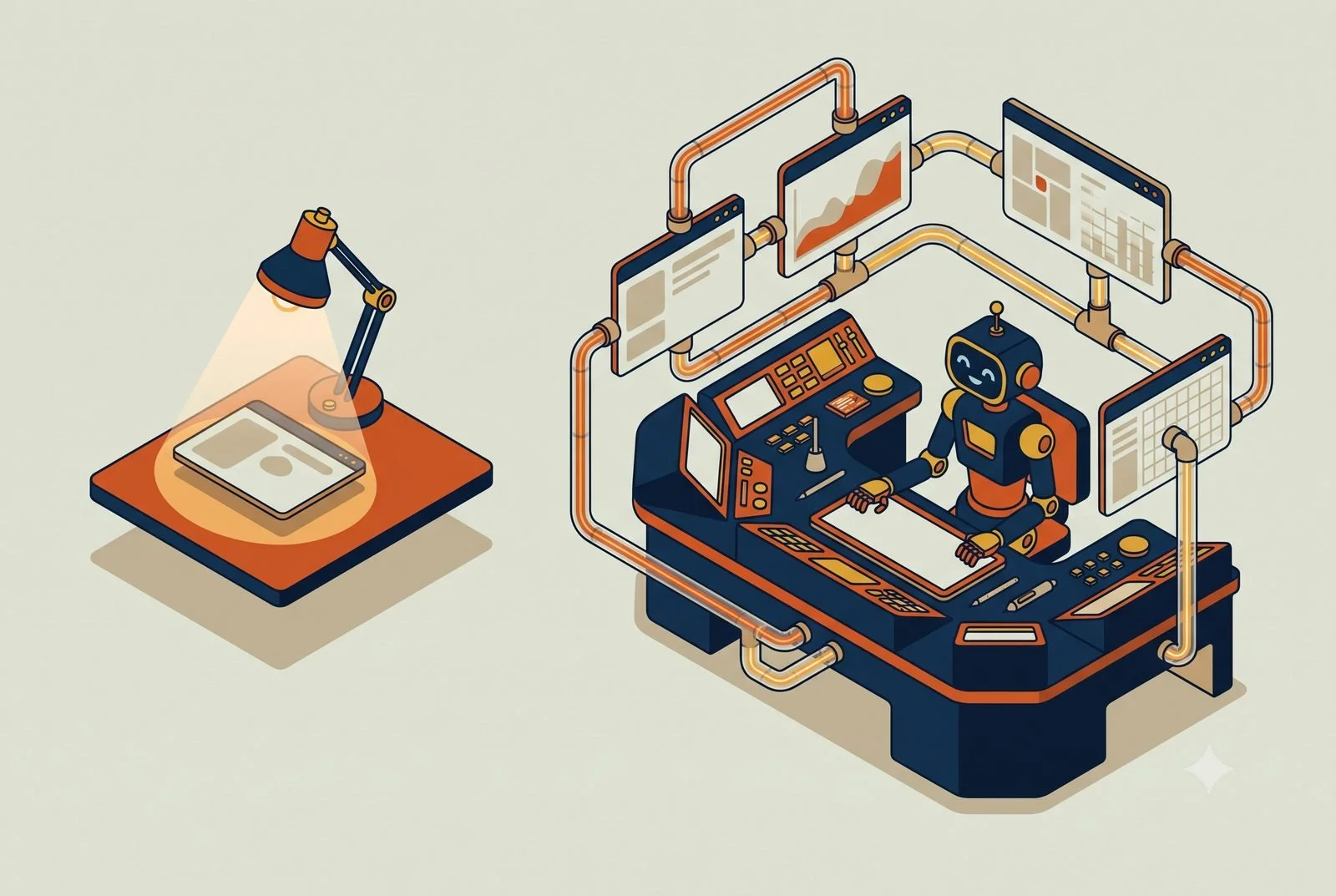
Imagine hiring the sharpest assistant you've ever met, then never giving them a login to a single one of your systems. No QuickBooks, no CRM, no calendar, no files. They're brilliant, and they're useless, because they can't see a thing about how your business actually runs.

That's the AI you've been using. You've tried ChatGPT, you've got the AI features switched on in a few of your apps, and it's been fine. A faster email here, a decent summary there. If you're honest, it's been a little underwhelming. Not because it's dumb. Because it's working blind.

The fix isn't a smarter AI or another subscription. It's giving the one you've already got access to the tools you already pay for. That's called harnessing, and it's the fastest, cheapest win available to most small businesses right now. By the end of this post you'll know how to point an AI like Claude, ChatGPT, Gemini, or Copilot at one app you already pay for, get an answer out of it you couldn't get before, and do it this week. No new subscriptions. No six-month project.

TL;DR: Harnessing means connecting the AI you already use to the apps you already pay for, so it works from your real data instead of guessing. Start with one app and one question you couldn’t answer before. The 10x shows up when the AI can see across systems and run the work no single app can.

  • Pick the app costing you the most manual work.

  • Connect it to your AI, read-only first.

  • Ask the question you couldn’t answer before.

What "harnessing" actually means

Harnessing means connecting your AI to the apps you already use, so it can read your real data and act on it, instead of sitting in a separate browser tab guessing.

Out of the box, the AI you've been typing into knows nothing about your business. It's smart, but it's blind. Ask it "which of my clients are slowest to pay" and it can't answer, because your invoices live in QuickBooks and the AI has never seen them. Harnessing is the step that hands it the keys: now it can look at the actual books, the actual CRM, the actual calendar, and give you a real answer instead of a generic one.

The gap between those two states is bigger than it sounds. It's the difference between that brilliant assistant on day one, sitting there with no logins, and the same assistant a week later, after you've handed over access and they've learned where everything lives. Same brain. Completely different value.

The one-week version: pick a tool, connect it, ask the question

You don't have to wire up your whole business to feel this. Start with one app and one question.

Pick the app that's costing you the most manual work. Not the fanciest one. The one where you find yourself exporting reports, copying numbers into a spreadsheet, or eyeballing the same data every week. For a lot of owners that's QuickBooks. For a lead-heavy business it's the CRM. For a field or service business it's the scheduling tool. Whichever one you're babysitting, start there.

Connect it to your AI. Most of the major AI platforms now connect to common business apps directly. The plumbing has a name (connectors, and a newer standard called MCP), but you don't need to care about the term any more than you care about how your email reaches your phone. What matters is that you turn it on, and you turn it on read-only first. Let the AI look before you ever let it touch anything. We'll come back to why that matters.

Ask it the question you couldn't answer before. This is the part that sells itself. Once QuickBooks is connected, ask: "Which of my clients or service lines are quietly becoming unprofitable?" Once the CRM is connected, ask: "Which leads from the last 90 days look most like the deals I actually closed?" These are questions that used to take an afternoon of exports and squinting. Now they take a sentence.

That's harnessing, in its smallest useful form. One app, one connection, one question. Most owners feel the click right there.

Where the 10x actually comes from

The first connection is nice but the real payoff shows up when the AI can see and do work across more than one app at once.

The work that runs your business almost never lives in a single tool. "Which clients are unprofitable" isn't really a QuickBooks question. The revenue is in QuickBooks, the hours are in your time tracking, the scope creep is buried in your email, and the project status is in your PM tool. No single app can answer it, which is exactly why you've been doing it by hand.

Connect those tools to one AI and the question finally has a home. We've watched this land the same way across very different businesses. A marketing agency we work with wired its accounting and its project tool together and started catching margin-bleeding clients in real time instead of 60 days after the damage was done. An HR firm pulled live profitability by client and service line out of four disconnected systems, then used what it saw to refocus on the work that actually paid. A beach cart rental business saves its cross-tool routines as reusable skills, runs them across operations and marketing, and saves hours per employee every week.

None of them bought new software to do it. They put AI on top of what they already owned. That's where the 10x lives. Not one tool running faster, but the AI working across all of them at once, on the questions and the work no single app could touch.

The four words you'll hear (and what they do)

You'll hear four words thrown around when people talk about this. Here's what each one actually does for you, without the jargon.

Connectors are the wiring that lets your AI read and act inside another app. This is what you turn on in step one. (The newer standard is called MCP. Same idea, just the current plumbing.)

Skills are reusable recipes. When you find a prompt that works, the month-end profitability check, the new-lead summary, you save it once and run it on command instead of retyping it every time. Think of it as teaching the AI a task it remembers.

Zapier and Make are the duct tape between apps for the steps that don't need a human or a conversation. New form comes in, a row gets added, a Slack message fires. Straight app-to-app handoffs, running in the background. And you don't wire these up one app at a time. Both now hand their entire libraries to your AI through a single connection (Zapier covers 9,000+ apps, Make over 3,000), so even the niche tool you assumed nothing talks to is often already covered.

You do not need to master these to start. You need to know they exist, and that they stack: connectors let the AI see your tools, skills let it repeat good work, and Zapier or Make handle the boring handoffs. If you want the full map of when to use which one, that's the whole point of our Cornerstone, The Practical AI Toolkit. This post is just here to show you the door.

What trips people up

Four things, and all four are avoidable.

Connecting everything at once. The temptation is to wire up all ten tools on day one. Don't. You'll get overwhelmed, the answers will get noisy, and you won't know which connection is doing the work. There's a cost angle too. Every time the AI reads from a connected tool it uses paid usage (tokens, basically metered minutes), so pointing it at your whole stack at once runs up the bill for answers you never asked for. One app, one question, then add the next.

Giving write access too early. Start every connection read-only. Let the AI show you it understands your data before you ever let it change a record or send a message on your behalf. Trust is earned in that order, not the other way around.

Expecting it to remember on its own. A connection lets the AI see your data today. It does not, by itself, make the AI remember your business tomorrow. That's a separate setup step, and it's the difference between an assistant that starts fresh every morning and one that builds on what it learned. We cover exactly how to set that up in Five Layers of Setup.

Over-engineering the recipe. When you save a skill, tell the AI what you want and what a good result looks like, not every keystroke to get there. Over-scripted recipes break the moment something shifts. Loose and clear beats rigid and brittle.

Where to start this week

Pick the one app you find yourself babysitting most. Connect it to your AI, read-only. Then ask it the one question you've been answering by hand for months.

That's the entire first move. If the answer is useful, you've just proven the case for harnessing the rest of your stack, and you did it without buying a thing.

Questions we hear about harnessing

Do I need to buy new software to use AI well?

No. That’s the point. The value comes from putting AI on top of the tools you already own, not from another subscription. Most owners already pay for more capability than they use.

Is it safe to connect AI to my books or CRM?

Connect read-only first, on a business AI account your company controls. Let it look before it can touch. Our piece on team AI environments covers the account setup that keeps data where it belongs.

What are connectors and MCP, in plain terms?

The plumbing that lets an AI read your apps. You don’t need to care how it works any more than how email reaches your phone. Switch it on, point it at one app, and build from there; the full setup order is in The Six Layers of an AI Setup That Actually Works.This is part of the Practical AI Toolkit series. Hub: Cornerstone 2: The AI Workstation Playbook. For the full map of connectors, skills, Zapier, Make, and when to use each, read The Practical AI Toolkit. Read next: Five Layers of Setup.

Read More
Strategic Use Mark McCary Strategic Use Mark McCary

You Switched On AI and It Still Feels Underwhelming. Here's Why.

You switched on the AI buttons in your apps and it’s been fine, not transformative. The real win is connecting your tools so AI works across them.
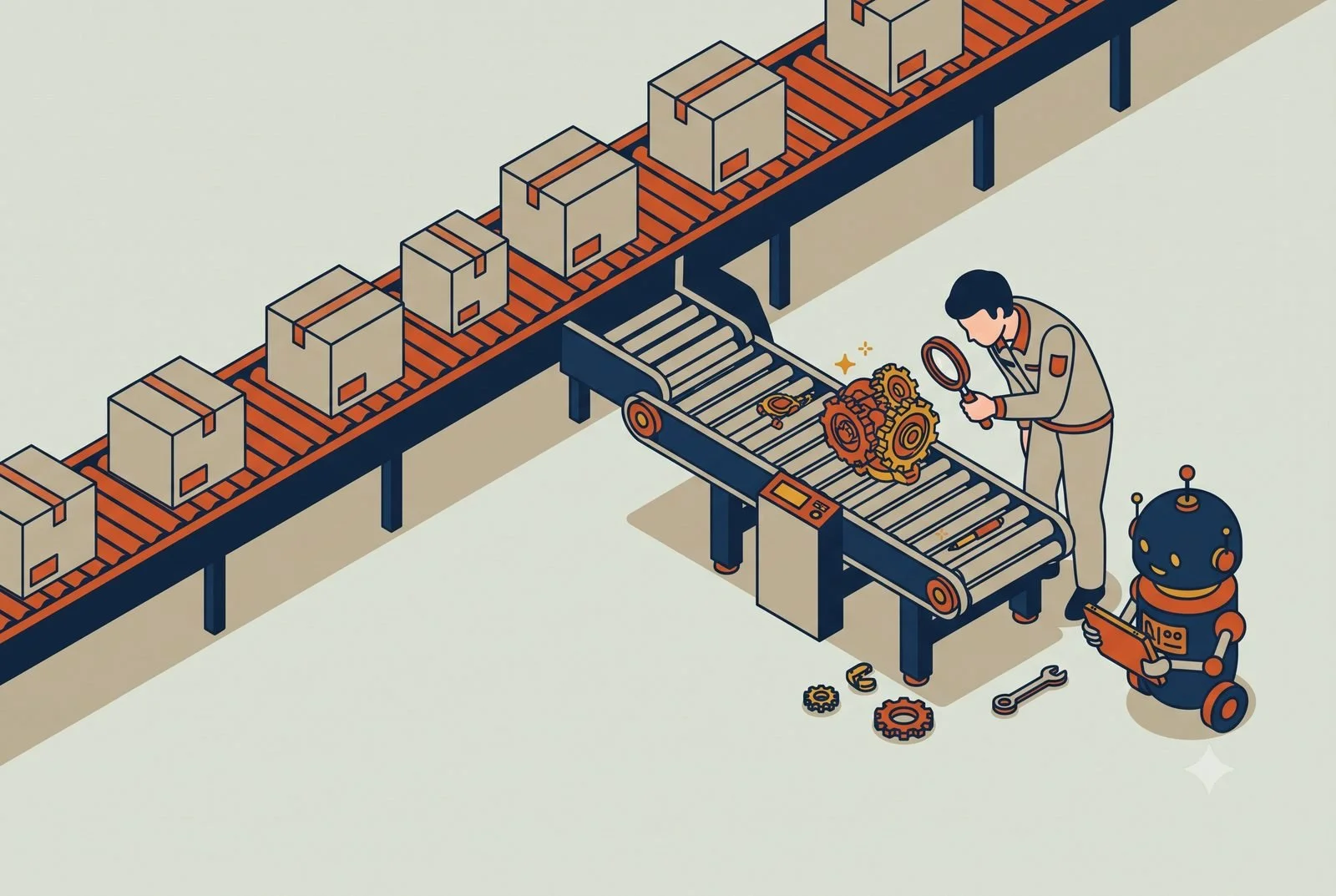
Over the last year, an AI button or assistant has shown up in just about every software tool you use. Your email, your CRM, your accounting software, your calendar, each one added an assistant and a little sparkle icon, usually with a friendly nudge to turn it on.

So you did. You've used it to draft a few emails, summarize a thread, maybe clean up a spreadsheet. It's been fine. Useful, even. But if you're honest, it hasn't changed much about how your business actually runs, and you're left wondering whether you missed a step that everyone else seems to have figured out.

You didn't. Here's the part nobody says out loud: turning on those AI features is fine, but it was never going to be the thing that changes your business. The real win is connecting the tools that should be working together, so the AI can see across them and remember what matters. Do that across enough of your software and files and you end up with something bigger than a chatbot. You get what we call an AI operating system, an AIOS: one layer that sits across your whole business and helps you run it, instead of a dozen disconnected assistants that each know one corner.

TL;DR: The AI buttons inside your apps are fine for drafting and summarizing, but each one only sees its own app. The step that changes the business is a workstation: one AI connected across your tools, set up with your context, that runs whole workflows. Built-in AI is a feature; a workstation is a coworker.

  • Built-in AI sees one app at a time; a workstation sees across all of them.

  • Built-in AI answers questions; a workstation runs workflows.

  • Built-in AI starts from zero every session; a workstation remembers your business.

The advice everyone's giving you

You've heard it from every vendor and every LinkedIn post: just turn on the AI in the tools you already pay for, and you're set. It's the single most common piece of AI advice going around right now. It's also where most businesses stop.

And that advice isn't wrong, exactly. Built-in AI is a real upgrade over doing everything by hand. If you're not using it at all, switch it on today.

But here's what nobody mentions. Built-in AI only reaches what it's connected to. The AI inside a single-purpose tool, your accounting software for example, only sees your books. The bigger assistants, the ones that can grow into that operating system, reach much further: across your email, your files, even non-Microsoft and non-Google apps once you wire them in. That wiring happens through connectors (MCP is the newer standard) and, for simple app-to-app steps, tools like Zapier and Make. Don't worry about the names yet, we break them down in another article. The point is that somebody has to connect the tools. Out of the box, most people never do that part, so they end up with a generalist (ChatGPT, Gemini, Claude, or Copilot) that has shallow access. On top of that, each of their tools still has its own built-in AI running in its own corner, none of them talking to the generalist or to each other. Once you connect your AI engine to your core tools, the game changes. That's when the productivity gains show up and you start seeing things you couldn't see before.

Why flipping the switch isn't enough

The work that actually moves your business almost never lives in one app. And there's a second catch most owners hit fast: the built-in AI in those apps doesn't remember your past chats with it.

Most built-in assistants start from zero every time you open them. They don't recall last week's conversation, the decision you made on Tuesday, or the way you like things done. It's like getting a sharp new temp every single morning who's never seen the place. And they definitely don't remember the data sitting in your other systems: your numbers in the accounting tool, your history in the CRM, the files on your drive. Every chat is its own little island, which means you retype and retrain it every single time.

Put those two gaps together and you get the ceiling. Think about a real question you'd want answered. "Which of my clients, service lines, or product lines are quietly becoming unprofitable?" The answer is scattered across your accounting tool, your time tracking, maybe your email or calendar, and your project management software. Out of the box, the AI you switched on isn't connected to all of that, and it doesn't remember what you told it the last time you asked. So it can't answer the question. You're left doing what you've always done: exporting reports, eyeballing spreadsheets, and hoping you catch it before the quarter closes.

That's the real ceiling on built-in AI. Not that it's weak. That nobody connected it to the tools the answer lives in, and nothing is holding the memory together.

A connected workstation fixes both gaps at once. Picture a Finance workstation tied into your accounting software, your time tracking, and your CRM at the same time. Now "which clients are becoming unprofitable" gets a real answer, because the AI can look across all three together. And it holds the context between sessions. It already knows your clients, your pricing, and the calls you made last month, so you're not re-explaining your business every time you sit down. Same idea for a Marketing workstation wired into your social media tools, your email platform, and your website analytics.

The shift is simple to say and easy to feel: built-in AI makes each tool a little smarter. A connected workstation makes your tools work together and remember what matters. Stand up a few of those workstations and you've got that AI operating system, one place to run the whole business from.

It's not just answers. It's workflows.

Answering questions across your tools is the first half. The bigger half is doing the work across them.

Once your tools are connected, the AI doesn't just look things up. It can run a sequence of steps that used to bounce between three or four apps and a person. A few real ones:

  • A new lead comes in. The workstation pulls their details, updates the CRM, drafts a personalized reply with three meeting times, and pings the right rep, all before you've finished your coffee.

  • A meeting wraps. The transcript turns into a recap email, a set of tasks in your project tool, and an updated record in the CRM, without anyone typing it up.

  • It's the end of the month. The workstation pulls the numbers from accounting, flags the clients trending unprofitable, drafts the summary, and drops it in your project management tool for review.

Every one of those crosses several tools that never talked to each other before. That's where the real time savings live. Not in a faster email, but in a five-step process collapsing into one.

The steps get stitched together a few different ways: saved skills (reusable recipes your AI runs on command) for the AI-driven work, and tools like Zapier and Make for the straight app-to-app handoffs. You don't need to know which is which yet, we go deeper on the toolkit in the next article. For now, the takeaway is that a connected setup can run the workflow, not just answer your questions.

What we keep seeing

We've built these setups for a beach cart rental business, a marketing agency, a restaurant, an HR firm, and a software startup. Different industries, same pattern every time.

Nobody got their gains from built-in AI or from one chat engine. They got them from grouping the right tools around the right role, then letting the AI run the work across them. The rental business runs an Operations workstation and a Marketing workstation, each connected to the handful of tools that role actually touches, saving hours per employee every week. The HR firm has a Finance workstation pulling live profitability by client and service line, something none of their built-in AIs did on their own, because the data lived in four different places that had to be connected first. That visibility let them refocus on their most profitable industries. The marketing agency wired its project management tools, its meeting transcripts, and its files into role-based workstations and started handling more clients without adding headcount.

The common thread: the value showed up when related tools got connected and started working together, not when a single tool got a smarter button. Every one of these businesses had the built-in AI buttons turned on too. That's just not where the lift came from.

Who this isn't for

Three honest exceptions, because this position isn't absolute.

If you're a solo operator running on one or two tools, built-in AI might genuinely be all you need. There's not much to connect when everything already lives in one place. Don't build a connected workstation to solve a problem you don't have.

If you're in your first month with AI, start with the built-in features. Get comfortable. Wiring five tools together on day one is a good way to get overwhelmed and quit. Built-in is the on-ramp. Just don't mistake it for the destination.

And if you're in a heavily regulated business, healthcare, financial services, defense, your ability to connect tools may be limited by compliance as much as by capability. The workstation idea still holds. You'll just need tighter security and more care about what gets connected.

What to do instead

You don't need to rip anything out. You need to group what you already have.

Pick one role where the work is clearly leaking time. Finance, marketing, operations, whichever one you find yourself babysitting most. List the tools that role touches every week. Then ask one question: are those tools talking to each other, or are you the one carrying data between them?

If you're the integration layer, that's your first workstation. Connect those tools to one AI environment built around that role, and let it both answer across them and run the work across them. Start with the one role doing the most damage. Get value there. Then add the next workstation, and the next, until the pieces add up to an operating system for the whole business.

Keep the AI buttons on. They're fine. Just stop expecting the button to do the job that connecting your tools was always going to do.

Questions we hear about built-in AI

Should I turn off the AI features in my apps?

No. Keep them for quick in-app work like drafting an email or summarizing a thread. They’re useful. They’re just not the thing that changes how the business runs.

What’s the difference between built-in AI and an AI workstation?

Scope and memory. The AI in your CRM sees only your CRM. A workstation is one AI connected to your CRM, email, books, and files, so it can answer questions and run work that crosses systems. The setup behind it is covered in The Six Layers of an AI Setup That Actually Works.

Where should I start if AI still feels underwhelming?

Point a general AI at the apps you already pay for, one connector at a time, and ask a question no single app can answer. Stop Buying New Software walks through the one-week version.This is part of the Practical AI Toolkit series. For the full framework on workstations and agents, start with Cornerstone 2: The AI Workstation Playbook. Read next: Harnessing to 10x the Apps You Already Pay For.

Read More
Strategic Use Mark McCary Strategic Use Mark McCary

You Decided to Use AI. Don't Automate Everything.

Deciding to use AI isn’t a decision to automate everything. The order that works: assist first, augment next, automate what’s earned trust.

The fastest way to waste your first six months with AI is to treat the decision to use it as a decision to automate.

It's an easy mistake to make. You finally get past the "is this real" stage, you're convinced AI can help the business, and the natural next move feels obvious: pull up your processes, find the repetitive ones, and start automating them. Map it all, wire it all up, set it loose.

That's the wrong first move. Not because automation is bad, but because you're skipping the part that makes automation work, and you're confusing two different things that happen to get filed under the same word.

TL;DR: Treat AI like a new hire, not a vending machine. Give it judgment work with review before you hand it the keys, leave the must-be-identical work to automation tools, and start with one painful workflow instead of everything at once. Trust is earned in weeks, not assumed on day one.

  • AI: judgment work, reviewed until it earns autonomy.

  • Automation: rote work that must run identically every time.

  • Start: one workflow that hurts, then expand from what proves out.

What everyone tells you to do

The standard advice is reasonable on its face. List your workflows. Find the ones that are repetitive and rules-based. Automate those first. Build from there.

The advice isn't wrong about the destination. It's wrong about where you start and how fast you move. It assumes you already know which processes are worth automating, that those processes are stable enough to hand off, and that your team will trust the output. On day one, none of those things are true. You haven't used the tools enough to know what they're good at, and you definitely haven't built the trust to let them run unattended.

Automate first, and you'll automate the wrong things, perfectly.

Think of it like a new hire

You wouldn't hand a new employee the keys to a process on their first day. You'd let them shadow you for a while. Then you'd let them do the work and check it before it goes out. Then, once they've proven they get it, you'd turn them loose and only step in on the weird stuff.

Bringing AI into your business works the same way. It moves through three stages.

Stage one: assisted. You drive, AI helps. This is the shadow-along phase. You, in a chat window, doing your actual work with AI sitting next to you. Drafting the proposal. Cleaning up the messy spreadsheet. Asking it to find the holes in your reasoning before a big call. The output isn't the point yet. The point is learning where it's genuinely good and where it falls down, and building the instinct for when to trust it. You'll be surprised both directions. It'll nail things you assumed were too nuanced, and whiff on things you assumed were simple.

This stage looks like nothing is happening. No systems, no integrations, no automation. Just you getting fluent. Don't rush it. The teams that skip it are the ones who later can't figure out why their fancy automation produces garbage they don't trust.

Stage two: augmented. AI does more of the doing, you supervise. Now it's earned a longer leash, and you start handing off bigger pieces. This is where Cowork and the lighter automation tools earn their place. AI assembles the new-hire onboarding packet and you review it instead of building it from scratch. A tool like Make or Zapier handles the boring glue between your apps, moving data from the form to the CRM to the calendar without you copying and pasting. You're still in the loop, but you're checking work instead of doing all of it. This is also where you start tweaking. The first version of any handoff is mediocre. You watch it run, you adjust, it gets better.

Stage three: autonomous. AI runs the process, you set the rules and check the exceptions. This is real automation. A process runs end to end without you touching it, and you only look when something falls outside the lines you drew. This is the stage everyone wants to start at, and it's the one you reach last, because you can only safely let something run unattended after you've watched and tweaked it enough to finally trust it.

Two shapes show up most here. Scheduled work runs on a clock: every Monday at 6am it pulls last week's numbers, writes the summary, and has it in your inbox before you've had coffee. Triggered work fires on an event: a new client signs, and onboarding kicks off on its own, the welcome email goes out, the folder gets created, the kickoff call gets scheduled, the task list populates, all before anyone on your team lifts a finger. Reporting and onboarding are two of the most common processes that end up here, because they repeat, they follow a pattern, and once you trust the output you rarely need to touch them.

Most mature setups aren't living at one stage. They're running all three at once, on different work. You're still drafting in a chat window for the high-judgment stuff, supervising a few augmented workflows, and letting one or two well-worn processes run on their own. The stages aren't a sequence you graduate out of and leave behind. You end up running all three at the same time.

AI and automation are not the same thing

Here's the distinction that the "just automate it" advice quietly skips, and it's the one that costs people the most.

Automation follows rules you wrote. When this happens, do that. It's fast, it's cheap, it's reliable, and it breaks the instant reality stops matching the rules. The vendor changes a form field and the whole chain snaps. Automation has no judgment. It does exactly what you told it, including when what you told it is now wrong.

AI applies judgment to messy input. It reads the weird email that doesn't fit the template and figures out what the customer actually wants. It handles the case you didn't anticipate. It's slower and less predictable than automation, and that unpredictability is the price of it being able to handle things you never explicitly planned for.

These are different tools for different jobs, and the magic is usually both together. Automation moves the data; AI decides what the data means. Automation files the invoice; AI flags the one invoice that looks wrong. When someone says "we automated our intake," the good version is almost always AI reading and deciding, with automation doing the mechanical hauling around it.

Lump them into one bucket called "automation" and you'll reach for rigid rules where you needed judgment, and you'll burn money asking AI to do something a five-dollar Zapier task would have nailed.

The thing nobody warns you about

Here's what actually happens around stage two, and it's the real payoff. You go to automate a process, and you realize the process shouldn't exist in that shape at all.

You built that weekly report because someone needed it in 2019, and every week since, a person has spent two hours assembling it. The instinct is to automate the assembly. The better question is why anyone is assembling a static report when AI could answer the underlying question on demand, the moment someone actually has it. You weren't supposed to speed up the report. You were supposed to delete it.

This is the difference between using AI to do the old thing faster and using it to do a better thing. Most of your existing workflows are shaped around what humans can reasonably do by hand. A lot of them stop making sense when that constraint lifts. The teams that win big aren't the ones who automated their 2019 processes fastest. They're the ones who used the moment to ask which of those processes deserved to survive at all.

You can't see this on day one. You see it after you've spent time in stages one and two, watching how the work actually flows. Which is one more reason not to automate everything up front: half of what you'd automate, you'd later wish you'd rebuilt instead.

Before any of this: point it at the right work

None of the stages help if you aim them at the wrong target. Before you decide what to assist, augment, or automate, you need a clear-eyed read on readiness, and readiness isn't about whether your tech is fancy. It's three plain questions about each process you're tempted to touch.

Is the process stable, or does it change constantly? Stable processes are safe to hand off. The ones still in flux belong in stage one, where a human is steering anyway.

Where does the data live, and can the AI actually reach it? A workflow that depends on information trapped in someone's head or a PDF nobody can search isn't ready, no matter how repetitive it is.

Does the team trust the output yet? Trust isn't a feeling, it's earned by watching the thing work. If nobody believes the AI's answer, automating it just means nobody believes it faster.

Run those three questions across your work and the starting point picks itself. The stable, reachable, already-trusted stuff is ready to move toward automation. Everything else stays human-led while you build the reps.

Who should ignore all this and automate fast

The slow ramp isn't universal. Some teams genuinely should jump.

If you've got a high-volume, dead-simple, rules-based process that hasn't changed in years (the same data moving from the same form to the same system, a thousand times a month) automate it now. You don't need a maturity journey to copy a field from one app to another. That's plumbing, and plumbing is what Zapier was built for.

Some of it you shouldn't build at all. Lead handling is the clearest case. If a web lead should get qualified, routed, and chased automatically, your CRM probably already does it. GoHighLevel, Salesforce, and HubSpot handle most of that out of the box. Turning it on isn't an AI project, it's a setting you're already paying for. Don't rebuild what you own.

If someone on your team already lives in this stuff, has the scar tissue, and knows where the bodies are buried, you can compress the timeline. The reason most teams take it slow is that they're building judgment they don't have yet. If you've already got that judgment in-house, move faster.

And if the cost of a mistake is genuinely zero (the worst case is a slightly wrong draft a human reviews anyway) you can be more aggressive. The caution scales with the stakes. Low stakes, move quick.

The point isn't that automation is dangerous. It's that automation without the reps behind it is a guess wearing a lab coat.

Where to actually start this week

Pick one task you do every week that you'd hate to train a new hire on. The fiddly one with all the context locked in your head. Employee onboarding. The monthly client report. The proposal you rewrite from scratch every time.

Don't automate it. Open whatever AI your business runs on (Claude, Microsoft Copilot, ChatGPT, Gemini) and do that task next to it, in a chat window, for a couple of weeks. Watch where it helps and where you have to take the wheel back.

That's stage one, and it's the whole foundation. Everything else (the augmented workflows, the automation, the processes you eventually rebuild) gets easier and safer once you actually know what your AI is good at. You can't shortcut your way to that knowledge. But you can start figuring it out on Monday.

If you want a second opinion on which of your processes are ready to move and which should stay human-led for now, that's the kind of thing we map with clients early. Worth a conversation if it's on your roadmap.

Questions we hear about automating with AI

What’s the difference between AI and automation?

Automation tools like Zapier and Make run identical steps on rails, and that rigidity is their job. AI handles work that needs judgment and bends with variation. They pair well: automation moves the data, AI makes the calls. Don’t Micromanage Your AI covers how to instruct each.

What should I never fully automate?

Anything where a wrong answer is expensive and judgment-heavy: pricing exceptions, sensitive client communication, hiring calls. Keep a human review step there permanently, not just during rollout.

How do I pick the first workflow?

The one your team complains about most. A visible win in the first two weeks sells the rest of the rollout better than any plan. The order to build in is covered in The Six Layers of an AI Setup That Actually Works.

Read More